

The enclosure is about the same size as a standard 2.5” laptop hard drive and has a nice aluminum finish. There are media slots or connections on every side of the device, rather than using an all-in-one interface like several card readers employ.
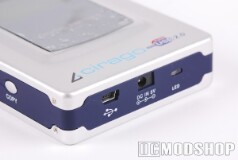
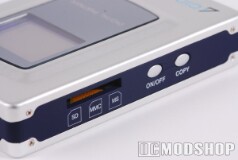
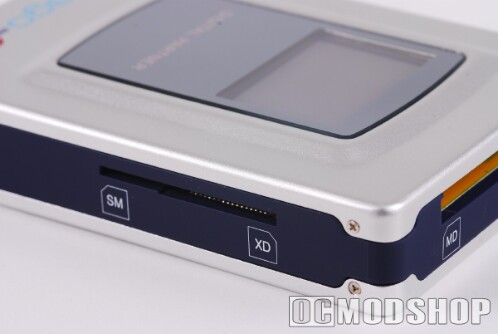
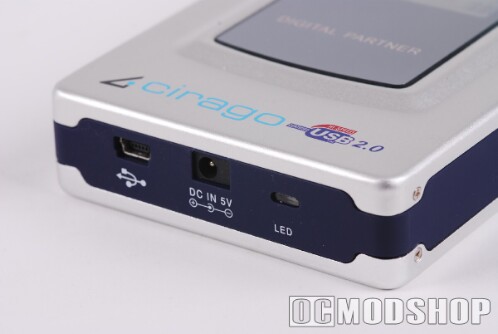
On the left of the device is an On/Off button, copy button, and SD/MMC/Memory Stick slot. On the top is a large Compact Flash/MD slot, and on the right is a shared SM/XD card slot. The bottom of the device has a standard mini-USB connection, DC in port, and a red power LED. The front of the device has a small 1 inch monochrome status LCD screen with blue backlighting. Although a 5V DC adapter is included, the drive can be fully powered (and charged) by the USB connection.
The front and back of the device are secured with mini-Phillips screws, that can be removed with any small screwdriver set. If your device came with a hard drive pre-installed, then the back is secured with non-standard “Y” screws to prevent the average consumer from replacing the hard drive, which invalidates the warranty.
Any standard 2.5” ATA laptop hard drive can be used in this device, which uses standard ATA connections. Since the device uses the FAT32 file system, then you are limited to 132GB, so if you use a larger hard drive then you won’t be able to use all of the available storage.
Cirago In use
The device really is plug-and-play. Whenever the device is turned on, a brief initialization occurs where the device checks available storage space, battery life, and the capacity of any inserted media. Any new media card that’s inserted is immediately recognized, and the sum of the files (in megabytes) is displayed. There were a few times when inserted media was not recognized, but cycling the power on the device always did the trick.
To copy any (and all) inserted media, you simply press the “Copy” button. The LCD then displays a percentage bar, and a simple animation begins (which mimics Windows’ copy animation of small folders being whisked away to a hard drive). The drive capacity only updates once the copy process is done, or a media card is removed prematurely.
Some digital cameras use the same file names when a new card is inserted (DSC0001, DSC0002, etc), so a picture may have the same name as a completely different photo on another drive. Since the copy process is very simplified, how do you make sure that files aren’t accidentally overwritten?
Cirago’s solution to this problem is to create a new directory every time the copy button is pressed. If you press the copy button three times with the same card installed, then you will have 3 separate directories, all containing the same data. This ensures that data is never overwritten, but can also waste space if you have to pull out the card or turn the device off.


