
• Sign in / Join

Login

Forgot your password?
Do not have an account ?Register here
X

Register

Have an account?Login here
X
  • Home
  • Blog
  • Image Gallery
  • News Archive
    • Hardware News
    • Gaming News
    • Affiliate News
Trending now

800,000 Views on YouTube channel

New time for podcast

Xbox Starts FIre; Complains About Heat |…

FSR 4.1 Black Flag Resynced | Driver…

The Steam Leveling Trick Nobody Knows

Xbox layoffs (PARODY) | The real reason…

Assassin’s Creed Black Flag Remastered completely crashes…

Xbox layoffs, Sony backpedals, Valve cashes in…

Budget Mic Earns Sweet Streamer Money? |…

This Budget Controller Exposed Everything Wrong With…

OCmodshop.com

  • Hardware
    • Audio
    • Cases
    • Coolers
    • Gadgets
    • Home Theater
    • Input Devices
    • Laptops
    • Memory (RAM)
    • Motherboards
    • Networking
    • Power Supplies
    • Processors (CPU)
    • Storage
    • Video Cards
  • Gaming
    • Gaming Accessories
    • Game Walkthroughs
    • PC Games
    • Xbox
    • Playstation
    • Nintendo
  • Articles
    • How-To Guides
    • Case Mod Projects
    • Software
    • Event Coverage
    • Movies
    • Interviews
  • Podcast
FacebookTwitterYoutubeTwitchSteam
How-To Guides

How to Auto-Login with Windows 7

by Alan McCloskeyMay 9, 2007August 1, 201401
Share0


Since your Media Center is set up to be an appliance, there’s no need to login every time it boots. Although it will automatically login if you leave your password blank, the default network policy will not map network drives with blank passwords. With Windows XP I used TweakUI to automatically login, but now Vista lets you do this without additional software.

Go to the Start Menu, type netplwiz in the search box, and press Enter If you have UAC active (which you should), you’ll need to give permission for the program to start.
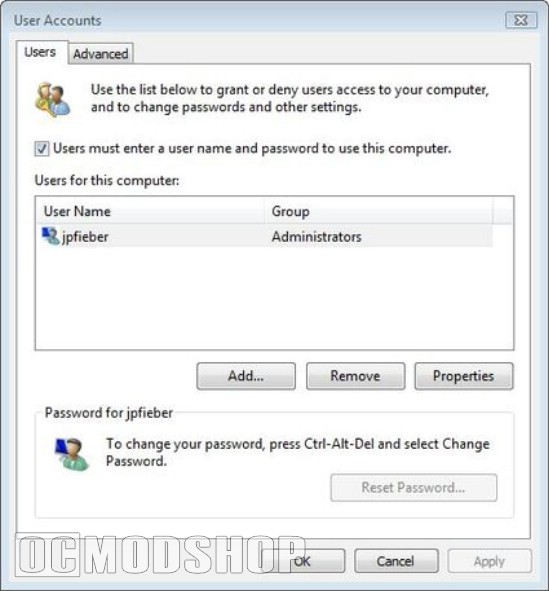
The User Accounts window will open. Notice the option Users must enter a name and password to use this computer, uncheck the box and click OK.

You will be prompted for the login name and password of the user that you want automatically logged in. Enter the information for a user account that already exists and click OK.
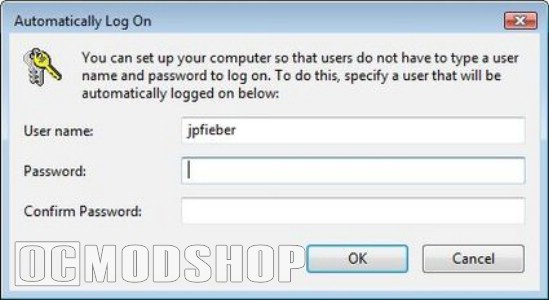
Now Vista will automatically login without any user intervention!

You should always have a password assigned, even if you are automatically logging in, to help prevent remote access to your machine If your machine is physically accessible to others, setting your machine to automatically login will allow them the same access that you have.

Post Views: 2
Media CenterWindowsShare0
previous post
All the MAME ROMs!
next post
Take Ownership of Windows System Files
Alan McCloskey
Alan is a web architect, stand-up comedian, and your friendly neighborhood Grammar Nerd. You can stalk him on the Interwebs via Facebook and follow him on X @ocmodshop.

Related posts

Create a Custom Boot Logo for Windows

Guest WriterMarch 10, 2009July 4, 2014

8TB NAS – Upgrading the Primary Synology NAS Volume

Alan McCloskeyJanuary 22, 2011September 12, 2014

Pinnacle PCTV HD PCI Capture Card Review

Alan McCloskeyOctober 31, 2007August 2, 2014

Recent Posts

  • 800,000 Views on YouTube channel
  • New time for podcast
  • Xbox Starts FIre; Complains About Heat | OCmodcast Episode 10
  • FSR 4.1 Black Flag Resynced | Driver Update Disaster
  • The Steam Leveling Trick Nobody Knows
OCmodshop.com
FacebookTwitterYoutubeTwitchSteam
@2026 - ocmodshop.com. All Right Reserved.
  • About Us
  • Terms of Use / Privacy Policy
  • Copyrights
  • Our Rating System
  • Publish an Article on OCmodshop
  • Contest Rules
OCmodshop.com
FacebookTwitterYoutubeTwitchSteam
  • Hardware
    • Audio
    • Cases
    • Coolers
    • Gadgets
    • Home Theater
    • Input Devices
    • Laptops
    • Memory (RAM)
    • Motherboards
    • Networking
    • Power Supplies
    • Processors (CPU)
    • Storage
    • Video Cards
  • Gaming
    • Gaming Accessories
    • Game Walkthroughs
    • PC Games
    • Xbox
    • Playstation
    • Nintendo
  • Articles
    • How-To Guides
    • Case Mod Projects
    • Software
    • Event Coverage
    • Movies
    • Interviews
  • Podcast
Manage Consent
To provide the best experiences, we use technologies like cookies to store and/or access device information. Consenting to these technologies will allow us to process data such as browsing behavior or unique IDs on this site. Not consenting or withdrawing consent, may adversely affect certain features and functions.
Functional Always active
The technical storage or access is strictly necessary for the legitimate purpose of enabling the use of a specific service explicitly requested by the subscriber or user, or for the sole purpose of carrying out the transmission of a communication over an electronic communications network.
Preferences
The technical storage or access is necessary for the legitimate purpose of storing preferences that are not requested by the subscriber or user.
Statistics
The technical storage or access that is used exclusively for statistical purposes. The technical storage or access that is used exclusively for anonymous statistical purposes. Without a subpoena, voluntary compliance on the part of your Internet Service Provider, or additional records from a third party, information stored or retrieved for this purpose alone cannot usually be used to identify you.
Marketing
The technical storage or access is required to create user profiles to send advertising, or to track the user on a website or across several websites for similar marketing purposes.
  • Manage options
  • Manage services
  • Manage {vendor_count} vendors
  • Read more about these purposes
View preferences
  • {title}
  • {title}
  • {title}