

Windows Mail stores your email, folders, accounts, newsgroup and other information in its own storage folder, which is hidden from the user by default for their own protection. What do you do if you want to change the storage location? Worse yet, what if you have a system problem and need to recover your email archive? Here’s how to move Windows Mail storage folder.
Windows Vista comes with the new “Windows Mail”, which replaces Outlook Express (that comes bundled for free with Windows XP). Many people end up using this email client because it’s free and is robust enough for most people’s email needs, and who doesn’t use email these days?
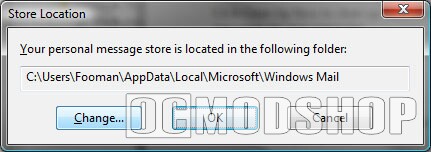
By default this folder is on the C: drive under the \AppData\Local\Microsoft\Windows Mail directory, so if you need to recover your email store, that is where to look. To make Windows Mail use an existing archive, or change the location of the archive store, follow these procedures:
1. Click Tools and select Options.
2. Select the Advanced tab.
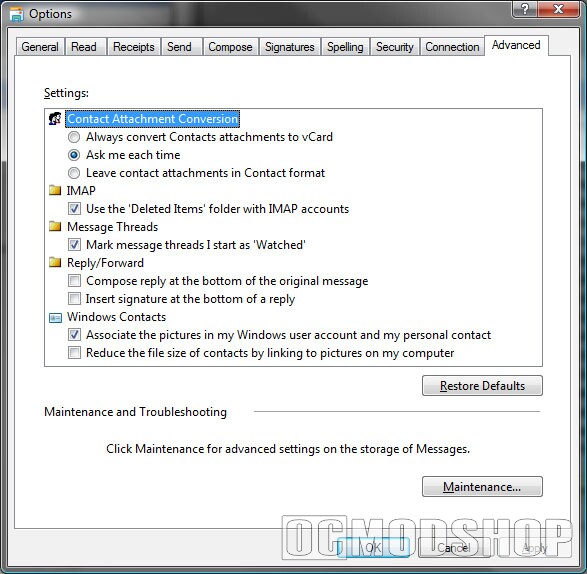 3. In the Maintenance and Troubleshooting section, click the Maintenance button.
4. In the Maintenance dialog box, click the Store Folder button.
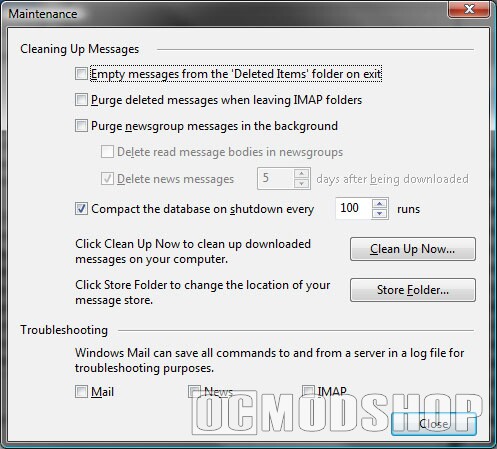
5. In the Store Location dialog box, click the Change button.
6. Browse to the desired location and click OK.
7. Click OK to close the Store Location dialog box.
8. Click Close to close the Maintenance dialog box.
9. Click OK to close the Options dialog box.



2 comments
I would like to copy my windows mail local folders and inbox folders to another computer. How ???
Did you ever get a reply on your question? I'm interested in finding out as well.
Thanks,
Eddie
Comments are closed.