

Software
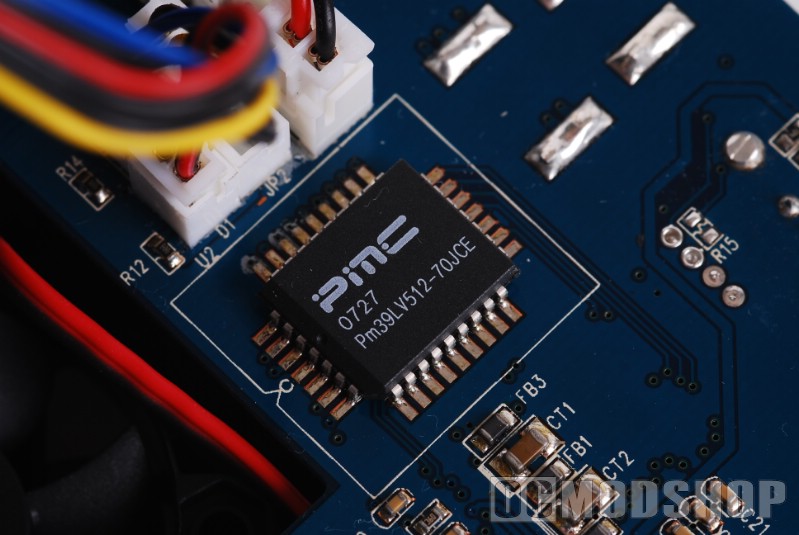
The iNEO Enclosure is very easy to install, all of the newer operating systems (Windows XP, Vista, 2003, 2008, OSX and Linux) have the native drivers built in to support this hard drive enclosure.
In addition to the native hard drive support, iNEO provides software called PCClone EX with the enclosure. (http://www.gotofnet.com/ANSI/link.php?filename=products/PCClone_EX/index.htm) PCClone EX is a software package that supports 1 button backup along with traditional backup support.
1 Button Backup is a really nice feature, as it gives you a very simple and easy way to backup your computer with a touch of a single button. The button is located on the front of the enclosure and can be configured to work with many of the backup software programs that support 1 touch backup.
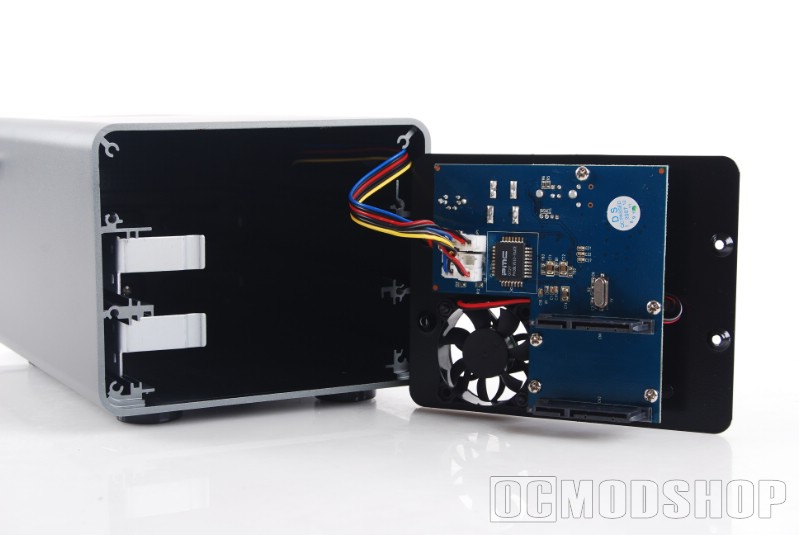
Hardware
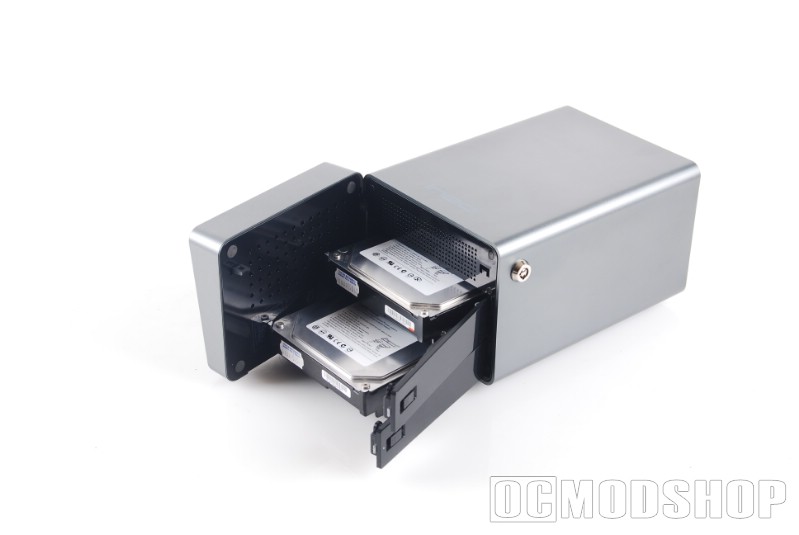
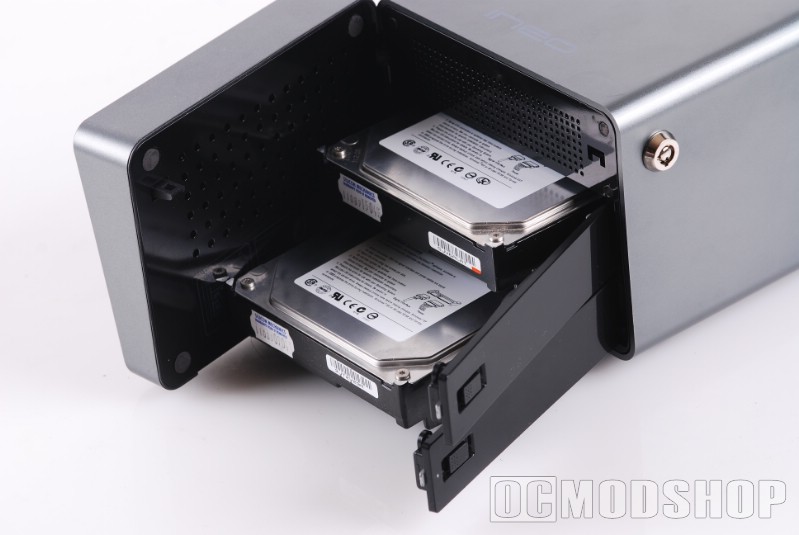
This is one area where the iNEO enclosure outshines most other enclosures on the market, the tool-less design makes it a snap to install your hard drives. In addition, iNEO has provided a lock to ensure that hard drives are not mistakenly removed.
To install a drive:
- Unlock the enclosure with the provided key.
- Swing open the front cover.
- Unlatch the drive cover.
- Slide in the SATA hard drive.
- Close the drive cover.
While it’s recommended, you do not need to lock or close the front enclosure cover to operate the device. After inserting your hard drives into the enclosure, you are ready to power it up and connect it to your PC.
JBOD = Just a Bunch Of Disks
When you insert 2 drives into the iNEO Enclosure, the internal controller will combine the drives into JBOD mode. JBOD mode is when the hard drive controller takes the storage of each individual hard drive and combines it into 1 logical larger hard drive. In my case, when I combined my 400GB and 250GB hard drives I am provided a single larger 650GB JBOD drive.
As with most technologies, JBOD mode has its advantages and disadvantages. For advantages, the single larger drive is always a plus for most people as you can then have more storage in a single location. This is especially useful for Media Collections, Downloads, Etc. It’s also nice, to not have multiple drives to keep track of when you are trying to locate stuff on your computer.
There are 2 primary disadvantages with JBOD mode:
- Flexibility
With JBOD mode, after you set your initial 2 drives, it becomes almost impossible to change to any other drives. Example: I have a 400GB and a 250GB to make a 650GB. In the future, I can’t just but a 500GB drive and stick it in to make a 900GB drive and keep all the exiting data. Conversely, I cannot just remove the 250GB drive. If I do, the drives will both have to be reformatted and reconfigured. - Failures
In a normal drive, if your drive fails, you lose the data for that 1 single drive. With JBOD, if one of the two drives fails, you lose all the data on BOTH drives. This to me becomes a gamble as the changes of one out of two drives going bad are higher than one out of one.



1 comment
It can be used as 2 separate drives. Just insert the first drive and format, power off then insert the second drive and format… Walla! 2 drives, one enclosue!
Comments are closed.