

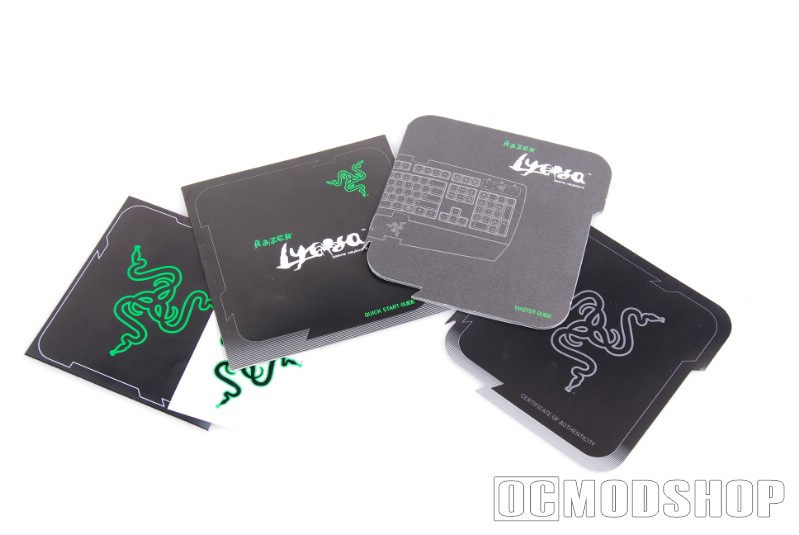
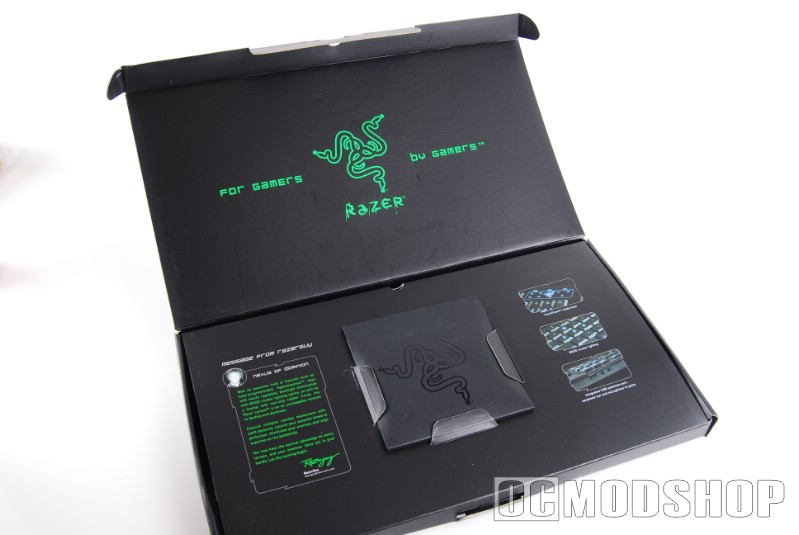
The keyboard comes in a nice black box with a description and other marketing fluff. When you open they box, you are met with a square packet that includes the keyboard’s manual and driver CD, a manual, and some Razer stickers. Below this cardboard flap is the keyboard itself and cable, all tucked in neatly.
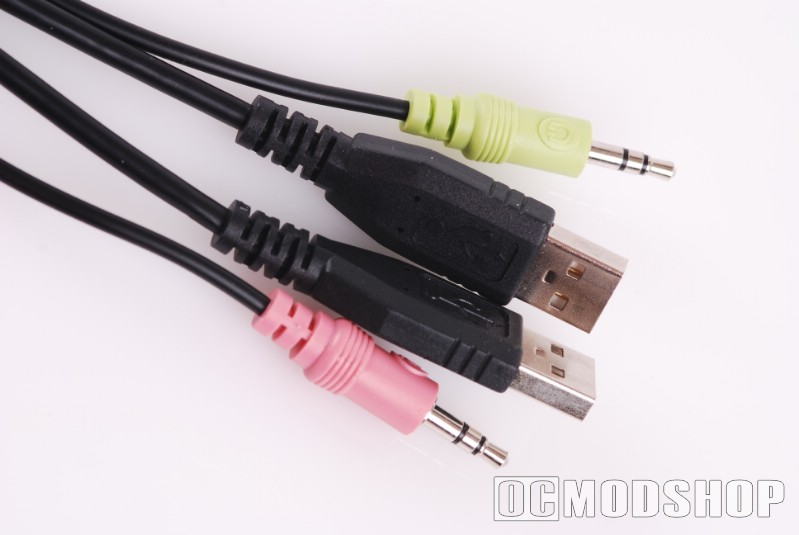
At first, the keyboard appears rather featureless, and the keys have no lettering at all (more on this later). An unusually thick cable comes from the rear of the keyboard, which splits out into two USB plugs (one for the keyboard, and one for the pass-thru port), a green headphone jack and pink microphone jack. I would prefer to see only one USB cable, but I can uderstand why Razer uses a seperate lead for the on-board port. They keyboard’s USB rate can be set to 1000Hz, and most mice do not operate at this level, so if a mouse were attached to the same port then it could wreak havoc (and not in the good way).
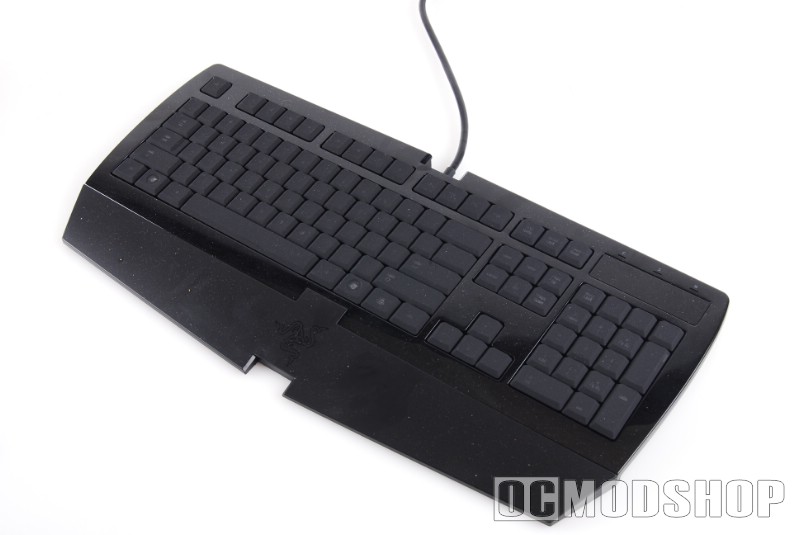
When the keyboard USB port is plugged in, the keyboard’s lettering becomes visible as the blue backlights fade in. They lights aren’t very bright, which can be good news or bad news depending on your preferences, and there is no way to adjust their color or brightness (as the Ideazon Merc Stealth does). On one hand, you don’t want bright lights distracting you while you game. On the other hand, most PC strategy games use complex key combinations, and even touch-typists will have to look down to see the key they need to hit…
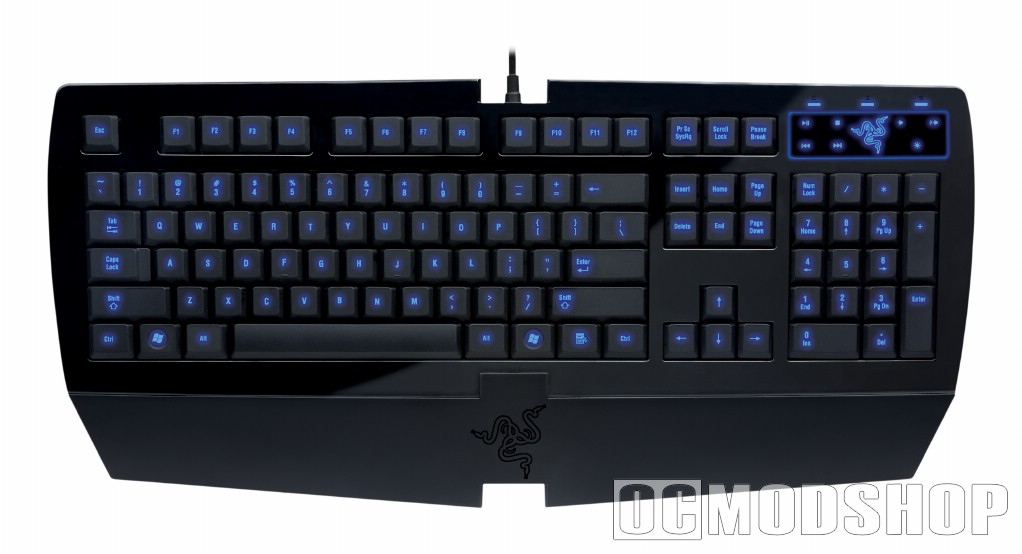
The top right of the keyboard has a neat little Media Control touchpad. Don’t worry, the “Scroll Lock” “Caps Lock” and “Num Lock” indicators are still there, with stylish blue LEDs. The lightest touch of your finger will allow you to perform standard media controls (Play, Pause, Stop, Skip, Voume, etc.). There is also a “light” button which allows you to toggle the mode of the keyboard’s backlight. You can toggle between Full (all keys backlit – a feature not present on Razer’s Tarantula), WASD (only the WASD keys are backlit), or Off. When in WASD mode, the keys are noticably brighter, which makes me wish that the brightness could be adjusted for the entire keyboard.
All keys have a nice rubbery feel, but they feel somewhat slick for being rubberized. The keys are also very low profile, much like they keys on a typical laptop. This does reduce the distance your fingers have to travel, but it does take getting used to. The wrist rest is comfortable (for a non-ergonomic keyboard), but does seem to induce sweating with prolonged use. The base of the keyboard is also made of shiny acrylic, which picks up fingerprints (which isn’t good for a product meant to be handled by your hands).
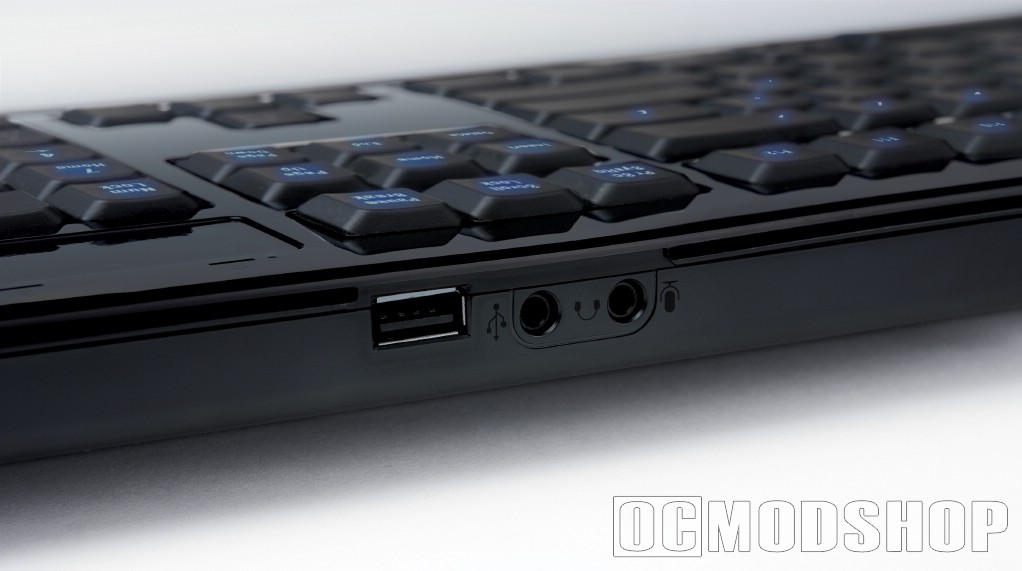
The integrated headphone, microphone and USB port will certainly make gamers happy. Many headsets to not have very long cords, which can make reaching the back of your PC uncomfortable. Now you can plug your mouse and headset right into the keyboard’s passthrough plugs.


