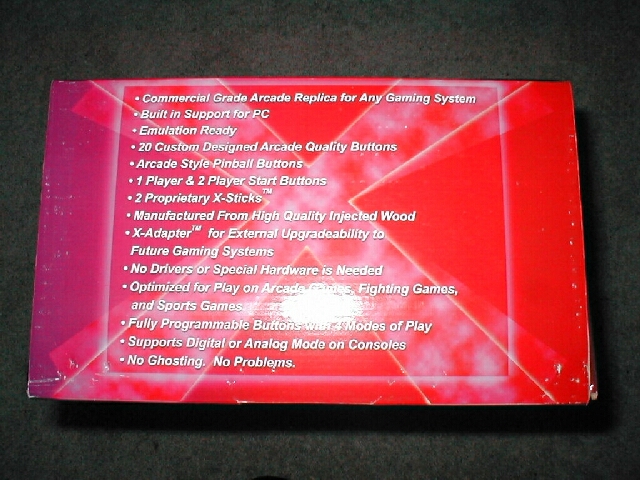
The X-Arcade comes in an awesome box, when I first got the package I felt like a kid again and couldn’t wait to open it. There is a MAME logo on the front of the box because it fully supports MAME and other emulators and console systems.

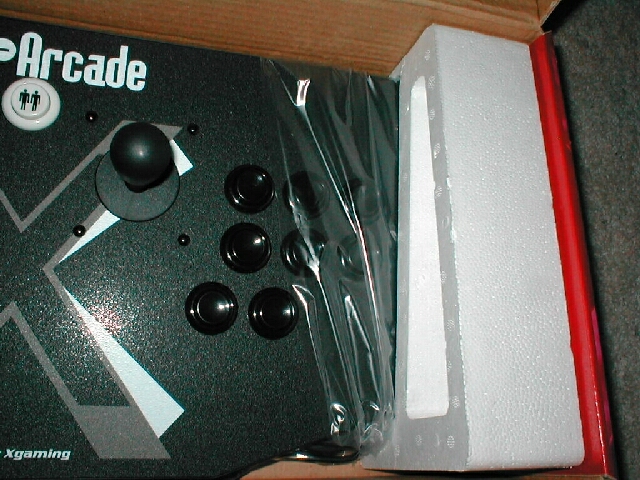
The controller is packed with some styrofoam around the edges so that this awesome controller doesn’t get damaged because it would be a shame if it did. There is also some plastic around the edges so that it doesn’t get scratched at all.

Alright now that we have gotten by the packaging stuff lets see how this baby feels. I took the controller out of the box and it is solid as a rock. Because this controller is made out of really high quality parts it will be able to take all the aggression you can dish out, because we all know when we are playing games we tend to get a little crazy on the controllers and buttons especially when we lose. The edge of the controller has T-molding around it so that there are no sharp edges and it looks really professional and the entire surface is covered with Formica which makes it look really nice and professional. I am really impressed with the quality of this product, it’s really nice that they used the best parts possible to make this look really nice.
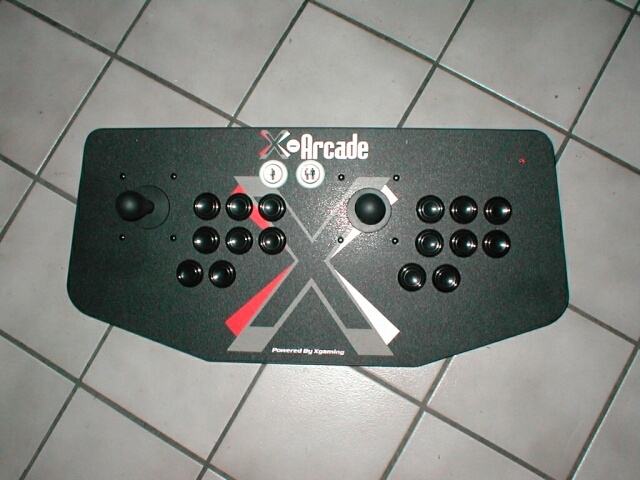
The joystick of the controller has a authentic feel and sound to it, and is very easy to maneuver. The biggest downfall to playing games on a computer and gamepad is the fact that it is usually hard to do the moves you want to when you need to. All of the buttons have a sound which is one of the coolest sounds, you know what I’m talking about.
When you push a button on the X-Arcade it doesn’t just go down it makes the cool arcade clicking sound. Each player has a controller and 8 buttons there are also a 1 and 2 start button to make it feel even more authentic. Each side of the X-Arcade has one button which can be used for playing pinball games or can also be used for whatever you want when you program it.
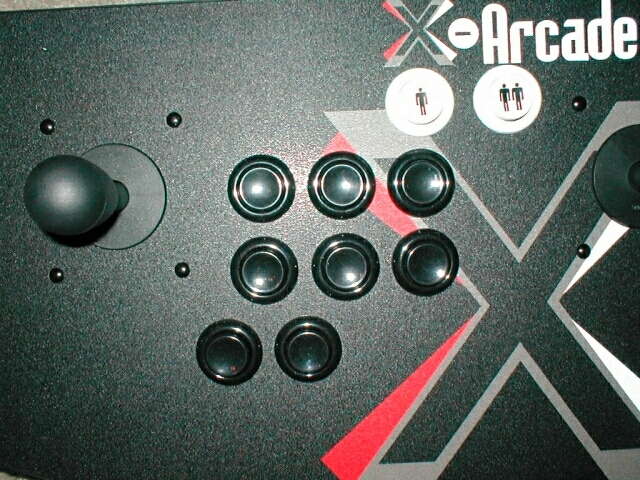
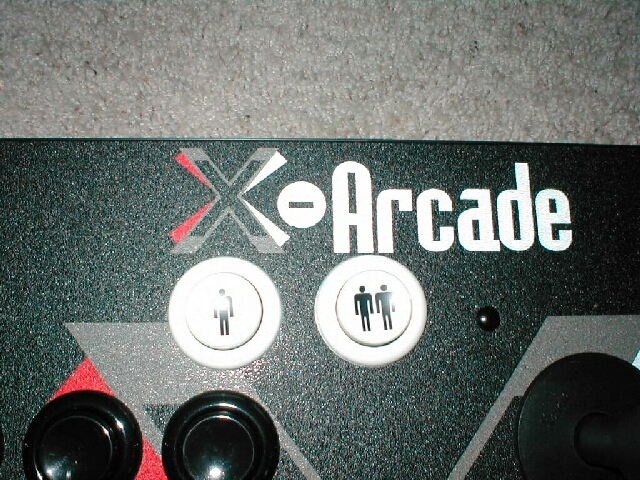
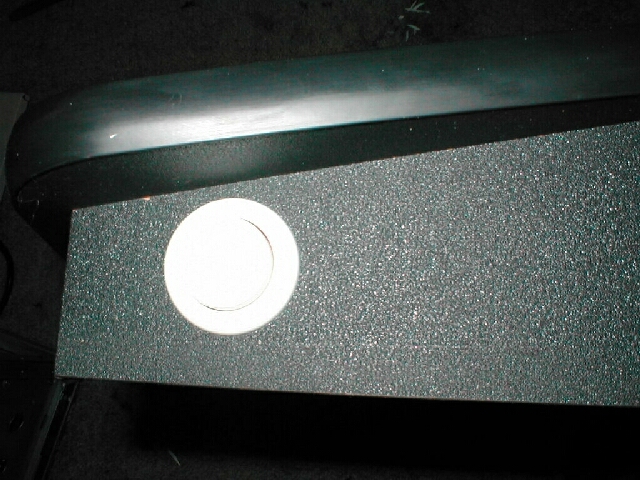
The X-Arcade was designed to be used with every emulator, console, and game which is really cool because it makes this product really flexible. When they developed this controller they wanted to keep everything as simple as possible.
Because they know just as well as you and I do that installing drivers and software can be a real pain and can cause problems they designed the X-Arcade to have no need for drivers or software. They designed a hardware chip into the unit which does everything for you also the hardware chip makes it possible to press more than one button on the X-Arcade at the same time and have them both work, which a keyboard could not do.
The X-Arcade has 4 memory slots for programming the controller but #1 can not be changed because it is factory set to the below settings. As you can see all of the buttons are bound to keys on the keyboard which is why programming and use is very easy.

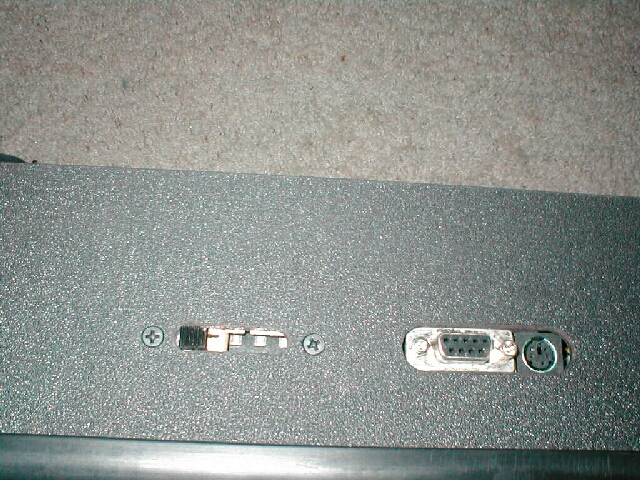
The X-Arcade is really easy to program, on the back of the controller there is a 4 position switch, position #1 cannot be changed because it is burned into the ROM, but you can program all of the other 3 positions for whatever emulator or console you want. The PS/2 port is the keyboard pass through and the serial port is to connect to the adapter that you will be using.
Programming the controller is easy first choose the mode by sliding switch on back switch to mode 2, 3, or 4 then press the load button the back of X-Arcade. Select the button that you want on the X-Arcade and hold the button (keep held until next step is over) then select key on your keyboard that you want to use and hold the key on the keyboard down until the red LED on the top of the X-Arcade flashes. Do this for all buttons then press the load button on the back again when you are finished to save the settings.