
• Sign in / Join

Login

Forgot your password?
Do not have an account ?Register here
X

Register

Have an account?Login here
X
  • Home
  • Blog
  • Image Gallery
  • News Archive
    • Hardware News
    • Gaming News
    • Affiliate News
Trending now

Why The Xbox 360 Was The Console…

GTA 6 released, Xbox 360 21st Anniversary…

The Easiest Bose Headphone Repair You Can…

How I Finally Got My Hands on…

GTA 6, Wookies, Steam Machine and stuff

Meta Wrecked VR and Steam Frame Proves…

25 Things You Didn’t Know About Xbox

NVIDIA in bed with Chinese Spies?, Steam…

Don’t Build a DIY SSD Until You…

Why Do PC Game Boxes Feel So…

OCmodshop.com

  • Hardware
    • Audio
    • Cases
    • Coolers
    • Gadgets
    • Home Theater
    • Input Devices
    • Laptops
    • Memory (RAM)
    • Motherboards
    • Networking
    • Power Supplies
    • Processors (CPU)
    • Storage
    • Video Cards
  • Gaming
    • Gaming Accessories
    • Game Walkthroughs
    • PC Games
    • Xbox
    • Playstation
    • Nintendo
  • Articles
    • How-To Guides
    • Case Mod Projects
    • Software
    • Event Coverage
    • Movies
    • Interviews
  • Podcast
FacebookTwitterYoutubeSpotifyTwitchSteam
How-To Guides

Hide Start Menu Documents, Pictures, and Programs

by Alan McCloskeyMay 21, 2007August 1, 20140141
Share0


If you have a computer that’s shared by a few others in your home (wife, roommates, sentient demon monkeys), then you want to protect your privacy as much as possible. Let’s face it, people are nosy, and given the chance they will look through your medicine cabinet, open your desk drawers, and check out the latest opened files on your PC. You can tell your spouse she has to have her own login, but their first thought is usually “What exactly is he trying to hide?”… Don’t go down that road, seriously. Simply prevent the display of your recently opened programs and documents in your Start Menu.
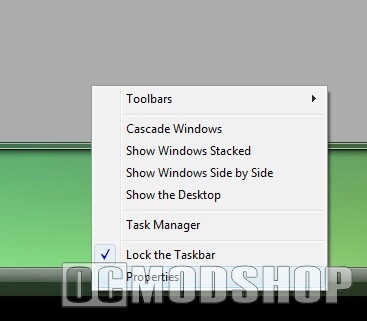
Right-click on the task bar and select properties
Choose the Start Menu Tab.
Uncheck the following two options:

“Store and display a list of recently opened files”

“Store and display a list of recently opened programs”
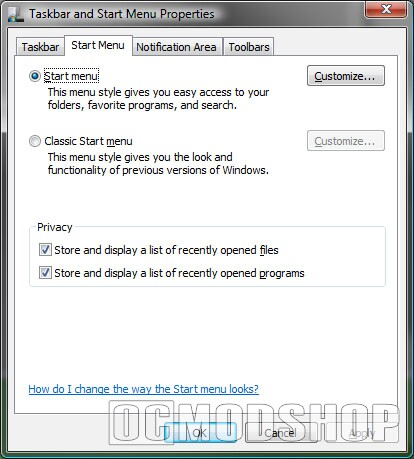
Click OK to apply these settings. Now you can let the sentient demon monkeys out of their room…


Post Views: 222
WindowsShare0
previous post
Associate a File Type with a Windows Program
next post
Professionally Repair DVDs Cheaply
Alan McCloskey
Alan is a web architect, stand-up comedian, and your friendly neighborhood Grammar Nerd. You can stalk him on the Interwebs via Facebook and follow him on X @ocmodshop.

Related posts

Hide your recent Documents, Pictures, and Programs on Start Menu

Alan McCloskeyMay 14, 2007June 21, 2014

64-bit and Superfetch

Alan McCloskeyMarch 25, 2008November 28, 2014

Setting Up Windows Home Theater PC

Alan McCloskeyMay 17, 2007August 1, 2014
Free customized computer parts listFree customized PC parts list

Latest podcast

Join the OCmodshop NewsletterJoin the newsletter!

Recent Posts

  • Why The Xbox 360 Was The Console That Changed Everything
  • GTA 6 released, Xbox 360 21st Anniversary and Toxic Commando | Episode 28
  • The Easiest Bose Headphone Repair You Can Do at Home!
  • How I Finally Got My Hands on a Steam Machine
  • GTA 6, Wookies, Steam Machine and stuff
  • Meta Wrecked VR and Steam Frame Proves It
  • 25 Things You Didn’t Know About Xbox
  • NVIDIA in bed with Chinese Spies?, Steam Machine crisis over, Xbox 25 & SHREK IS LIFE
OCmodshop.com
FacebookTwitterYoutubeSpotifyTwitchSteam
@2026 - ocmodshop.com. All Right Reserved.
  • About Us
  • Terms of Use / Privacy Policy
  • Copyrights
  • Our Rating System
  • Publish an Article on OCmodshop
  • Contest Rules
OCmodshop.com
FacebookTwitterYoutubeSpotifyTwitchSteam
  • Hardware
    • Audio
    • Cases
    • Coolers
    • Gadgets
    • Home Theater
    • Input Devices
    • Laptops
    • Memory (RAM)
    • Motherboards
    • Networking
    • Power Supplies
    • Processors (CPU)
    • Storage
    • Video Cards
  • Gaming
    • Gaming Accessories
    • Game Walkthroughs
    • PC Games
    • Xbox
    • Playstation
    • Nintendo
  • Articles
    • How-To Guides
    • Case Mod Projects
    • Software
    • Event Coverage
    • Movies
    • Interviews
  • Podcast
Manage Consent
To provide the best experiences, we use technologies like cookies to store and/or access device information. Consenting to these technologies will allow us to process data such as browsing behavior or unique IDs on this site. Not consenting or withdrawing consent, may adversely affect certain features and functions.
Functional Always active
The technical storage or access is strictly necessary for the legitimate purpose of enabling the use of a specific service explicitly requested by the subscriber or user, or for the sole purpose of carrying out the transmission of a communication over an electronic communications network.
Preferences
The technical storage or access is necessary for the legitimate purpose of storing preferences that are not requested by the subscriber or user.
Statistics
The technical storage or access that is used exclusively for statistical purposes. The technical storage or access that is used exclusively for anonymous statistical purposes. Without a subpoena, voluntary compliance on the part of your Internet Service Provider, or additional records from a third party, information stored or retrieved for this purpose alone cannot usually be used to identify you.
Marketing
The technical storage or access is required to create user profiles to send advertising, or to track the user on a website or across several websites for similar marketing purposes.
  • Manage options
  • Manage services
  • Manage {vendor_count} vendors
  • Read more about these purposes
View preferences
  • {title}
  • {title}
  • {title}