
You need to determine what the problem is, and if the problem is a failing drive then having all of your devices hooked up isn’t going to help. To narrow things down, leave only the primary bootable hard drive connected. You should disconnect the data cables AND power cables to all hard drives, optical drives, card readers, and any other drive-like device… unplugging the power only may make the computer hang as it tries to initialize a “dead” device.
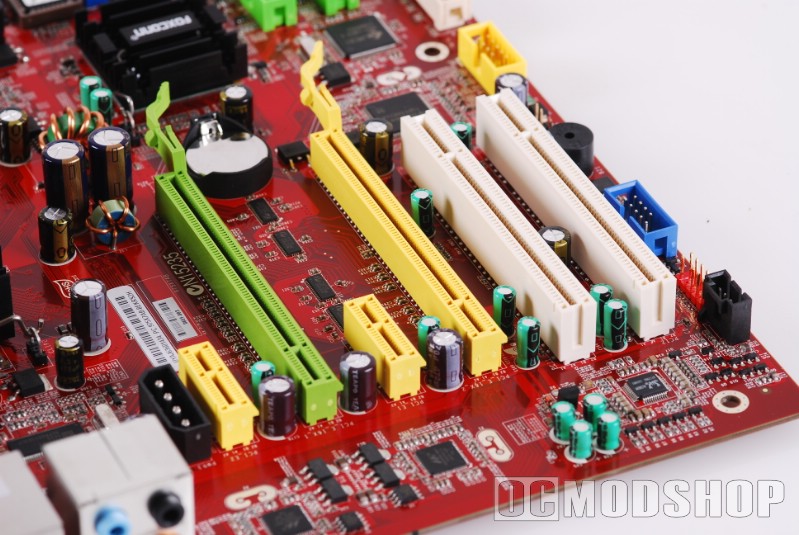
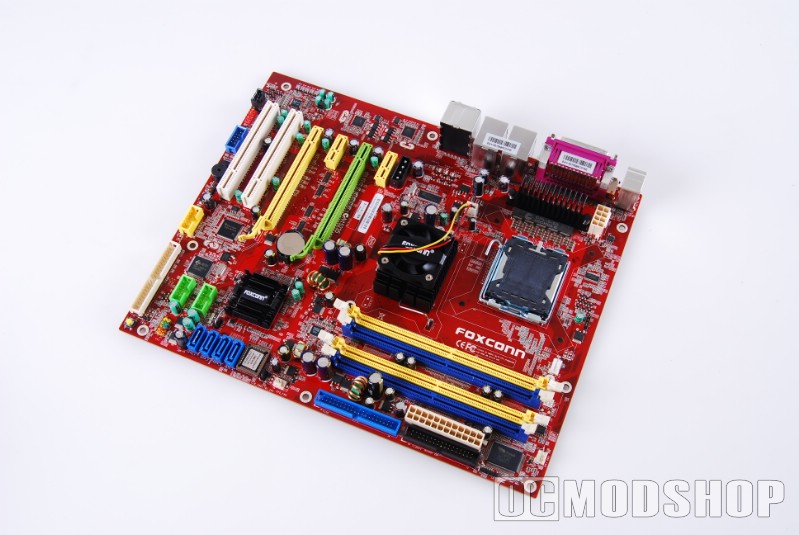
Remove any PC cards that aren’t absolutely necessary. This includes sound cards, network cards, video capture devices and extra video cards. If you are using devices included with your motherboard (such as on-board sound), then disable these in the BIOS. Also remove all but 1 stick of RAM, to eliminate the possibility of faulty RAM or DIMM slot.
Bringing your system back up
Don’t just go willy-nilly and power everything up… you should go at it like the astronauts on Apollo 13. Turn on devices as you need them, and don’t turn on anything you don’t need until you’ve found the problem.
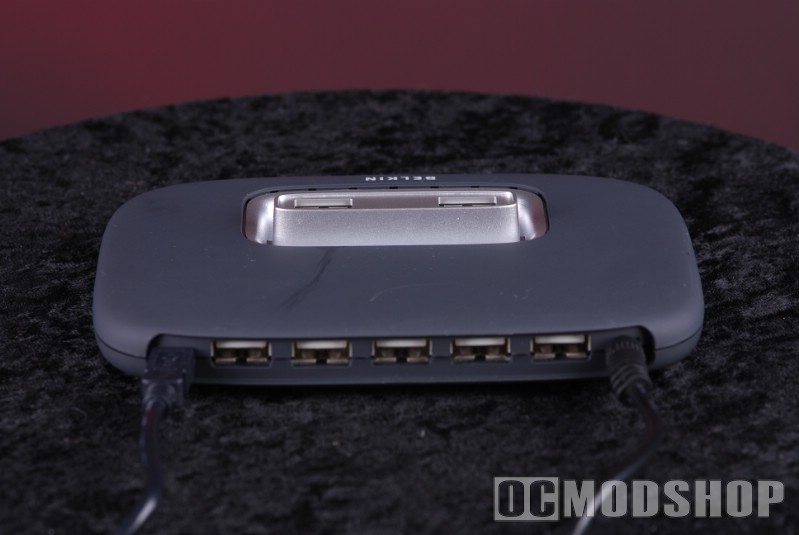
Turn on your external peripherals first (printers, external drives, etc). Wait for them to complete any initialization they may need, which is usually a few minutes. I’d recommend just unplugging external devices while troubleshooting an internal computer problem, but this is a good step if you’re troubleshooting a problem with the device itself.
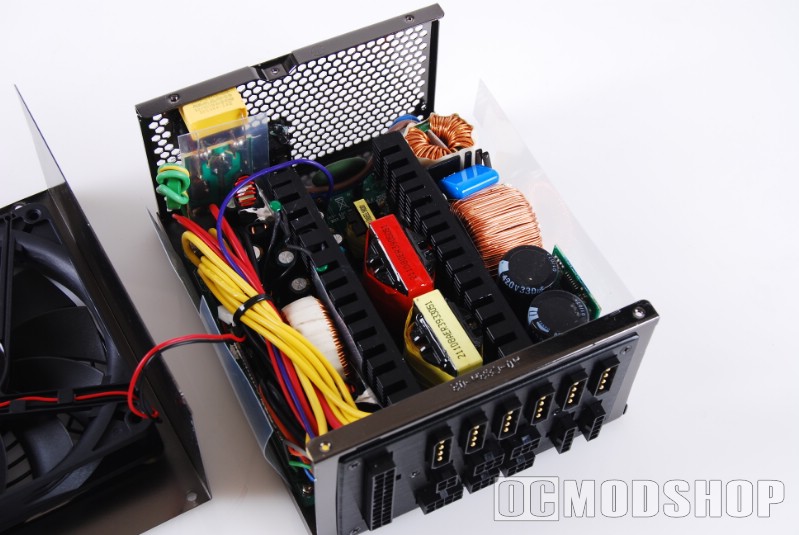
Plug in your computer and monitor’s power. Press your computer’s power button. If everything comes up properly, then you can power down and slowly begin to add devices back into your system, one by one. Don’t slap everything back into your computer. Try putting all of your memory back in, and see if your computer boots properly. If it doesn’t then you can determine which stick (or slot) is causing the problem. If your memory is fine, then begin putting your PCI cards back in, check for a good boot, and continue the process until you’ve found the problem.
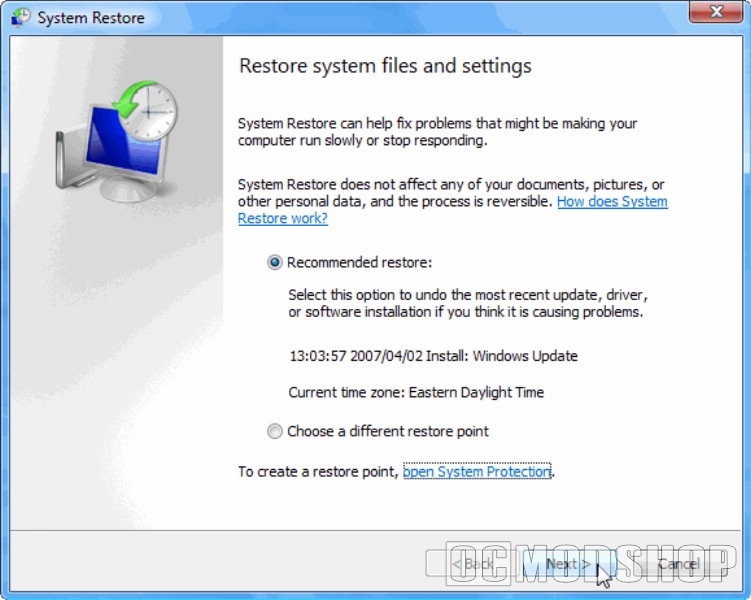
It is possible that there isn’t any hardware problem at all, but a software one. If you have any version of Windows since XP then you can restore a snapshot of your system. Keep going back in time and see if the problem goes away. If this doesn’t help, then you may need to reinstall the OS.
Hopefully by following these steps you can eliminate your intermittent computer problems. If this procedure doesnt’ immediately rectify the situation, this is the methodology you should use to narrow down what exactly your computer problems are.


2 comments
thanks, when i connect the Ethernet cable to my xbox, the computer won't go on the internet after 7 hours. we had to have an repair guy come out and we had to pay 40 bucks, but now i know how to do it by myself. you just saved me 40 bucks, thanks again
Hi I would just like to say than ks for a great website. Great info on computers, I am 66yrs old Like you have been using computers since ZX spectrum.But now an d then I need a bit of help . Your page do`s just that for me.
THank a lot.
Comments are closed.