NetworkingStorage

QNAP Q35s Backup Enclosure Review

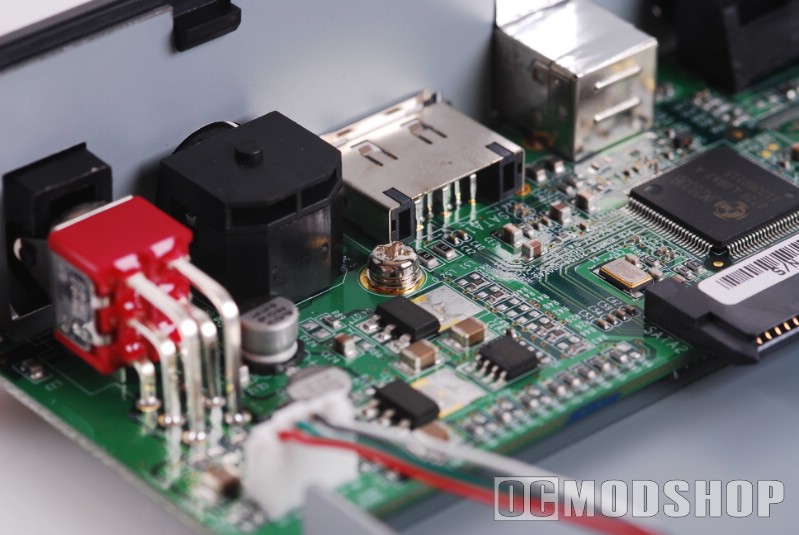
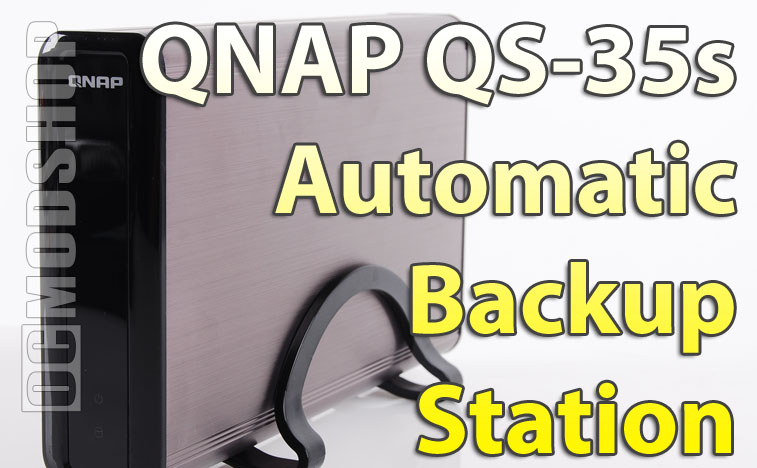
The QBack-35S is very pleasing to the eyes. It has a sleek titanium shell with a gun-metal finish. The front is basically plain black plastic, with the logo at the top and two lights at the bottom for power and hard drive usage. The back is all business as well, with an OTB (One Touch Backup) button, USB connector, eSATA connector, Power connector, and last but not least a power switch. To finish it off, a nice little black stand holds the enclosure upright. Low profile, small, and easily transportable.

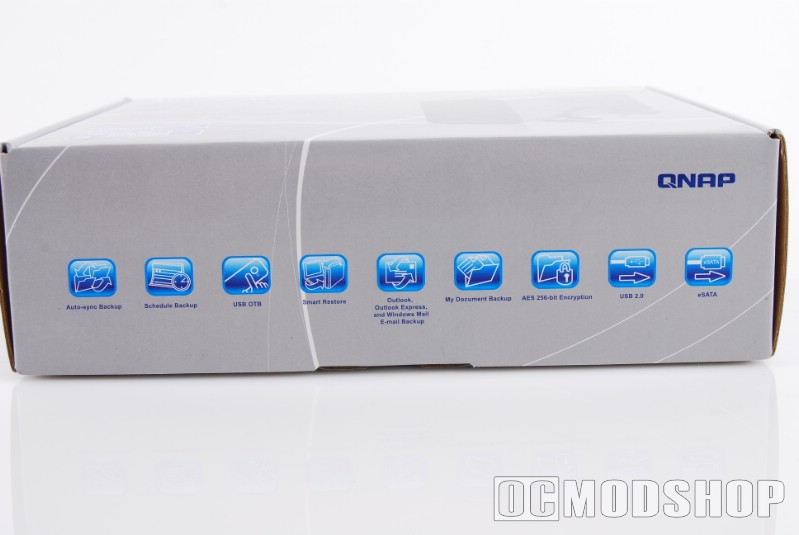
The package comes with a Quick Installation Guide, CD-ROM, Power Adaptor, Power Cord, six flat-head mounting screws, eSATA cable, an eSATA to SATA cable with mounting bracked, a USB 2.0 cable, and a glossy plastic stand.

I slapped an 82 GB Seagate SATA 3.5” hard drive in and proceeded to hook it up to my computer. It was a relatively easy install. The only thing I wasn’t too fond of was the large, bulky power cord. I finished installing and ran the software.

The system used to test this hardware is as follows:

  • AMD Sempron 3200+ processor
  • 2GB system RAM
  • 500GB Seagate HD
  • NVidia GForce 5500 graphics card.

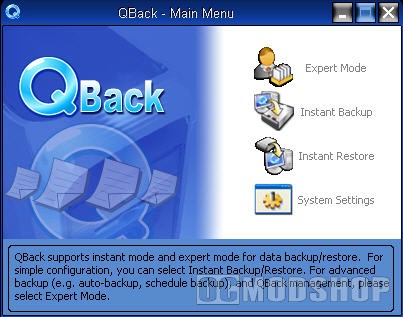
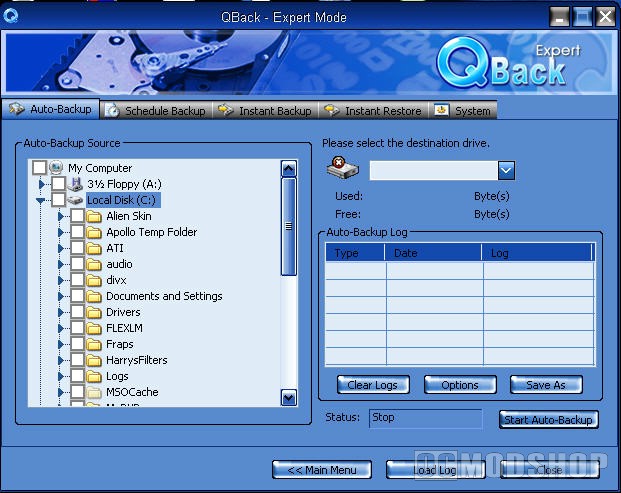
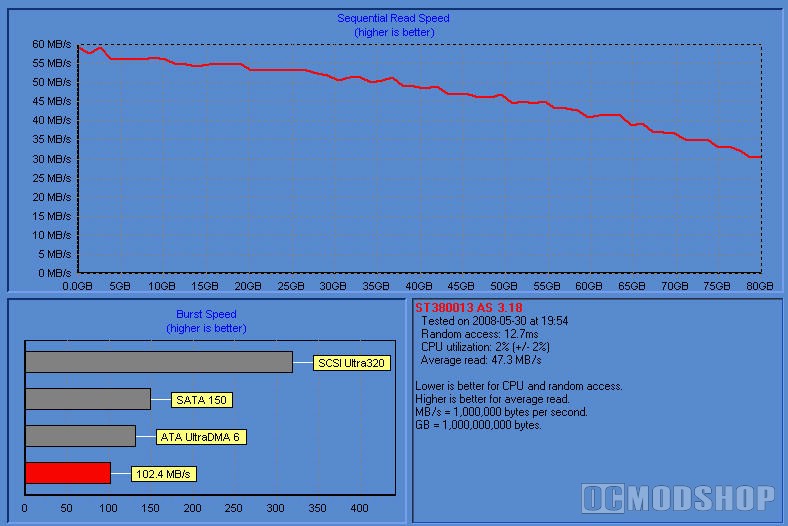
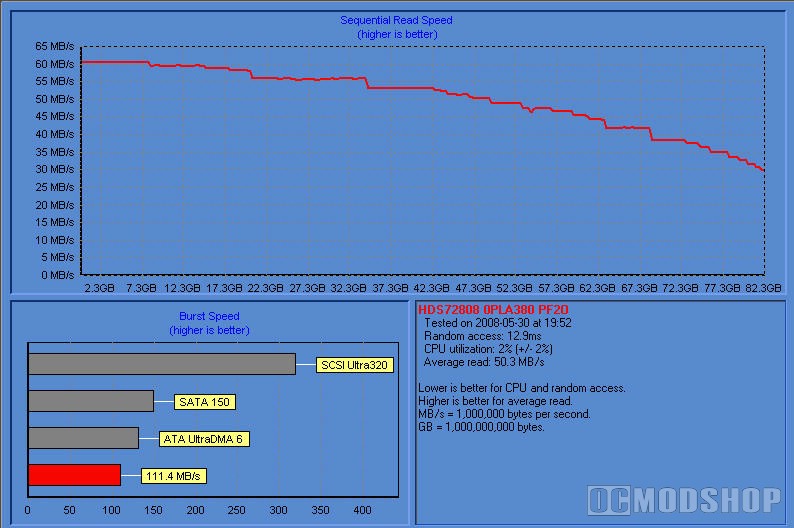
The software is pretty straight forward, even in Expert Mode. Just set the things you want backed up, set where you want it to go, and presto! Although I found out early on that the software is pretty much useless without unless you are hooked up via USB. So before I switched to USB for a test, I checked out the transfer speeds of the QBack in eSATA mode. I used HDTach for the 8mb and 32mb bench tests. To my enjoyment (and amazement, to be honest) I was hitting speeds only a margin less than a direct SATA hookup would provide. Averaging at 50.3mb/s.

So I opted for one final eSATA test before I switched over to USB. I prepared 46.4 GB of raw video data, totaling 128 files, and copied them over to the QBack directly via drag and drop. I got great speeds, with files being fully transferred in just over 28 minutes. Satisfied with my results, I switched to the USB 2.0 for a test drive.

eSATA Transfer Rate

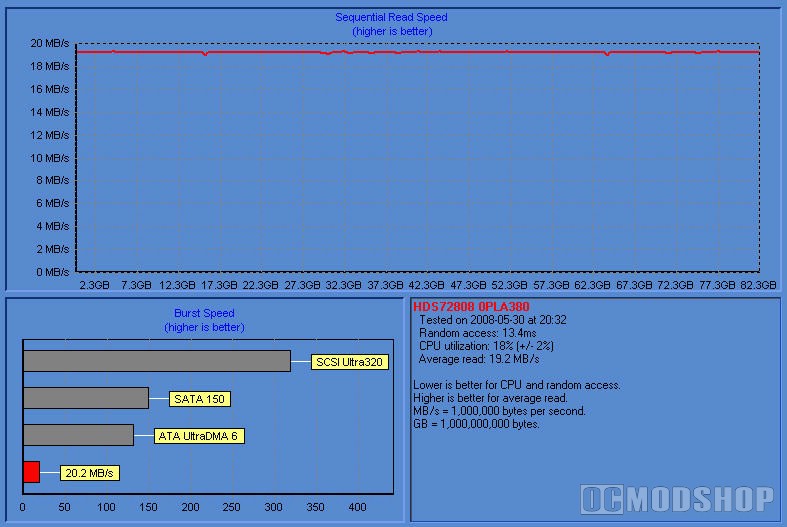
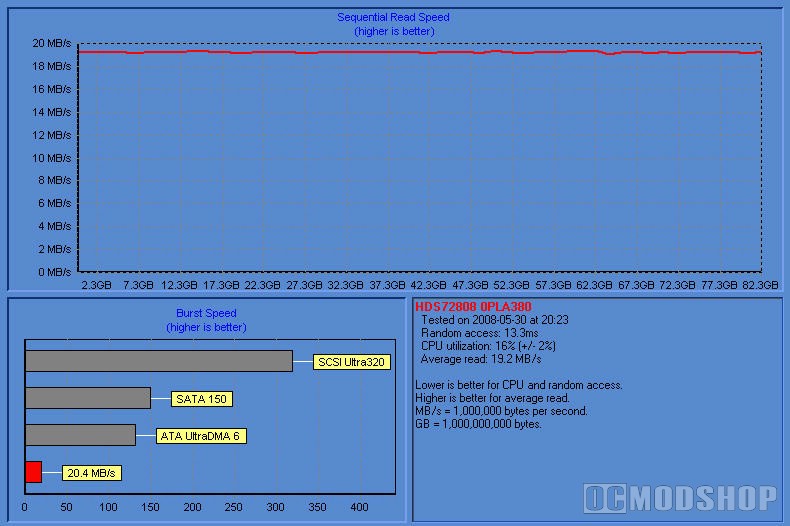
USB Transfer Rate
Pages ( 2 of 3 ): « Previous1 2 3Next »

Related posts