
Anyway, back to the mouse install. The disc is really nothing more than a download window that is in executable format. It downloads your drivers from the Razer website so that you don’t have to go looking for them. It would have be just as handy to put them all on the disc that was already sent with the mouse, but to each his own hard way of doing things. Now that the drivers are downloaded and installed, I decided to check out the different hardware-configurable settings and see how they responded in and out of a gaming scenario. The two choices for DPI: 800 and 1800, are easily changed to and fro at the flip of a switch. I found that while using the mouse for everyday browsing and surfing, the 800dpi setting was optimal. 1800 moved a little too fast for my taste without some kind of software settings change. But once I got into a game, I found that the added response time of an 1800dpi was favorable.
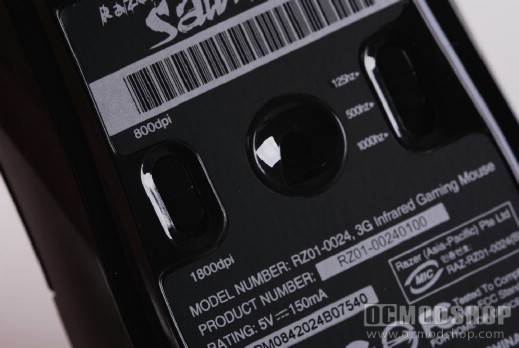
In fact, when used in comparison to my usual gamer, a Wolf King MVP (check prices here), I found that the response time was at least 25% better using the Salmosa. This was using the MVP at 2200dpi; its highest DPI rating with no option to change the hertz rating. After playing around with the other switch on the bottom of the mouse, I was able to configure the mouse for optimally for my play style by setting the DPI to 1800 and the Hertz rating to 500. I also found after doing this that even though it was still a little fast, it was still okay for use outside of the gaming environment. After testing out the response times using only hardware configuration, I decided to see what I could do with the software and drivers in the mix. Much more than I thought, actually. You can manually adjust your sensitivities, clicks options, and speeds as easily as clicking on a slider. Setting your mouse to your own specifications is easier with this software than most others I’ve seen. Which makes since, as this mouse is directed at new and fresh gamers.
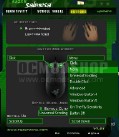

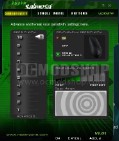
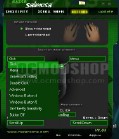
You can control the buttons, sensitivity, and DPI
Compared to the Wolf King MVP (reviewed here), I found this mouse was favorable in most aspects, especially in gaming performance and ease of adjustment. The Wolf King did have the Salmosa beat in the number of buttons, however, having a total of five configurable buttons, one for DPI, and one for Rapid Fire, a total of seven buttons in all. The Salmosa has three, including the scroll wheel. However, when it came to maneuverability, the Salmosa won hands down with its Teflon mouse skates, allowing it to almost float above the mouse pad. This is an integral part of FPS gaming, the ability to get your cross hair where you need it when you need it. This is definitely a gamer’s mouse without all the bells and whistles that many people think they must have to play a game. No lights, no built in fan, just hardcore gaming at its finest for those who want to get in on the action without a flashy entrance.
On the next page we render our verdict…


2 comments
Remember the two words: "finger(tip) grip". This mouse addresses the 3rd and hardest to master gripping style, the Kung-Fu of all grips. Well done, Razer!
I know its been ages since u put this up. Jus bought a salmosa today. My Vista laptop is not detecting the mouse even after downloading and installing the drivers from the Razer website. Tried the whole thing about 4 times. Any idea what I might have done wrong? Thought i'd ask before returning the mouse to the retailer.
Comments are closed.