
Logitech’s Wave is not only a hybrid ergo, but has plenty of features to keep gamers, music listeners, and even office workers satisfied. The bottom of the keyboard has a soft leather-like cushion, which is comfortable, but not as luxurious as the Microsoft Natural Ergonomic. The back of the keyboard can be raised two positions, for those who like that soft of thing. (I absolutely HATE all keyboards that raise from the rear). The keyboard is rounded and raised up from the desk, so a mousepad slides under the edge seamlessly (I hate it when there’s a gap between my mousepad and my keyboard).
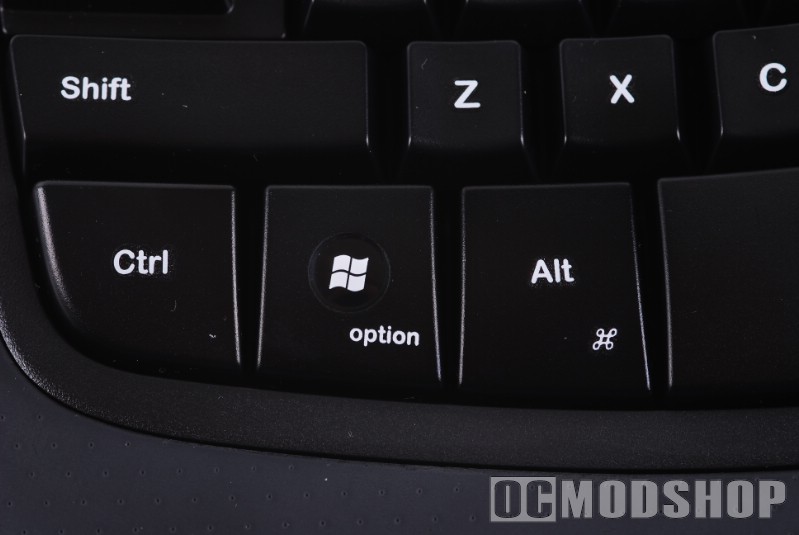
They keyboard is laid out well. There is no seperation between the left and right halves of the keyboard (as every ergonomic keyboard does), but the keys are “cupped” slightly. Alternately, the spacebar has a “wave” shape where the center of the spacebar is raised where both of your thumbs will naturally rest. They Delete/Home/PageUp bank uses the new style that Microsoft introduced (and subsequently did away with in this latest generation). The Alt keys also have the “Apple squiggle” icon, for those who want to use this keyboard on a Mac . The windows “start” key is also called the “option” key for the Microsoft-impaired.

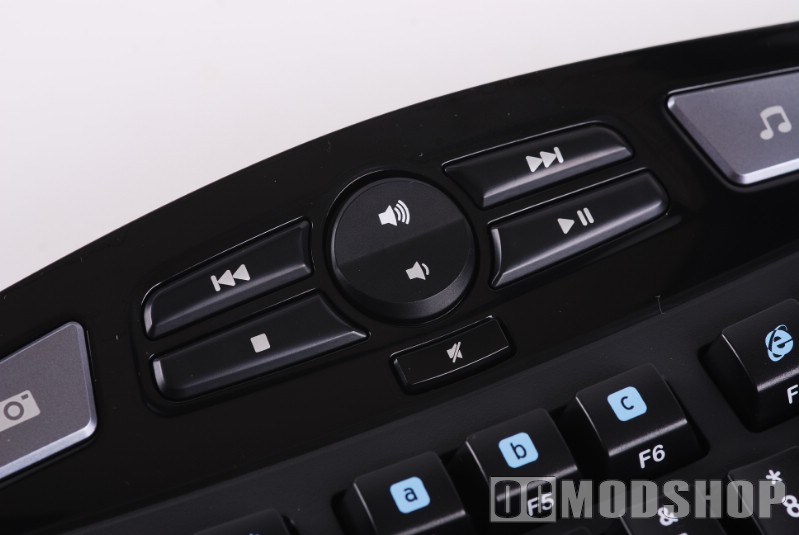
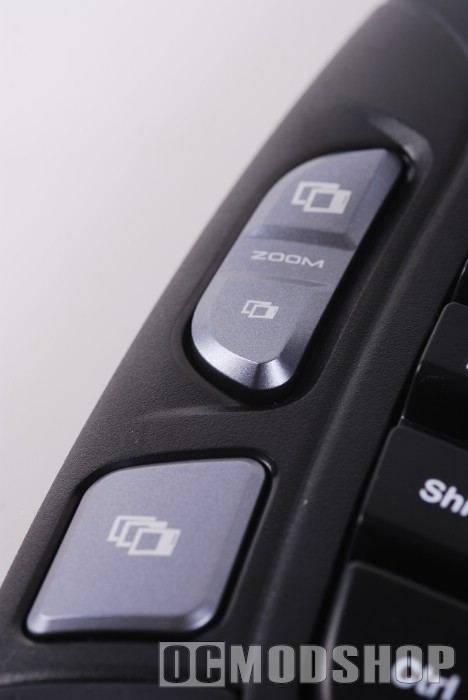
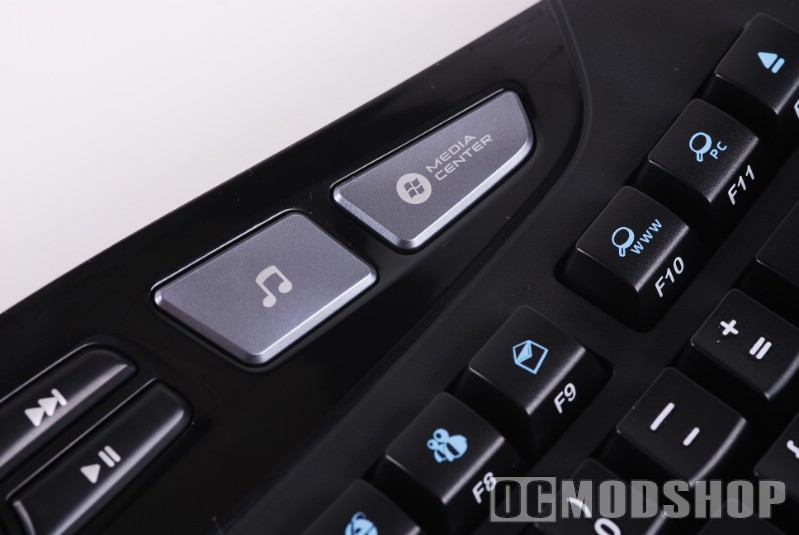
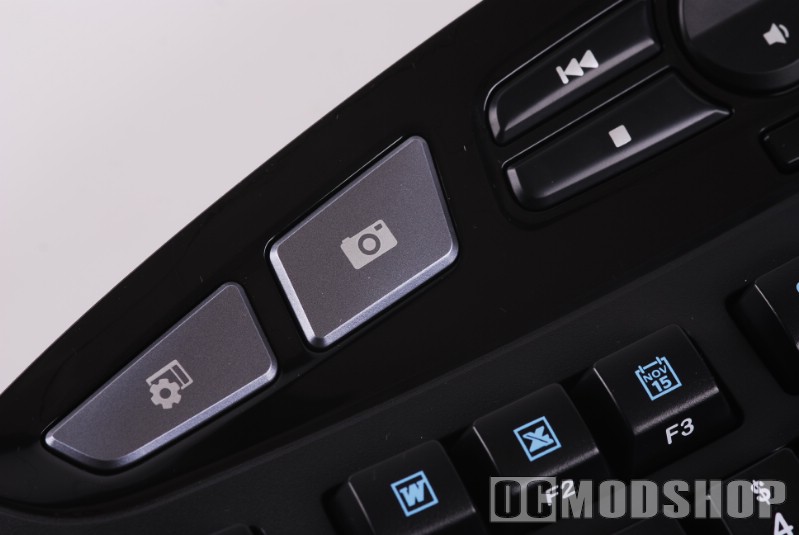
On the left is a Zoom In/Out button and task switcher button. The top of the keyboard has a Control Panel shortcut key and My Photos shortcut key, which works with Windows Vista. The top center has all of the media controls you need (Back, Forward, Play/Pause, Stop, and volume up and down). To the right of the media keys are “My Music” and “Media Center” shortcut keys. None of they keys (except the media keys) work without the included software, but are completely programmable.

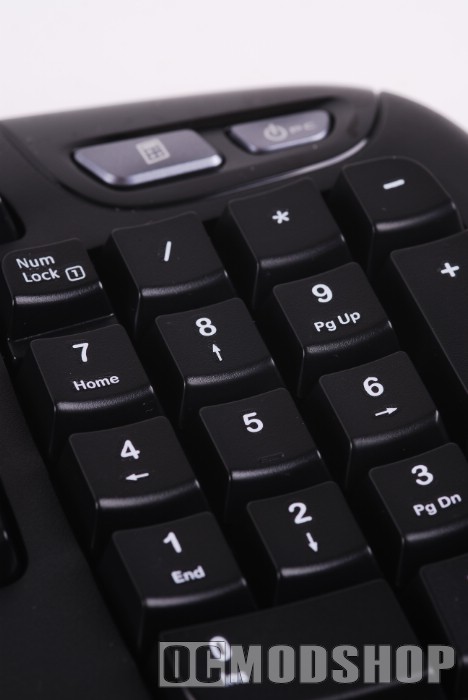
The right side of the keyboard is interesting. The arrow keys are slightly larger than a normal keyboard, which might be good news for gamers. The numeric keypad is pretty standard, although is cupped slightly and the corners are rounded. Above the keypad is a Calculator button and recessed “Power” button (both of which work without additional software), which puts your PC in sleep mode. Below they keypad is the standard keyboard LED status bank (Caps lock, Num lock, Scroll Lock).
Thankfully, the most unused keys on a standard keyboard no longer have a dedicated key. The “right click” and scroll lock keys are still available, but you must hold the Fn key to access them now. They keys are also absolutely quiet… even quieter than the Microsoft Natural Ergonomic. They keys take a little more effort to press, especially when compared to a laptop keyboard which usually only require a light touch.