
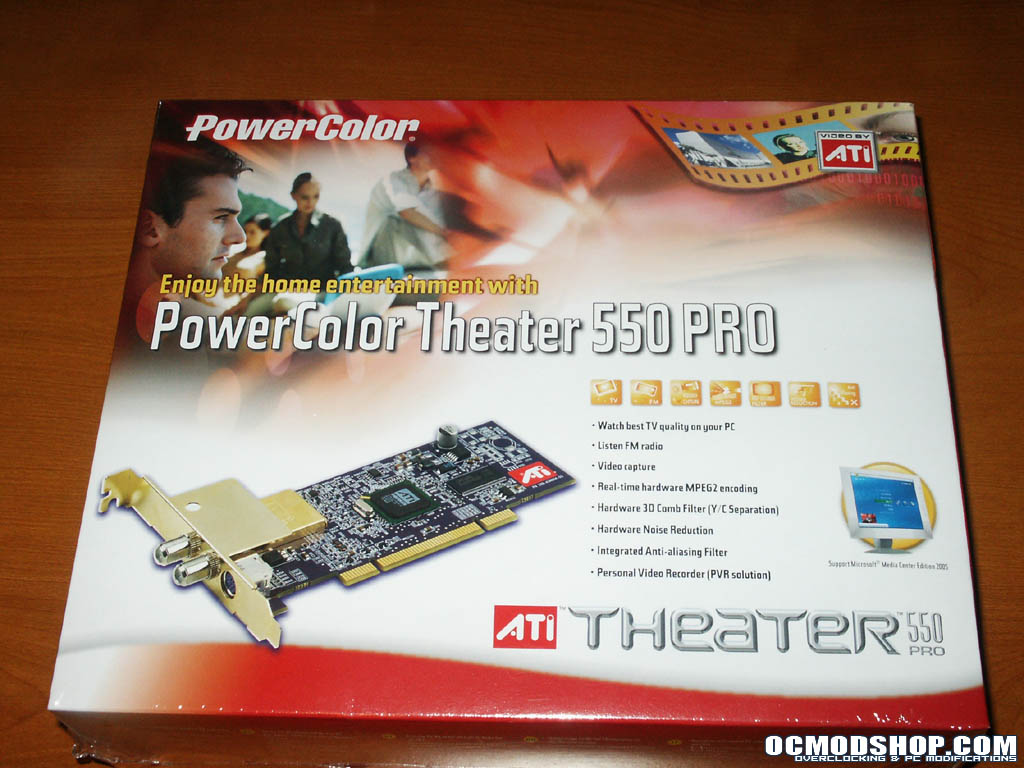
For testing purposes I installed the card into a newer PC that I built this last holiday season consisting of :
- Asus P5GD2 Deluxe (reviewed here)
- Intel LGA 775 Pentium 4 540J (3.2GHz)
- ATI X700 Pro PCI-Express 256 MB
- 1GB OCZ DDR2 PC2-5400 RAM
- 120GB Seagate Baracuda 7200.7 SATA Hard Drive (x3)
- Sony HS94P-S 19″ LCD with 12ms refresh rate
- Logitech Z5300-e 5.1 speakers using the C-Media High Definition 5.1 output from the Asus motherboard
Since I had been looking to add enhanced multi-media capability to this PC, I installed Windows XP Media Center Edition 2005 with XP SP2 and have since updated all post SP2 patches released to date. Additionally since I previously purchased a Toshiba laptop that included Windows XP Media Center Edition 2003, I had on official MCE remote control that I will be using in addition to the included CyberLink remote.
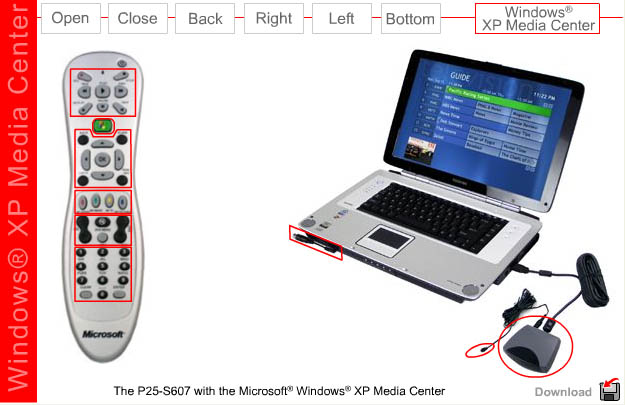 My existing Media Center Edition Remote setup |
Installing the drivers for the card was pretty simple and straight forward. The first system boot after installing the card, XP’s “New Hardware Found” message poped up asking for the drivers.
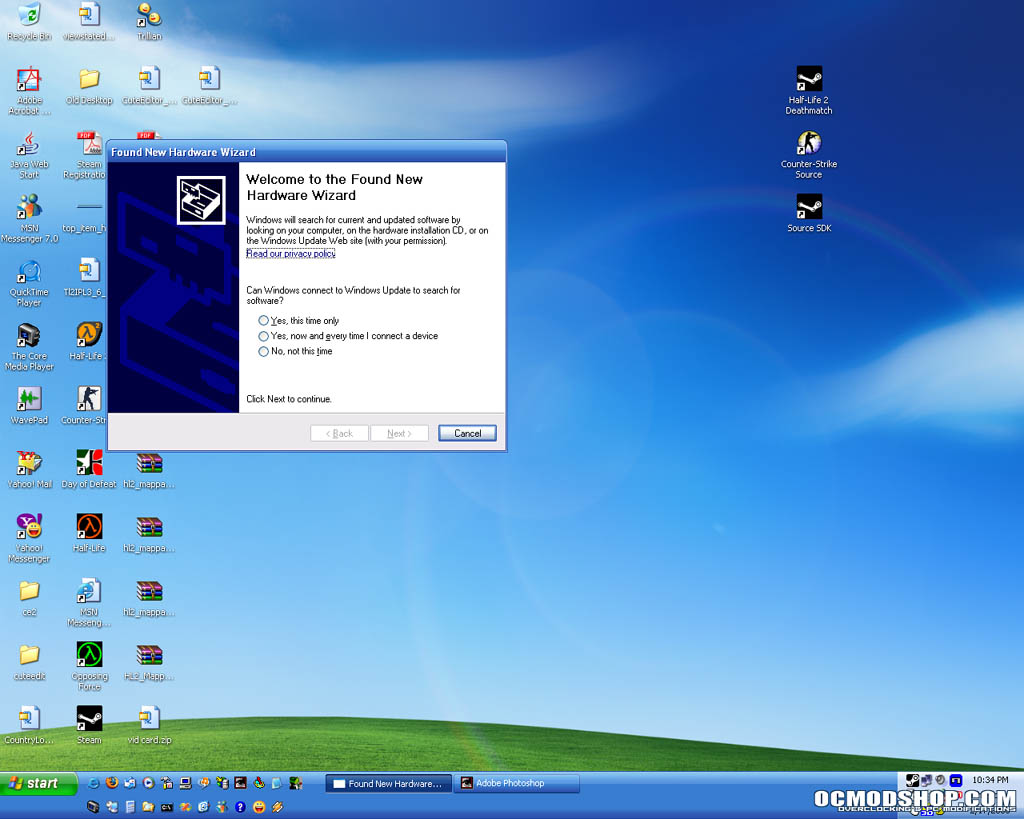 New Hardware Found Wizard |
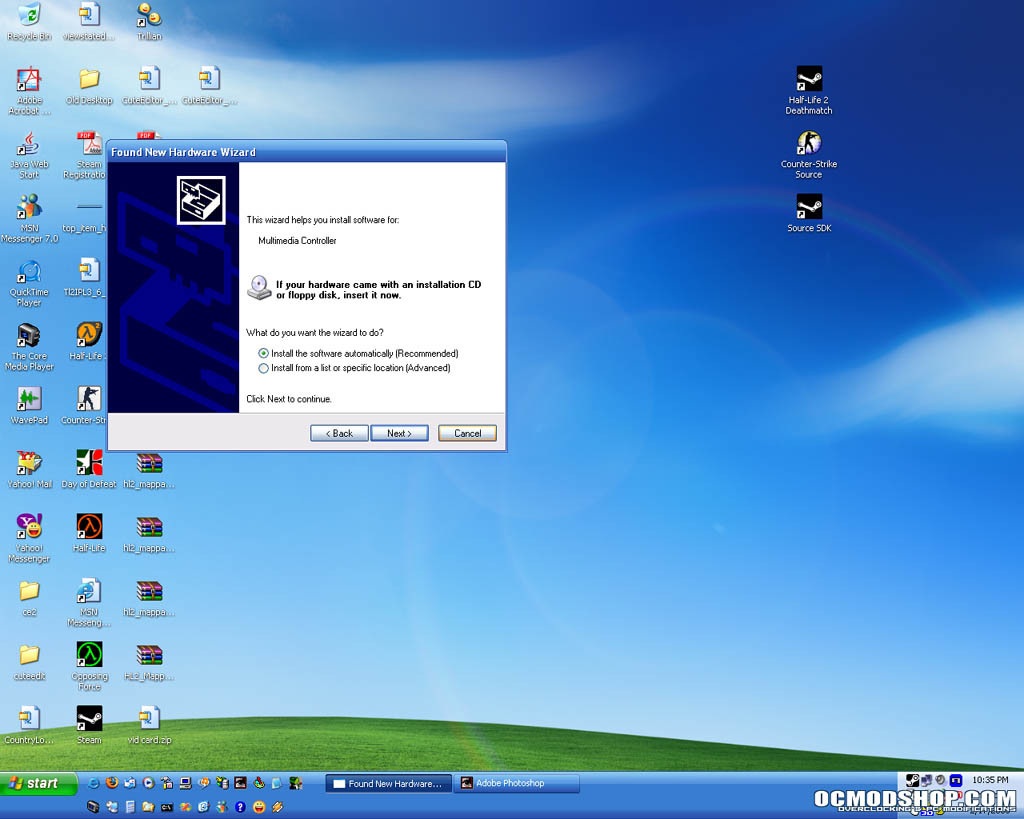 Cancelling the wizard |
Fortunately for me since I hate drawn out instructions, the installation manual gets straight to the point of what to do. Nobody that I know of likes reading manuals, but since this was my first independent TV tuner cards, I thought it might be in my best interest to “RTFM” as is usually stated by those *helping* few when encountering a problem. That said, I simply followed the instructions and cancelled out of the hardware dialog that had opened.
Next I inserted the installation driver cd into the PC and ran the driver installation manually.
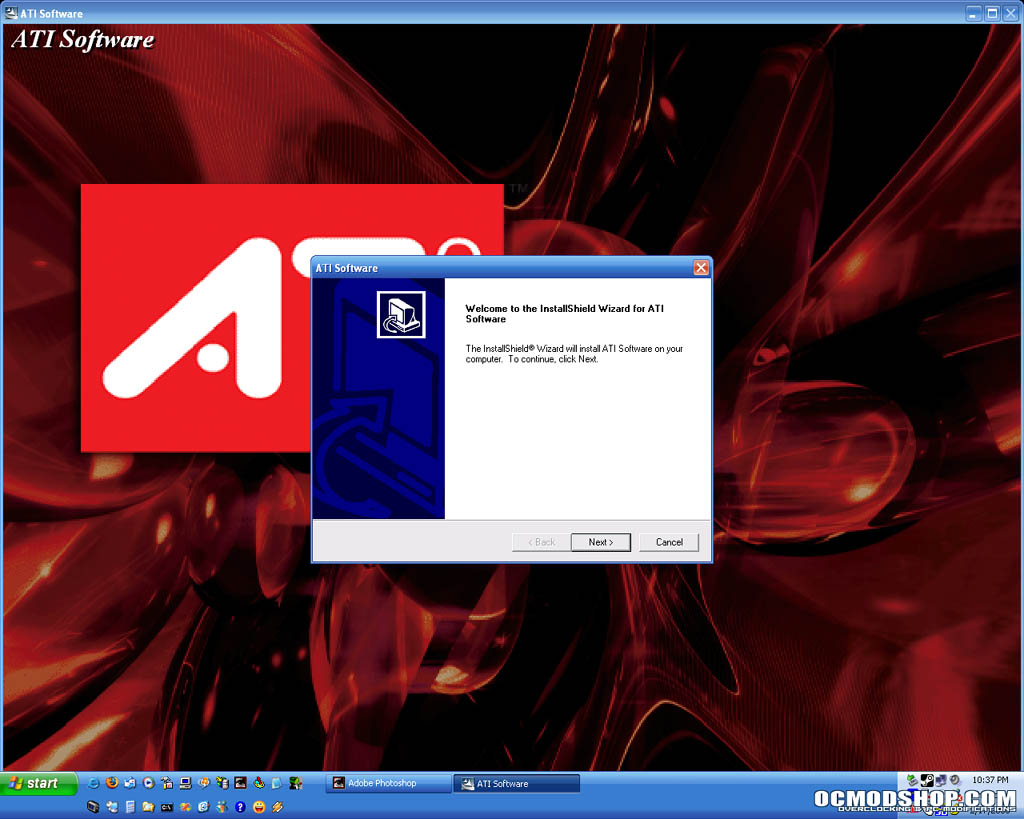 Starting ATI driver installation |
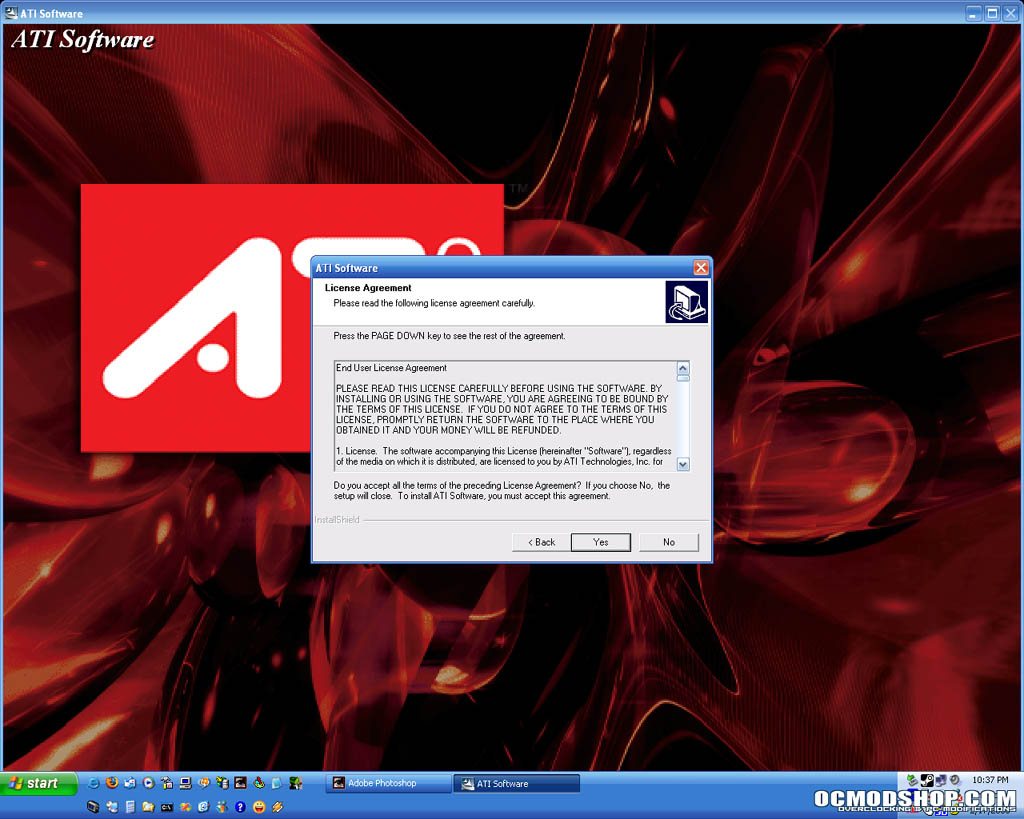 The license agreement |
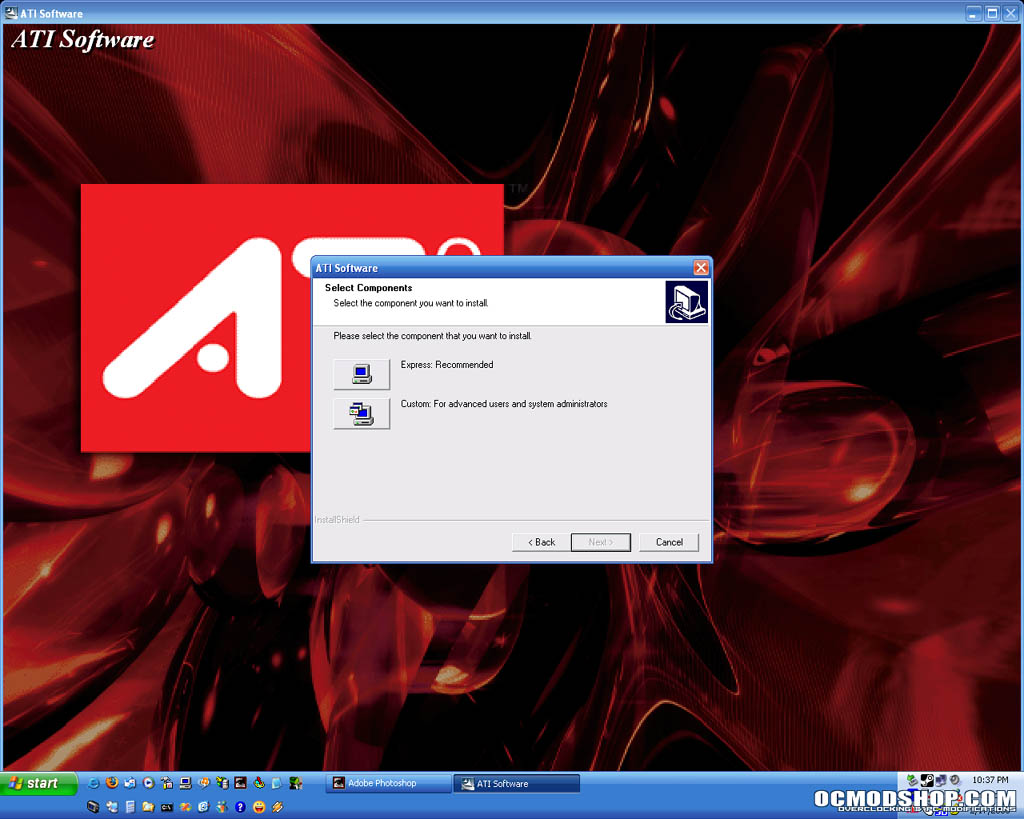 Choosing installation type |
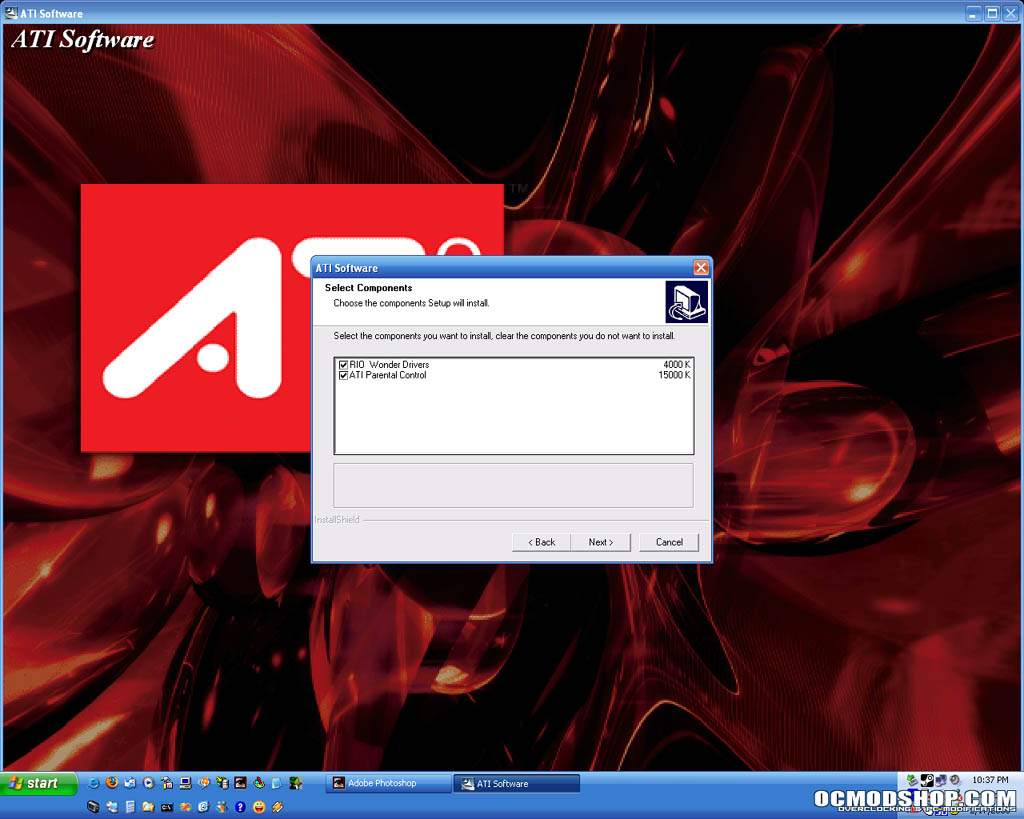 Custom installation options |
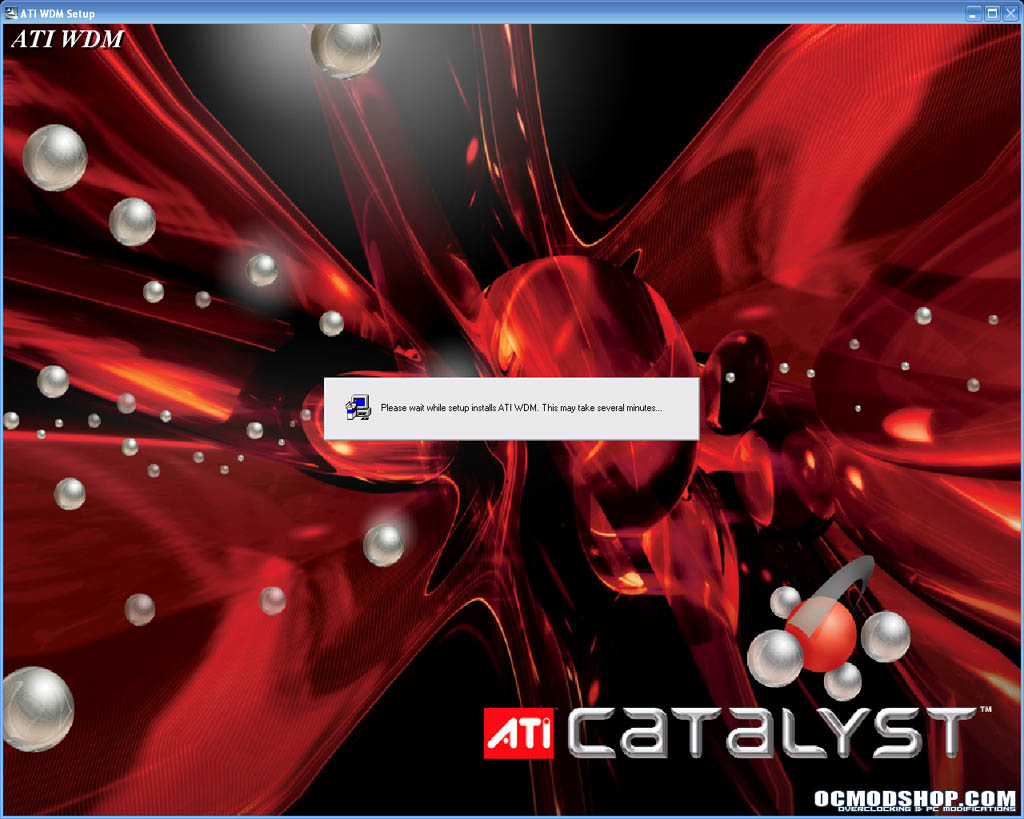 Installing the ATI driver |
Once completed, I rebooted my PC and went on to install the included PowerCinema software.
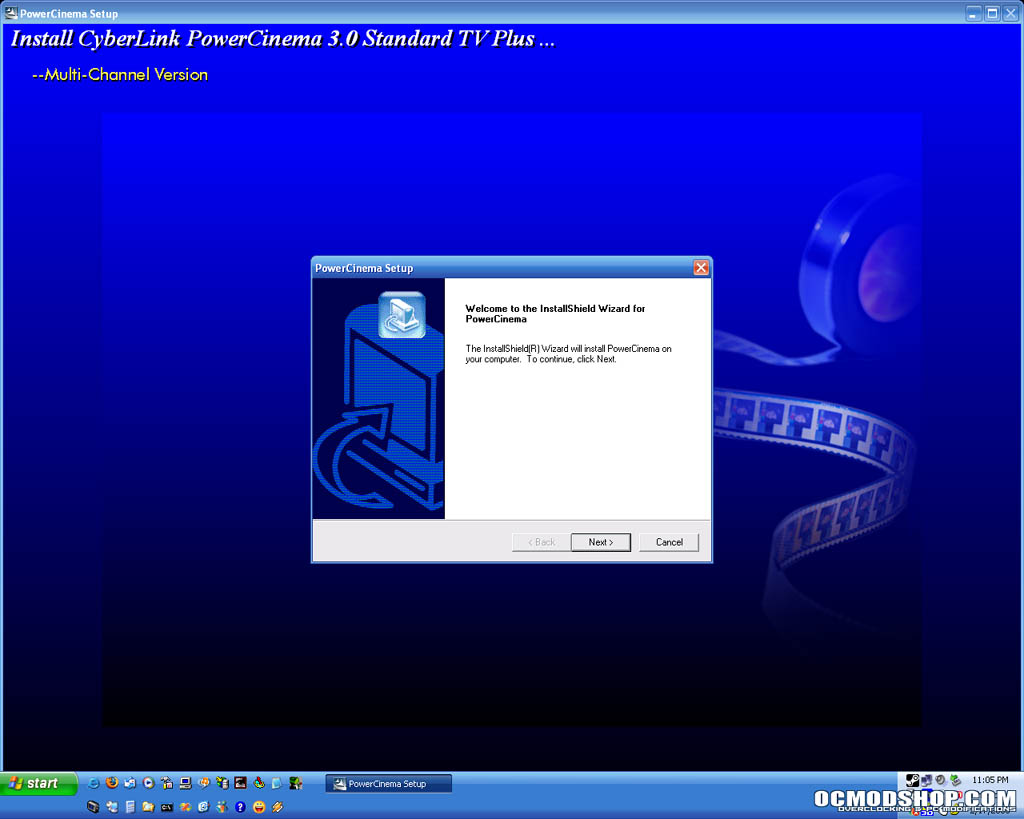 Starting the PowerCinema Installation |
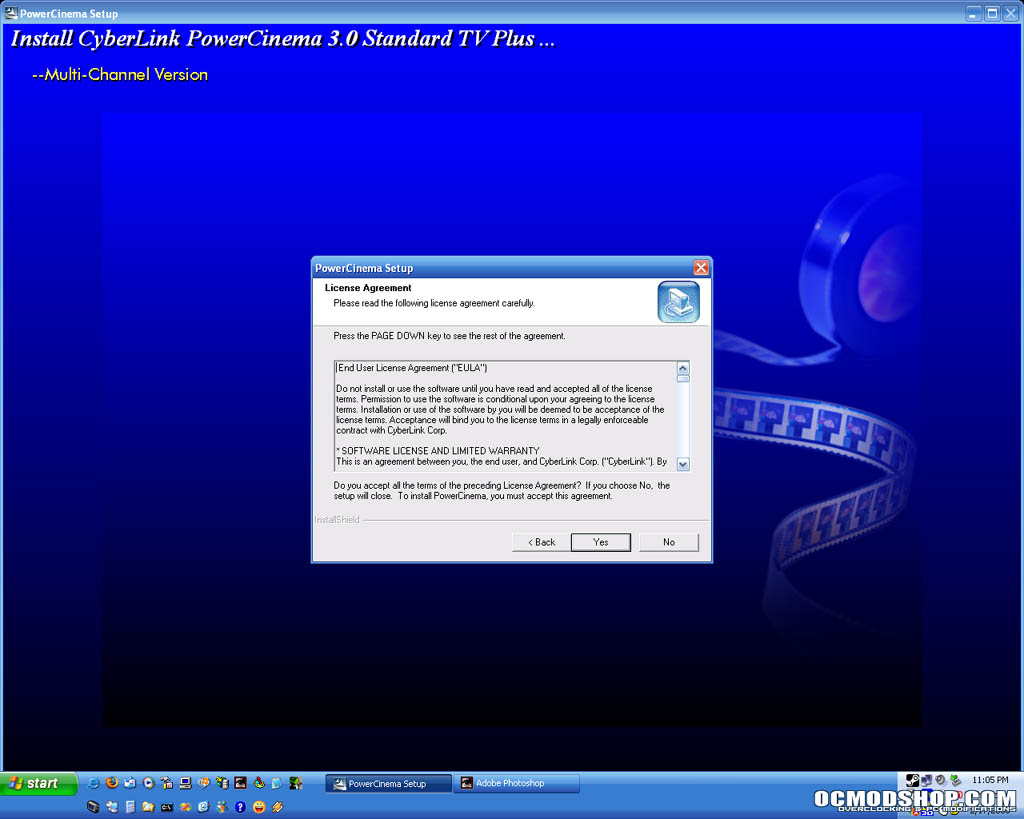 The license agreement |
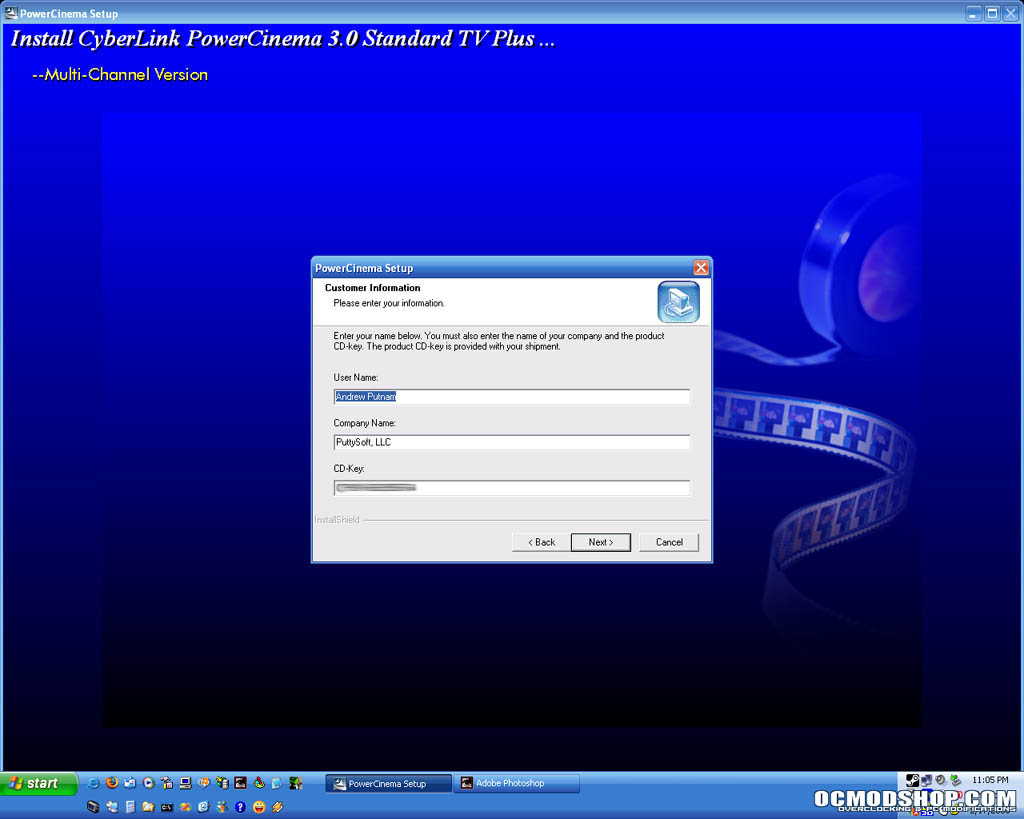 Entering registration info |
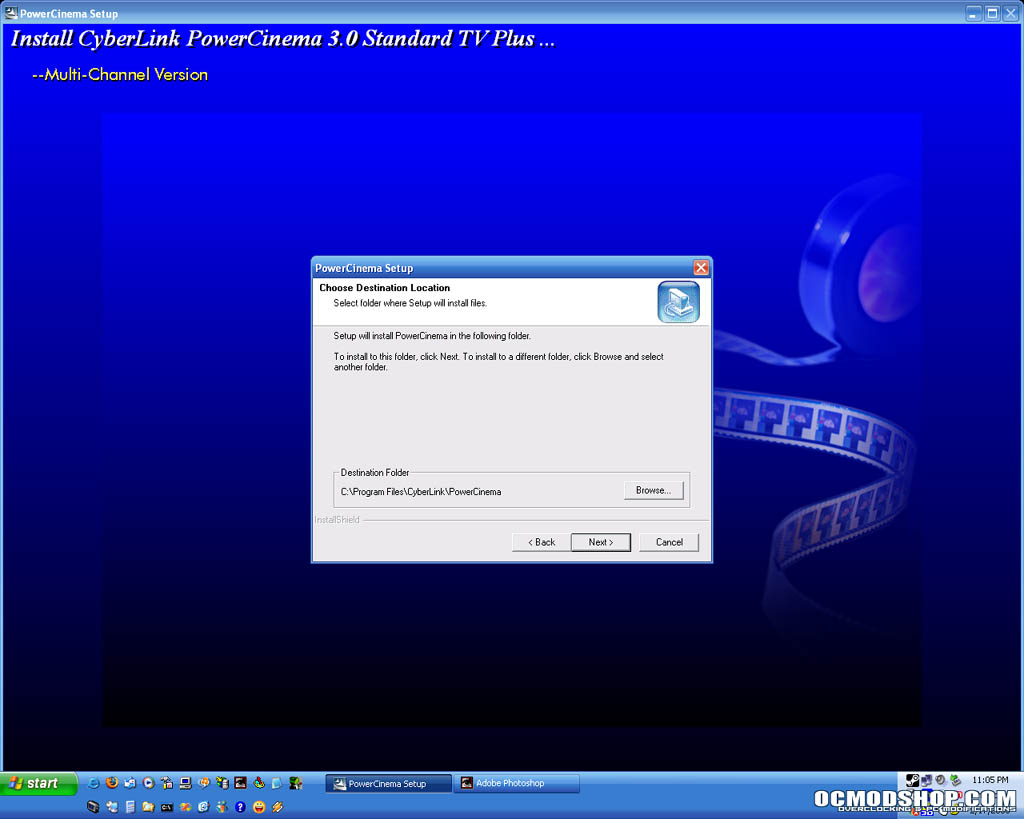 Choosing file locations |
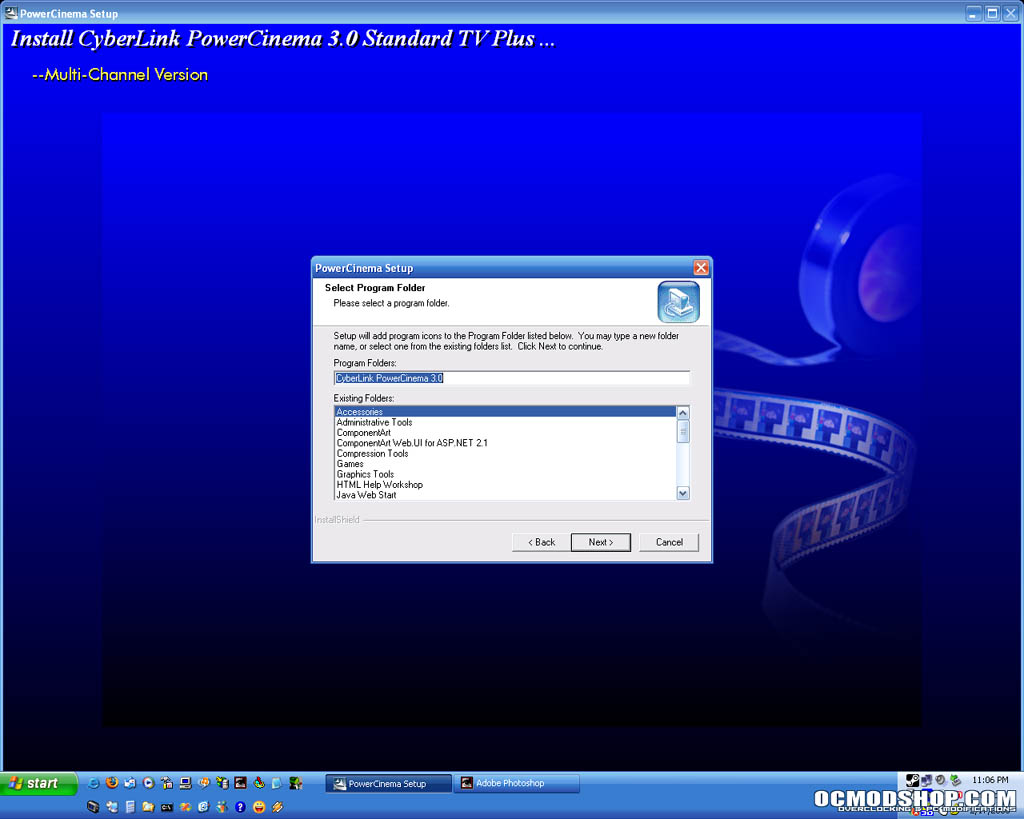 Choosing program folder |
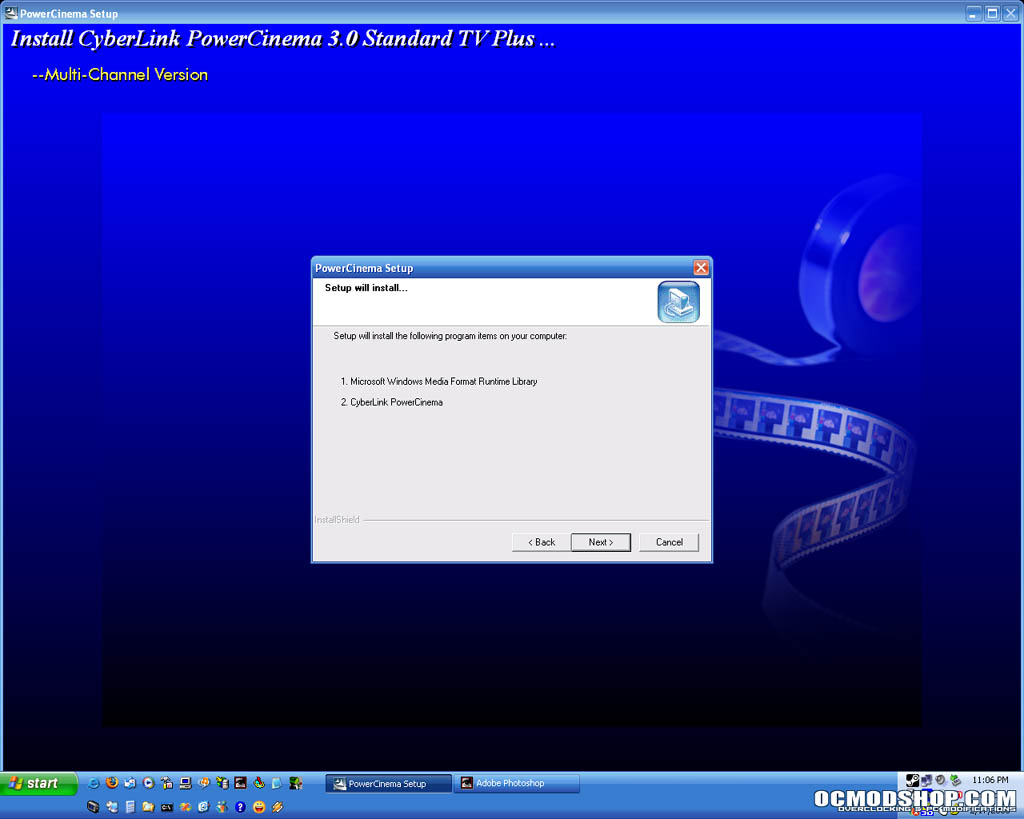 Final confirmation screen |
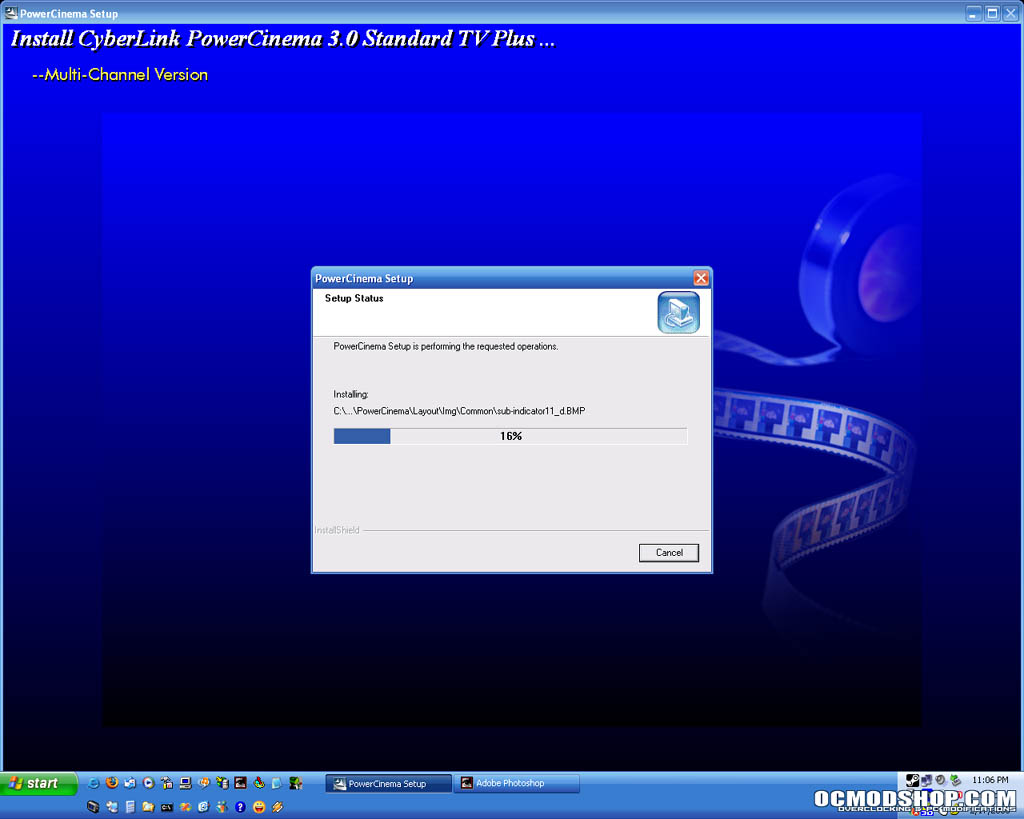 Installing the software |
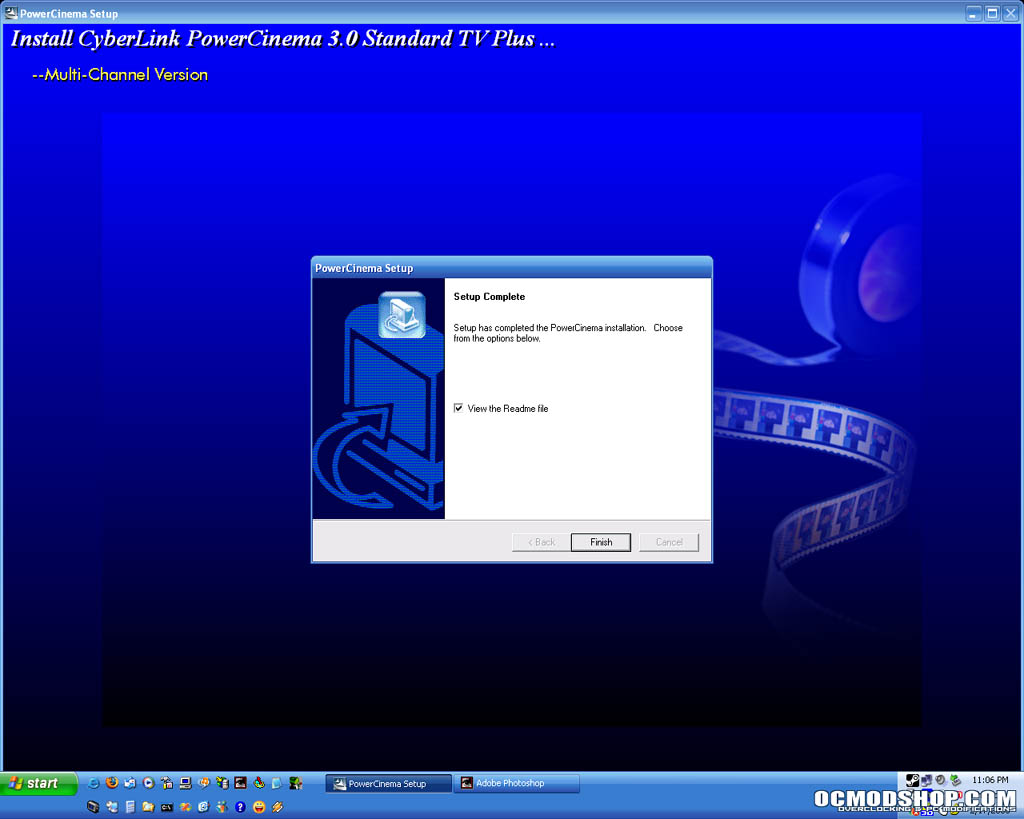 Install complete |
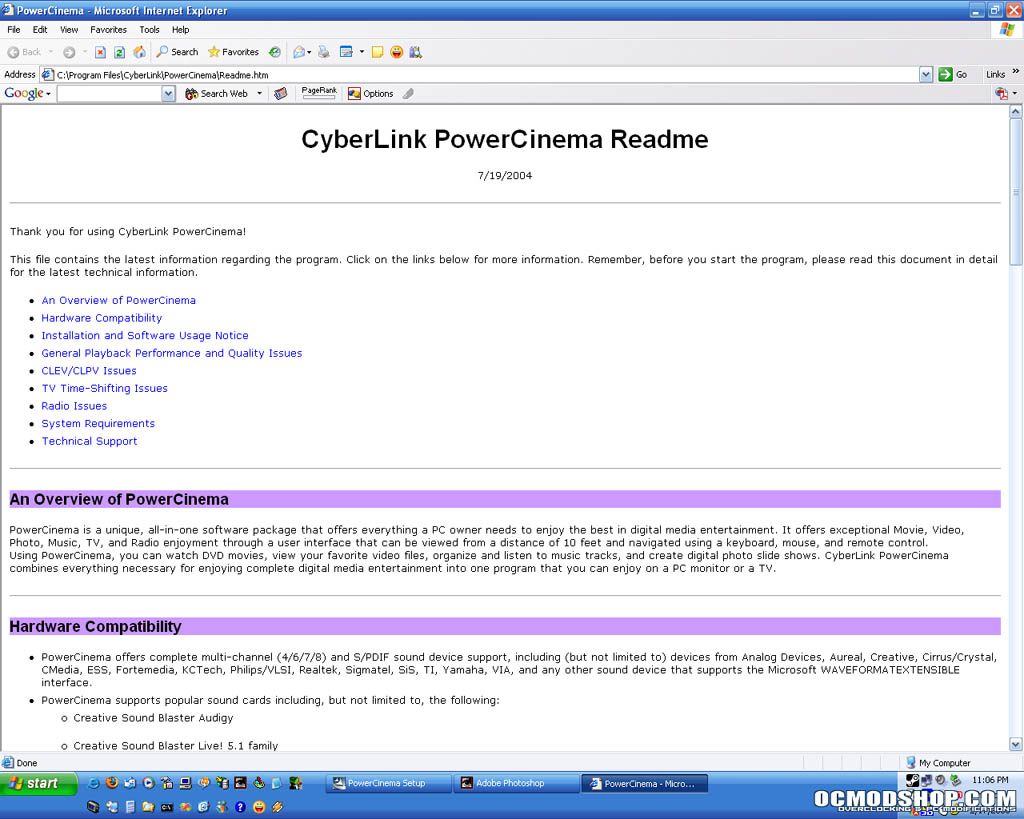
HTML based “Readme” file
