

Once you have your memory out of the static bag, don’t touch the copper contacts or the black chips. Hold it by the edges and with your fingertips. You want to always be wary of ESD. Make sure your computer is off, unplugged, and the power button has been pushed, same as before. Make sure the locks that hold the memory in are pushed up at the top and down at the bottom. Hold your memory up beside the slot to line up the notches in the memory with the guides in the slot. It can only go in one way. Don’t try to force it if it won’t go the first time. Just double check that you have it right and that the locks are open fully. If it still won’t go in, triple check that you have the right kind of RAM.
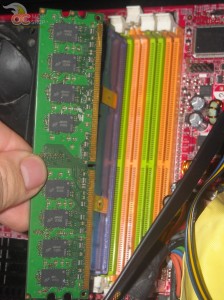
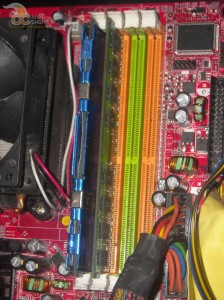
Once you get it to go in, put your fingers on the back of the stick and push it into the slot gently. Provide equal pressure in the middle and at the corners. When the locks snap inward to hold the RAM, you’re done. Blow out any dust you might have missed before and put the side of your case back on. Plug your computer back in and turn it on. BIOS might do a memory check, and will most certainly alert you that the amount of memory has changed. Just tell the computer to continue to boot into Windows. Once Windows has loaded, run CPUID again and confirm that your memory is working. It should see it all, and you should see a nice increase in power.
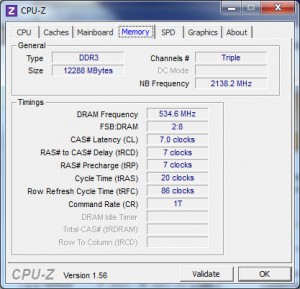
Once thing on memory upgrading and your OS. This tutorial assumes you have Windows. But if you try to upgrade past 4GB of RAM in Windows 32-bit, you’re going to hit a wall (you could try the tips here, though). It won’t see more than 3.5GB, as is the case with my media center right now. If you want more, you’ll have to get a 64-bit version of Windows. Only then can you max out your motherboard if it supports more than 4GB of RAM. My media center will support up to 8GB of DDR2, but only if I install 64-bit. Which I might do in the future just for kicks.
I hope this tutorial helps you guys and gals new to the upgrading and modding scene, and I look forward to doing another noob tutorial soon.


2 comments
No problem!
Thanks!
Comments are closed.