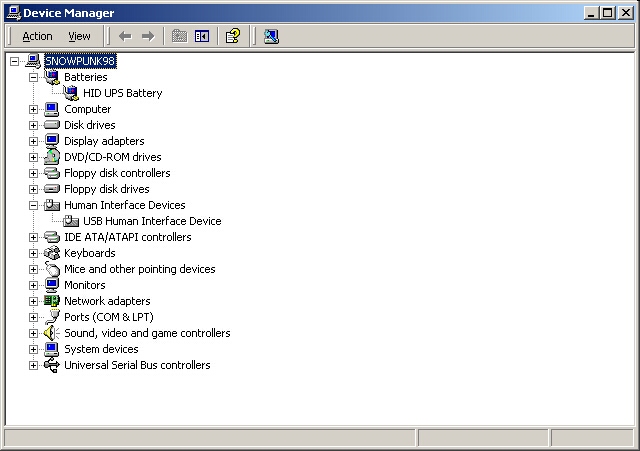
Because USB is much easier, faster, and newer than serial I went ahead and used that method to connect the UPS to my computer. Right when I plugged the UPS in the little box poped up and installed everything and away I went. As you can see it installs a HID UPS Battery and USB Human Interface Device, it really was really nice to just be able to actually plug and play without any struggles.
The software that comes with the UPS is version 3.2.5 and you should upgrade to the new 3.2.10 version. after patching it all up I started up the Bulldog Service then the Bulldog Monitor the service just gets it running and the monitor lets you watch everything and see what is going on.
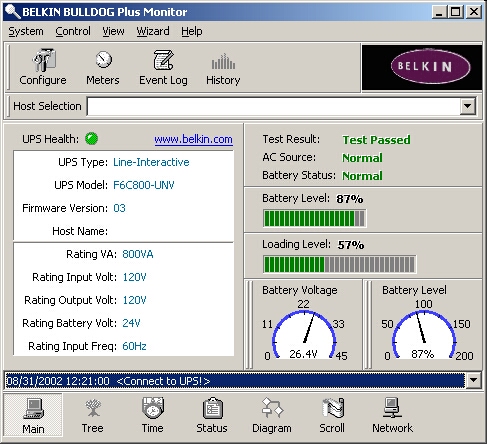
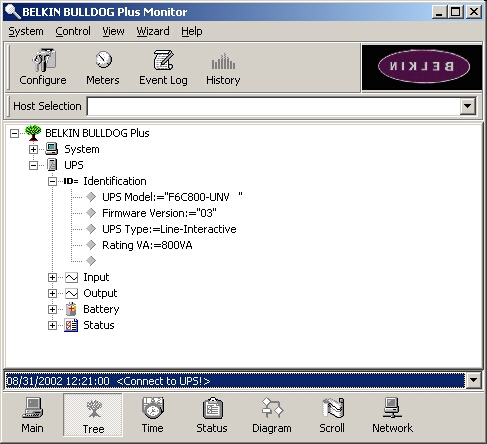
At the bottom of the window there are seven buttons that will switch screens and tell you different information. The first one is the main screen which is above, then there is a tree button which has a tree layout of all your information, as you can see in the picture below this is model # F6C800-UNV, firmware revision 03, it is a line interactive type of UPS which means it is the standby kind which we talked about earlier and it has a 800VA rating. There is also a tree for your system, input, output, battery, and status.
The Time section of the program tells you when the battery was last replaced, when it will need to be replaced which will be in August of 2005 so that means that this UPS will last you three years which in computer hardware aspects is a long time. It also tells you when tests are going to run which you can setup in the configuration part of this software. It is nice that this feature is included because it makes it more automated so that you don’t have to worry about it so much because it will do it for you.

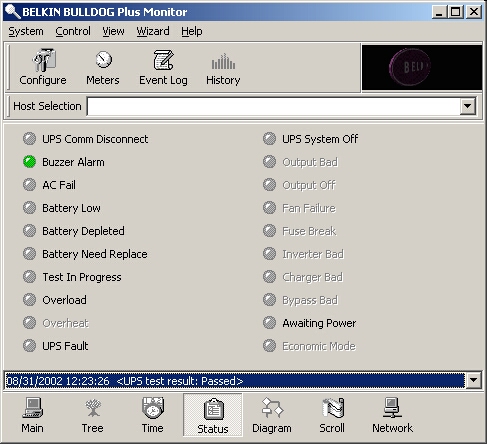
The status section has a lot of different status LEDs which will light up according to how your UPS is performing and if there are any problems. The only one that was on during idle was the one for buzzer alarm which is when the power does fail that it will let you know. Some of the status LEDs are not going to be used as they are grayed out. This is another feature which I find really essential to the good operation of a UPS because you will constantly know what is going on and why.
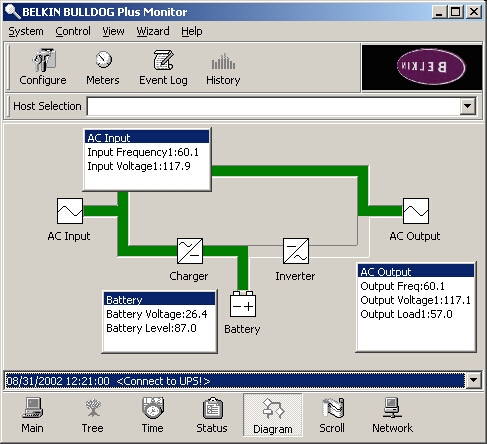
The is a diagram of how everything is laid out from the perspective of the inside working of the UPS, this screen shot is from when there is power to the computer and the UPS is just idling. As you can see it goes from the AC input to the charger and battery as well as the output, we will see later what it looks like when the power goes out.
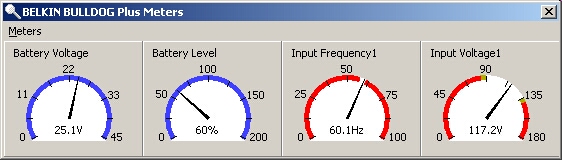
The scroll and network parts just show you the history of what the UPS is doing and the network one for me didn’t show anything I am guessing if you are using more than one UPS you can see what it is doing remotely. There is also a meter button at the top of the program which displays the battery voltage, battery level, input frequency, and input voltage, as you can see the battery voltage is at 25.1v, the level is 60%, the frequency is 60.1Hz which is what it is supposed to be and the voltage is 117.2v which is a little higher than 110v which a normal wall socket is but it is within tolerance levels.