
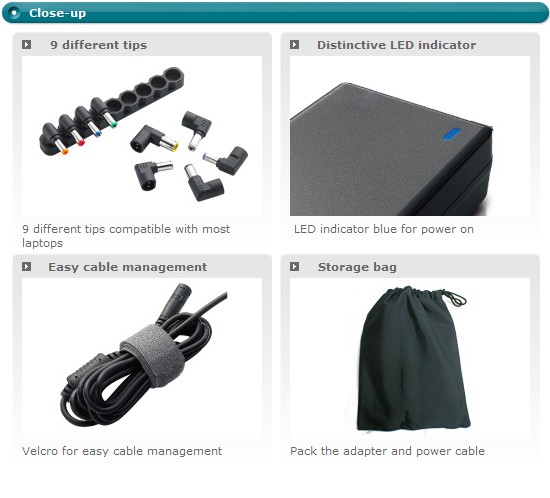
The compact box has several pieces to this kit. Inside the box is:
- The main power brick (with DC power lead attached)
- Base of tips (used for mounting unused power adapter tips)
- 9x color-coded power adapter tips
- Two-pronged AC power cord
- A small folded user manual
- A small black storage bag
Using this replacement power adapter is straightforward. The hardest part is selecting the proper tip for your particular notebook. Once you fit the proper one, all you have to do is plug the right-angle tip into the adapter’s lead cord. The tips are keyed to that you cannot accidentally reverse the polarity, and require a little bit of force to slip on. Once you plug in the two-prong AC cord then the unit’s blue power LED turns on. Then just power on your notebook computer as usual. We tried an assortment of laptops from Compaq, Acer and Asus, and all worked fine and charged their batteries.
We used a Kill-A-Watt meter to determine power usage, which of course varies depending on your laptop’s usage. When plugged in (but the computer turned off), the unit drew 0 watts, meaning that the brick is not using up unnecessary electricity. Bootup for most computers varied between 14 and 45 watts, depending on the computer, but average use was about 30 watts at idle, and around 50 watts with full load. Laptops with GPUs increased this load by about 10 watts, so the most we could manage to stress this power brick was 60 watts, which is well under the unit’s rated capacity. We were unable to measure the power output, so we cannot verify the efficiency ratings of this power supply. Most of the electricity lost in conversion is transferred into heat, and since this brick never got above 80 degrees we can safely assume that Cooler Master’s claims are well-founded.
The only caveats were when using Dell laptops, which CoolerMaster has documented well. This power adapter will work with Dell laptops, but will not charge their batteries. Dell detects a “non-standard” power brick before POST and notifies you that performance may be reduced. All you have to do is press F1 to continue, or press F3 to disable the warning message.
So is it worth it? We tell you on the next page…
 |
 |
 |
||||||||||||||||||||
|
For a detailed list of compatible notebooks, click here. |
|
||||||||||||||||||||
 |
|
 |