

There is a lot of control you can have for PC games by using free tools. Parental Controls come with any PC that has Windows Vista, Windows 7 or Windows 8. These free tools allow you to set the times the computer can be used, but isn’t granular like “only allow 2 hours of video games every day”.
Set up a profile for each of your kids
1. Go into your PC’s Control Panel and then “User Accounts“. Click on “Manage User Accounts” and add an account for each of your kids. Make them a “Standard User” and not an Administrator, or they will be able to change your settings or install games.
I would encourage your kids to use a password, as this is a good habit to have in today’s technology-driven society. Profiles with passwords are a good thing. It encourages good security habits, and lets your kids have a little privacy, and different profiles mean that their bookmarks and email are not mixed with everyone else’s.
2. After you’ve created an account for each of your kids, create a “Gamer” account. Since there is no way to use the built-in tools to set time limits just on video games, the kids should use this account only for games.
3. Once you’ve done that, Go into “Parental Controls” and click on each of your kids’ accounts. Click Parental Controls to “on”.
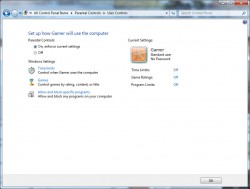
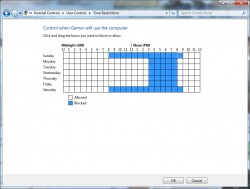
4. Now set time limits by clicking on “Time Limits”. You’ll have to do this for each new account you’ve just set up. Just click in the chart for the times your children are allowed to use the computer. When the kids time is up then they will be logged out automatically, even if their game is still running, and unfortunately has no warning. The chart is also in one-hour increments, so you can’t set a 7:30pm curfew.
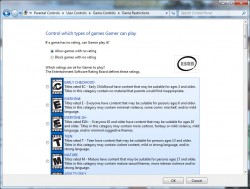
5. Now go into “game ratings” and set the level appropriate for your child.
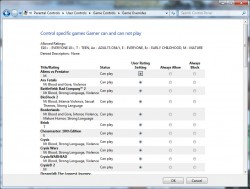
6. You can also control specific games that are already installed on the computer.
The separate “Gamer” account is where the control happens. You can set up different time restrictions for different accounts, so you can let kids have access to the computer, but only play games certain times of day, say between 4:00 and 6:00 (after homework and before dinner). You can even stair-step time so that one kid has a block of time and his younger brother has his own dedicated time. Since the kids are standard users, then they will not be able to install their own games.


