

Many people want to start using their computers right when they turn it on, and boot performance can be significantly delayed as more and more programs fight to start at first login. One way to speed up your boot performance is to turn off programs that automatically start (by using MSCONFIG). For example, if you have several Instant Messengers installed, you may notice that it takes an extra 5 to 10 seconds after you login to start your work. Some office users go get a cup of coffee while their computer boots up, because it takes longer for everything to load.
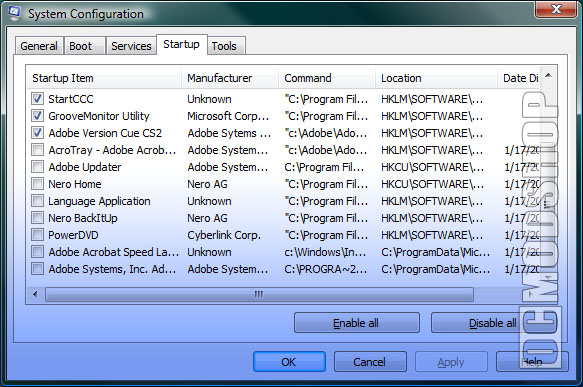
Adobe and other software vendors have tried to do the same thing by installing “helper” applications for their suites, which only serve to waste CPU cycles and memory in order to shave a few micro-seconds off application loading time. Some of the common culprits are “AcroTray”, Adobe Speed Launcher”, “nVidia helper appliation”, “Nero Home”, and other supporting services. These helper applications don’t actually make their sister applications RUN faster, just load faster. The extra memory they take up slows down overall system performance, as less RAM is available for other applicaitons, which must be flushed (and re-cached after flushing).

SuperFetch pretty much does the same thing, but more intelligently. By default you don’t have the option of tweaking what SuperFetch prioritizes, but you can run Tweak VI to optimize the new caching service. In Tweak VI, go to System Information and Tweaks > Hard Drive Information, and select the SuperFetch optimization tab.
How to disable SuperFetch
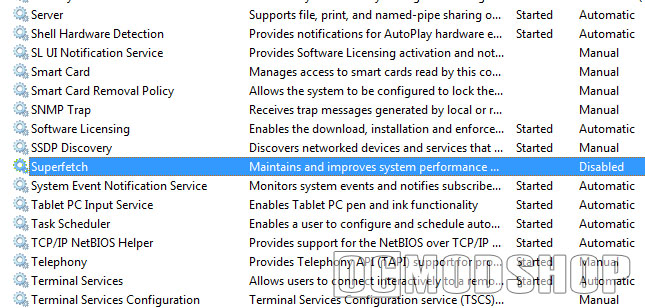
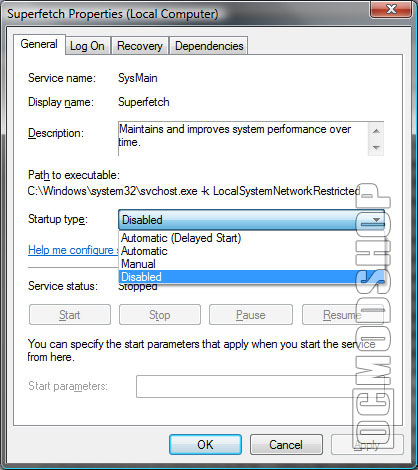
If you have 2GB or RAM or less, you could improve overall system performance by disabling the SuperFetch service. To disable it, open up your Services applet… there are several ways to do this, but the most direct way is to type “services.msc” in a Run dialog box (Win + R).
Since DDR2 memory is becoming cheaper these days, it can be worth throwing in several extra sticks, but keep in mind how many memory slots you have. Most PCs only have 4 slots, so if you buy 1GB sticks then your maximum configuration is 4GB. 2GB sticks are now available, but are currently more expensive, but you can outfit your system with a whopping 8GB of RAM.
Some people have said that 4GB of RAM is overkill, but when you throw SuperFetch into the mix then 8GB is the new 4GB… and I’m sure we’ll find a way to use that up pretty quickly.
In conclusion, SuperFetch can be a way to increase your system performance, but right now it doesn’t help the average user. Common advice to increase performance has always been to upgrade your memory, and this holds true even more today. If you run Vista, then equip your rig with as much memory as you can… and a multi-core processor wouldn’t hurt, either.



16 comments
"just say no to superfetch" … the though that superfetch isn't useful or it's decreasing system performance isn't on the right place… All free unused memory isn't good memory, without superfetch you are wasting it… When you using 40% of all amount of ram with datas and 60% aren't used you can cache it!… System is using HDD to fill ram only after boot for a while after that sometimes to precache… All memory that is cached is still "free", system can at any time rewrite it and use it if some program isn't loaded in memory by superfetch… Keep in mind that system shouldn't do it when you open app you are saving time by this
As mentioned in the article, Superfetch can be useful if you have over 4GB of RAM. Back when this article was first written most people did not and received little benefit from it.
Well, I'm a multi-tasker (also an avid online gamer) but Superfetch really don't bother me. I have only 893MB of RAM (128MB of shared video memory) and my computer still run smoothly.
READ THIS ARTICLE:
http: http://www.osnews.com story 21471 SuperFetch_How_it_Works_Myths
i wonder if superfetch was designed to make the hard drives wear out fastr . o have noticed alot more hard drives failing in the first year of use.
Free RAM is wasted ram? NONSENSE! Wasted RAM = SF caching applications that I rarely if ever use! Foreground apps and HDD get punished as a result of SF. How long does it take to open an app anyways?
Upgrading my PC from 4 GB. to 8 GB. actually slowed it down tremedously during startup due to hard disk activity. The culprit? SUPERFETCH! It was actually caching everything it could find, from video files, to database files, you name it. Disabling it was necessary because the hard disk access wouldn't stop for over an hour.
If some of you took the time to research, you would find the internet littered with people having issues with SuperFetch after reboot. Sometimes 15-20 minutes of massive disk trashing. Disabling SF means I can use my laptop 2 mins after startup and I do not get a performance hit on starting applications that is noticeable. Good article.
Thanks Brian. I found your remarks helpful. Using Black Viper, and the Vistawired suggestions, I still have very slow boot-up. Will disable Superfetch and see if that helps.
Free RAM is wasted ram. It's a complete waste if you aren't filling unused ram with caches and buffers. The Unix world has been doing this for ages!
totally absurd article..
superfetch uses the algorithm and calculates the time,frequency of data program being used. so even if you're using it as workstation or a gamer, it won't be loading ram with unneccesary thing.. take it as a cache and not resource…
Cache why? because it fills the 'free left' space with data prog that you mite need, if you really need soemthing that isnt in RAM, it will swap it!
better get your facts straight dude.
@Gusac: That's the theory… just like all of these tips, your mileage may vary. Your PC already has a lot of processes that waste more CPU cycles than they benefit the user. Try disabling superfetch and run benchmarks… some people notice an improvement. Better get YOUR facts straight… and run spellcheck.
Thanks for the great article! I was always wondering why my hard drive light never EVER went off after I upgraded to Vista. I disabled Superfetch and now my hard drive is much happier and Vista loads (from the login to the desktop) much faster when I boot up. A couple of seconds as opposed to almost 30 before. No kidding! Thanks again!
that is such bull s*** i have 32 bit vista ultimate, running it with 1gb ram and its running perfectly. i can run itunes and a virus scan at the same time with no lag. try doing that in xp.
@brian. Haha, oh my god iTunes and a virus scanner take SO much CPU cycles!!! I have Visual Studio IDE 2008, SQL Server 2008, BizTalk and a load of other services running simultaneously on XP Pro SP3 machine with 1 gig of ram on my old laptop without a hitch. I cannot even imagine running that on Vista with less than 4 gigs of RAM without it being the worst experience ever.
Thanks for the laughs… the could only be a joke… With 1 GB of RAM Vista barely even moves, let alone with Itunes AND a Virus scan running.
It says you MAY experience an improvement… most users really won't notice… just like most users don't notice one spyware program. But when a bunch of stuff is wasting cycles then you really notice.