
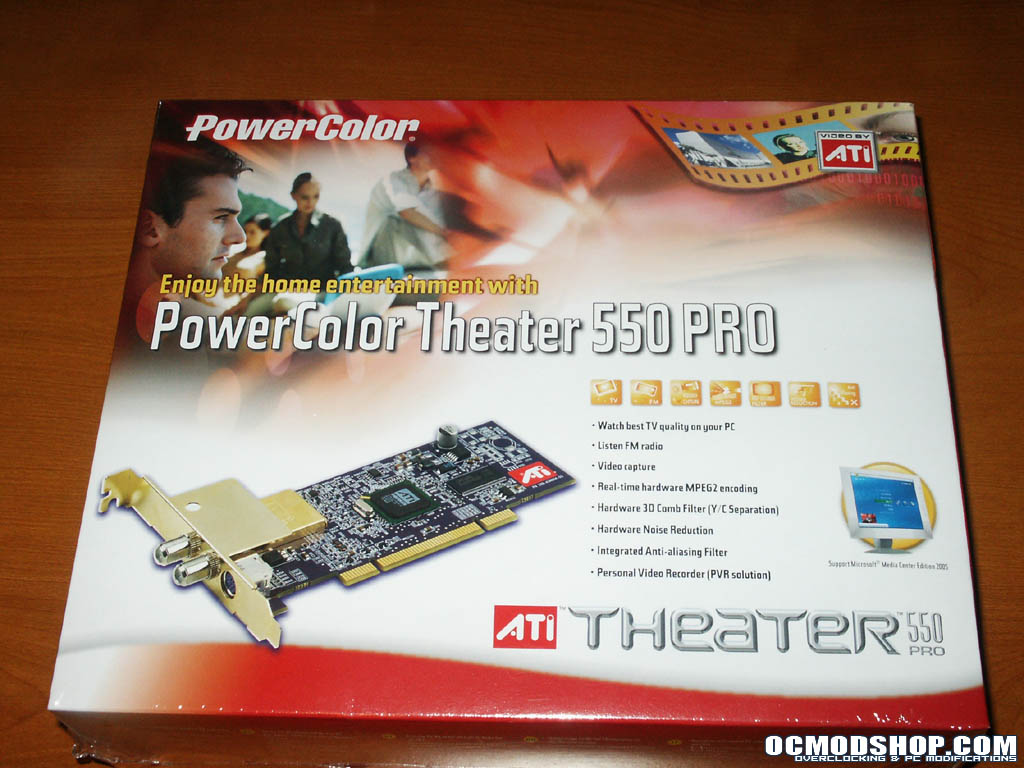
When I first loaded the PowerCinema software to try out the TV tuner, I am given the option to run a first time setup, which I choose. This is your standard “wizard” type walkthru that prompts you with a series of questions and answers to help you configure your setup.
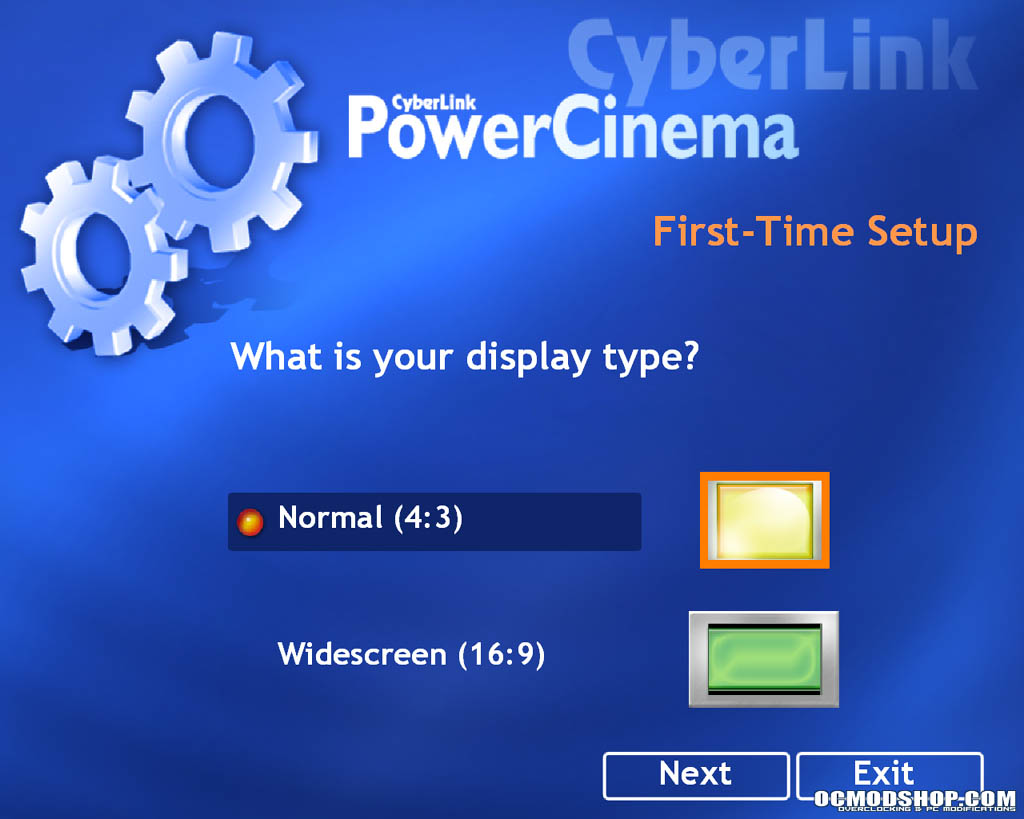 Choosing display type |
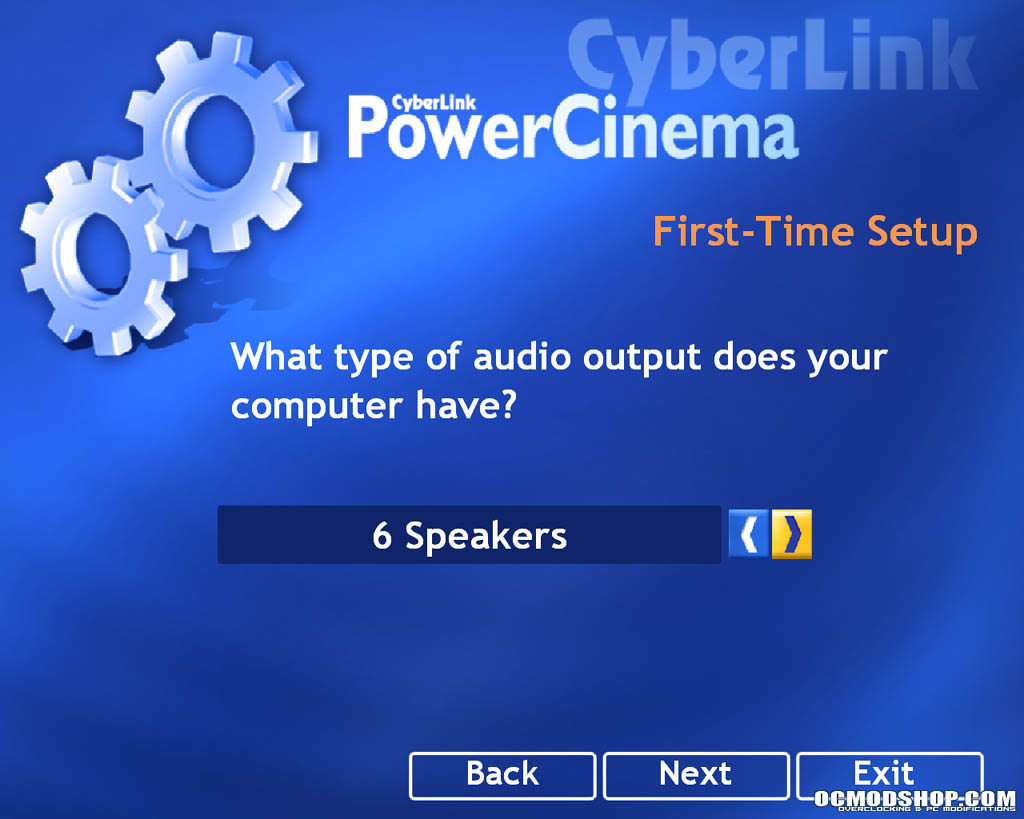 Configure speaker setup |
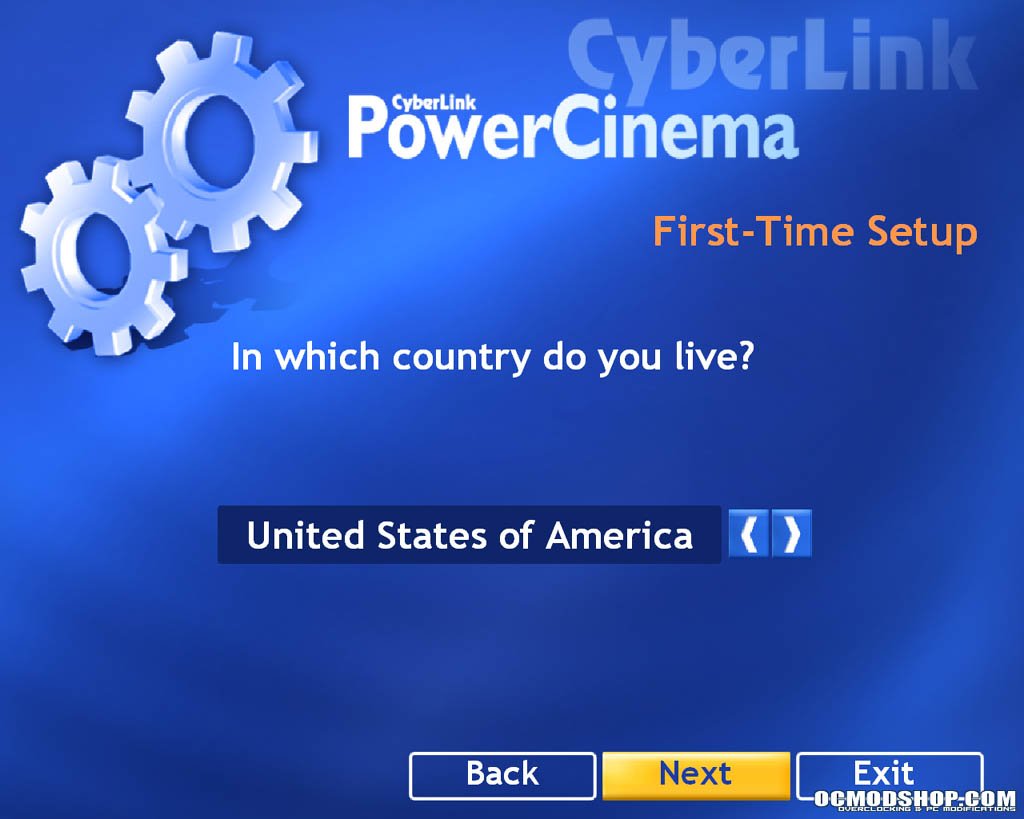 Choosing your country |
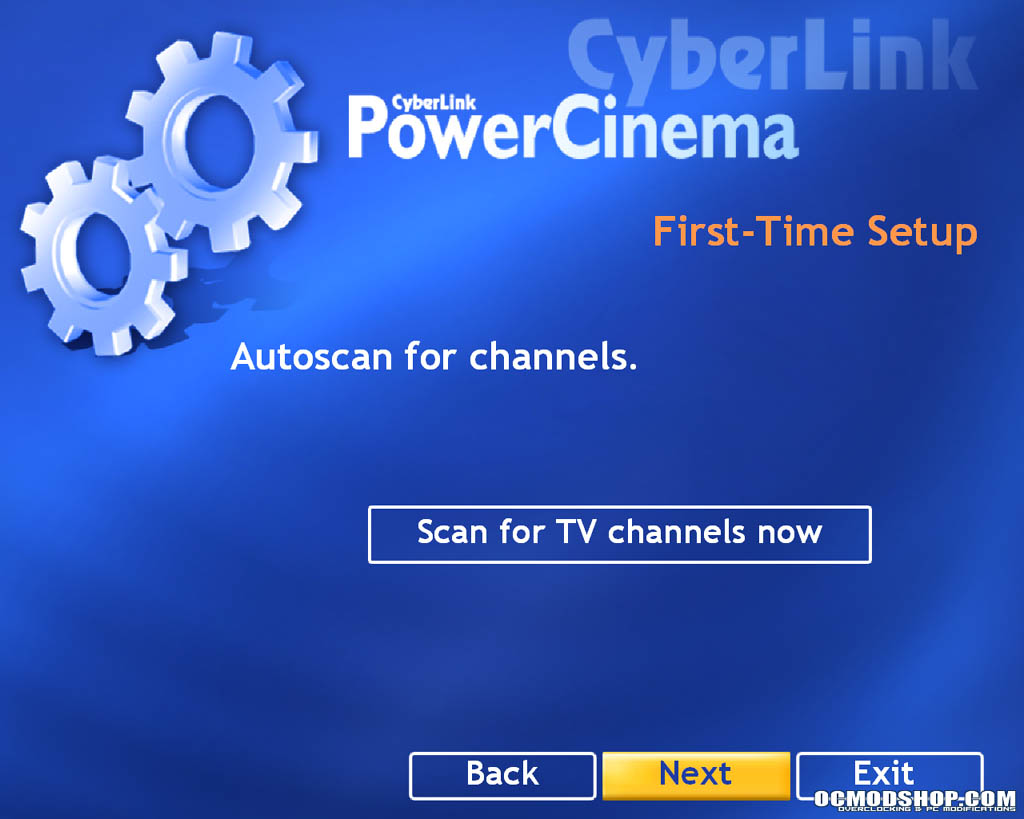 Preparing to autoscan for channels |
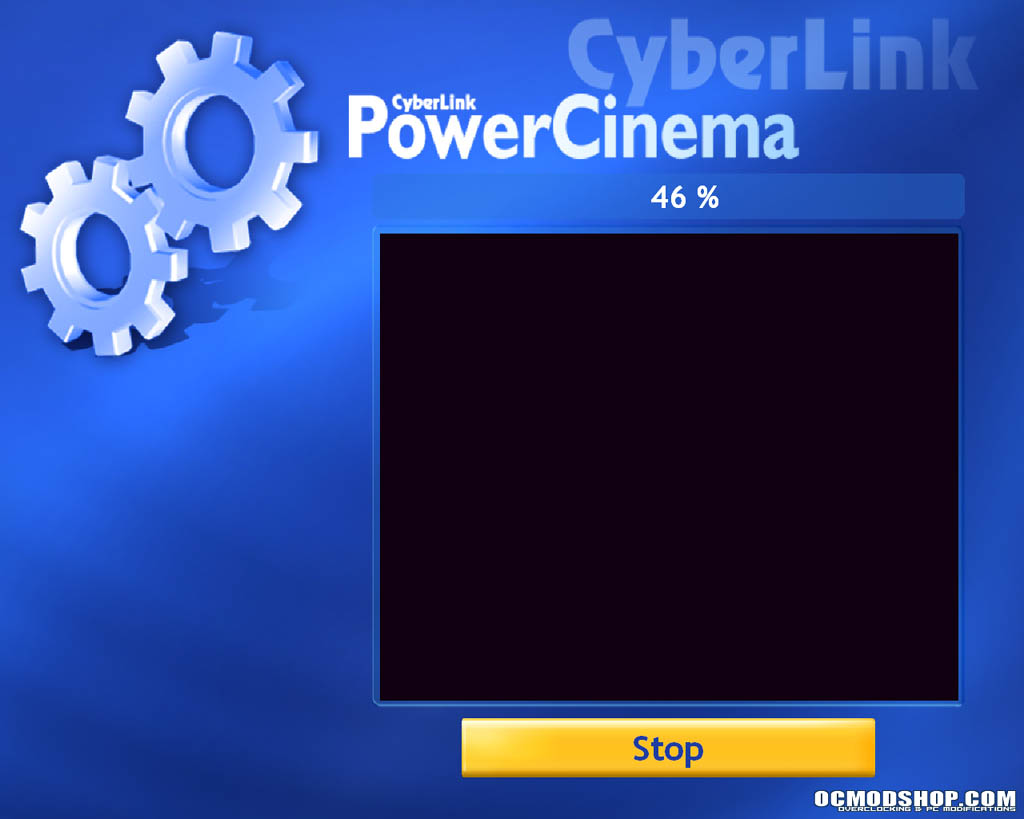 Autoscan in progress (Note the inability to capture live tv screen) |
 Option to scan for music files |
 Enter registration info |
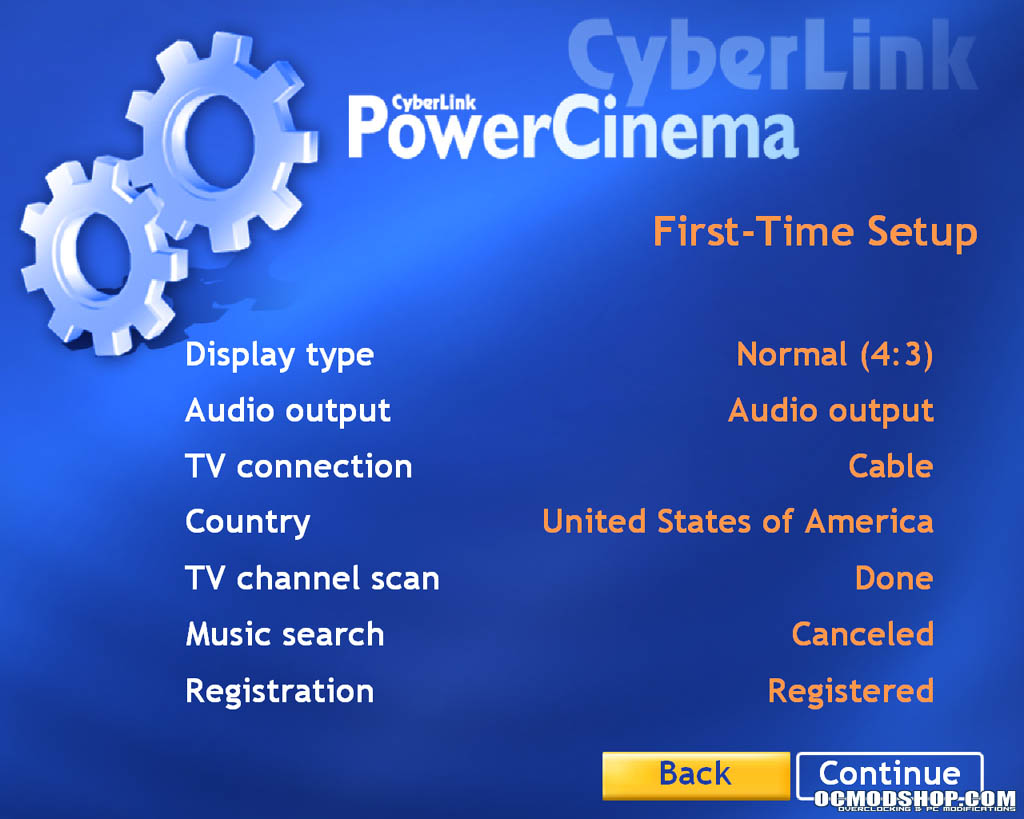 Registration completed |
Now one thing you might be able to see in one of the shots above, when the TV channels were scanning I was able to see the channels change, but every attempt to grab a screenshot would render the image black where the TV was being shown. This issue was later duplicated when attempting to grab a screenshot of the TV playing once the software was installed. On the TV tuner tool bar there was a “Snapshot” button that could be pressed, but there wasn’t any explaination as to where the file might be saved. Unfortunately the help documentation wasn’t much help either as you can see by the screenshot below. As you can see, the reference to the “Snapshot button” only offers 2 unreleated topics and no hint to where the files might be saved.
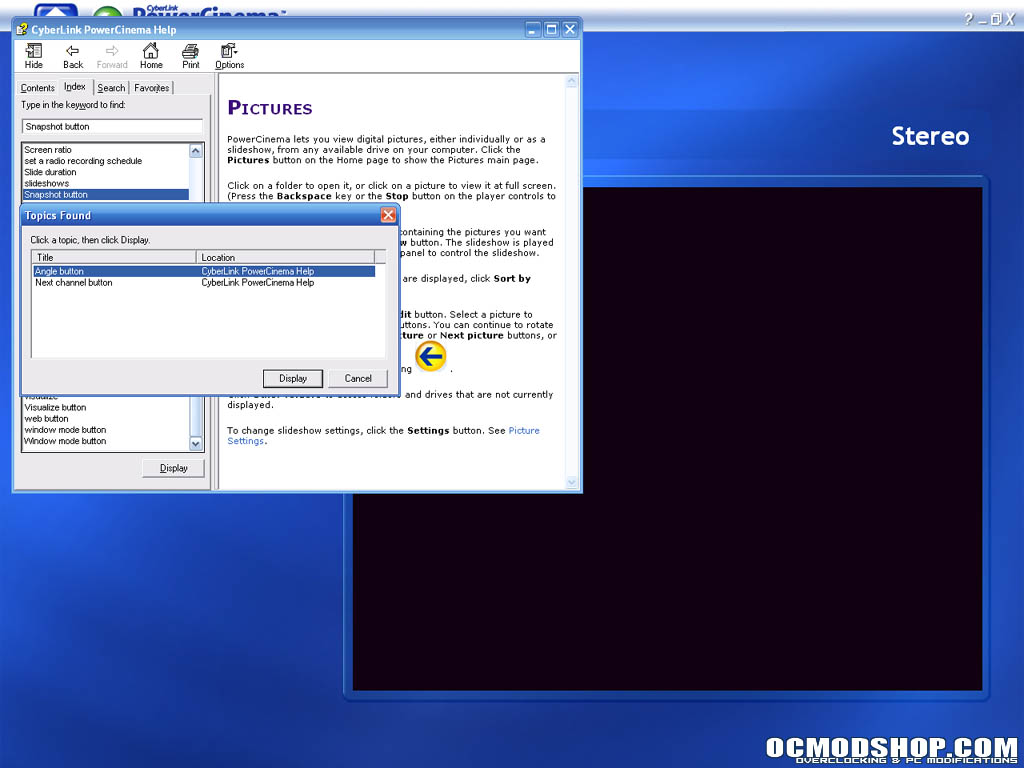 Help Documentation Problem |
By pure chance I happened to stumble across the location where the images were being saved a few days after capturing the images. In Windows XP, under your “My Documents” folder there are several common folders that can often be found including “My Music”, “My Videos”, and in this specific need “My pictures”. Under the “My pictures” folder there was a set of folders starting with “Snapshot” and then “TV Snapshot”. Additionally, going thru the various configuration screens for the PowerCinema software, I was still unable to find any reference to this location.
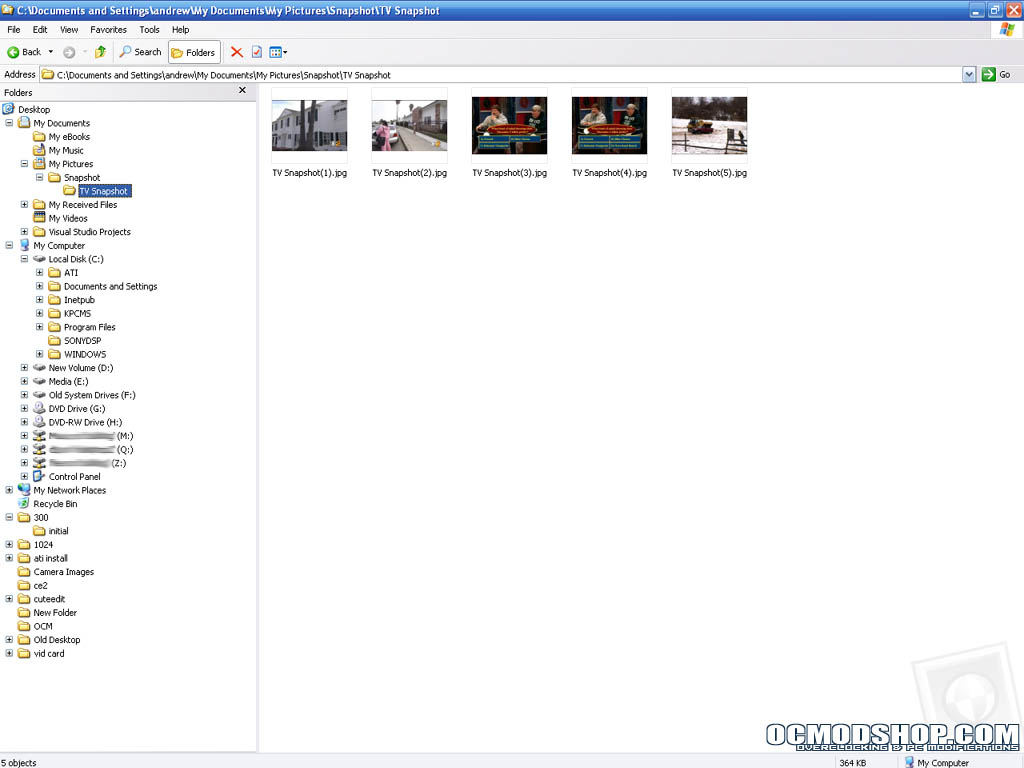 TV Snapshots Folder Location |
Once I had located the folder, I was able to start taking a look at what had been saved and to be honest, I expected to have better image quality then what I found. The images were saved in JPEG format at 640×480 resolution, and this was done no matter what the original screen size was being rendered on screen at the time the snapshot was taken. Comparing this to what I could grab using the TV tuner found in Windows XP Media Center Edition, I did find the PowerCinema software to be a bit lacking. While the PowerCinema software provided the easy “Snapshot” button, it couldn’t compare to the image sizes I could grab using the old standby “Alt + Print Screen” to capture the active window to the clipboard, and then pasting into Photoshop.
 PowerCinema Live TV Capture |
 PowerCinema Live TV Capture |
While using the PowerCinema TV software, I also found a few other things annoying at times. For example, when changing channels I experienced a 3-4 second delay between stations. While part of this could be attributed to using the analog signal from my cable provider to watch TV, my prior experiences with ATI’s multimedia center TV tuner software in other systems or with this TV tuner running under the Windows XP Media Center Edition “Media Center”, I would typically see a 1-1.5 second delay using the same cable connection. My best guess would have to be that this is an issue that is related to the PowerCinema software, and not an issue with the hardware itself.
Also, while not critical, the lack of any built-in channel guide feature made finding shows hard and deciding what to record next to impossible. Without any form of interactive channel guide, all recording options are limited to manually defining the channel and times to record. Compare this to using the channel guide features in Windows XP Media Center Edition where not only do you have an interactive tv guide that goes out 2 weeks ahead of the current date, but the ability to use the Tivo like ability to record entire seasons of shows. I would have to highly suggest that anyone who really wants to get the most out of the tuner should invest in a copy of Windows XP Media Center Edition or upgrade to the full version of CyberLink’s PowerCinema TV Plus.
Lastly, while the remote was more than functional within the PowerCinema sofware, it was rather confusing to find that several of the buttons did not function as I might have expected. Possibly due to my using Windows XP Media Center Edition, but instead of launching the PowerCinema software the Media Center software was loaded when any of the direct access buttons (e.g. “Live TV”) was pressed. Also, buttons like “SAP” and “CC” and “Info/EPG” failed to perform any action in either Media Center or PowerCinema. Lastly since neither the instruction manual or PowerColor website had any additional information on how to use the remote control, I ended up testing the individual buttons using “trial & error” methods to see what would or wouldn’t happen when pressed. A list of button functionality would have been very helpful here.
