

To get to the subject of the lights, first we have to go through the subject of software. The driver pack that it takes to use this mouse to its full potential wasn’t even included in the box. I guess they figured if you were buying the mouse to play the game, you could cruise on over to the SteelSeries website and download it from them. Saves them the cost of a disc, I guess. I downloaded the software and installed it. Once I had it up and running, I began to get excited. This could be the most simplified profiling software ever made for a mouse as complicated as this one appeared to be.
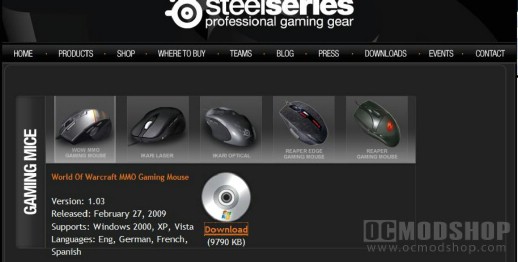
Downloading the software
I’ll begin with the Mouse Properties menu. If you click on the tab on the left side of the application, it will slide out and allow you to configure this sucker all day long. Double-click speed, scroll speed, sensitivity, DPI… it’s a one stop configure shop. And down at the bottom is where we get to the goodies on that pretty glow coming from inside the mouse. With the drop-down color menu you can change the color to damned near any color conceivable. I’ve never seen an option like this on any peripheral. As useless as this light is, it’s unbelievably awesome what you can do with it. You can program the brightness of the color, how fast it pulses (if at all), and have it match the color of anything on your desk. That’s just sick.
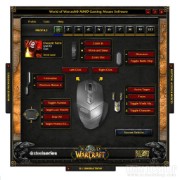
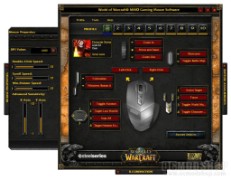
Main menu and mouse properties screens
The last tab, on the left called Button Assignments, is where all the commands are that are programmed to the mouse buttons. Each profile can use this tab to adjust commands, DPI, and custom macros that you make up yourself. Want to program that button to cast Arcane Brilliance on yourself? Do it. It’s just like being in the game and programming them to your keyboard. Only it’s on your mouse. It’s a freaking artillary of buttons ready to do your bidding. The main menu of the application shows a picture of the mouse, then a picture of each button in their corresponding directions. There is a button you can click (which is named for each of these mouse buttons) to adjust the properties of it. If you click one of them, the Button Assignments tab rolls out and you can select what you want it to do. And you can completely customize this mouse for ten different profiles. Don’t like what you did to all the buttons, or find that the original setup was what you want instead? They put a “Restore Defaults” button right in the corner.
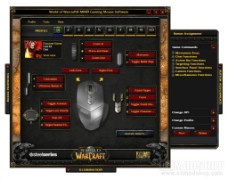
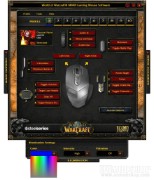
Button Assignment and Illumination Screens
You can also input your character information for each profile and the software will look it up, displaying the character name, level, class, and server it is on. No way you can confuse what each profile is for now. That being said, I guess this is as good a time as any to test it in the game. I’m excited to see how much easier it’s going to be to control my Warlock with all these buttons. On a side note, the software for this mouse is not available for Mac OS, only Windows. Sorry Mac users. Another thing to blog about, I guess.


