As with most USB Drive enclosures, the NexStar MX is also very easy to install, all of the newer operating systems (Windows XP, Vista, 2003, 2008, OSX and Linux) have the native drivers built in to support this hard drive enclosure.
In addition to the native hard drive support, Vantec provides software called Arcsoft Totalmedia Backup with the enclosure.
The NexStar MX does not include a 1 Touch Backup option on the actual enclosure, however many of the backup software programs allow you to target a specific drive for backup. They also usually allow you to start the backup via software.
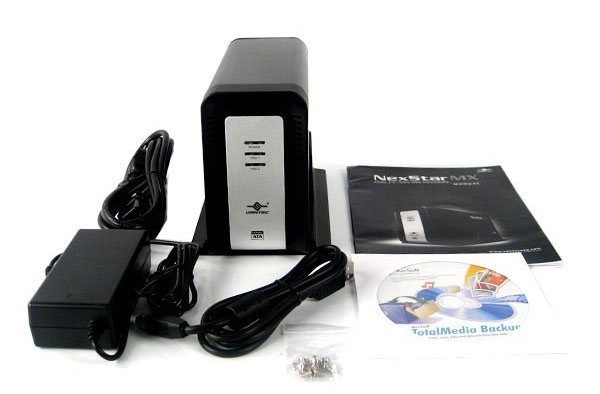
While the NexStar MX is a nice compact design, I was a little disappointed in the hardware installation process. While for many of you this may not be a sore point, but for me it’s becoming more important to have toolless designs. The NexStar MX is held together with 4 screws, after opening up the enclosure, you must then install the 2 drives with 4 screws each. After sliding and screwing in the 2 drives, you then have to screw in the 4 screws to shut the enclosure. This is a total of 12 screws, while this may not seem like a big deal, I’d really like to have a design that requires little to no tools so I could easily change drives or add drives at a later time.
That all said, the enclosure itself has a nice solid feel. This enclosure is built well, I feel safe knowing my drives are well secured and protected.
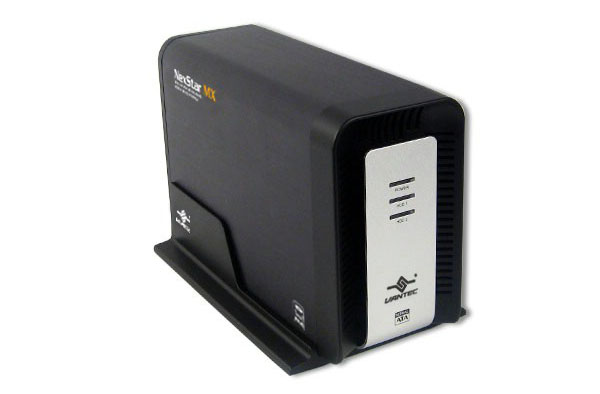
After inserting your hard drives into the enclosure, you are ready to power it up and connect it to your PC.
JBOD vs. Single Drive Mode
I discussed the disadvantages of JBOD in my last article. I’m happy to report that the NexStar MX supports BOTH JBOD or Single Drive Mode. In Single Drive Mode, the NexStar MX will show 2 drives to the operating system with a single USB cable.