
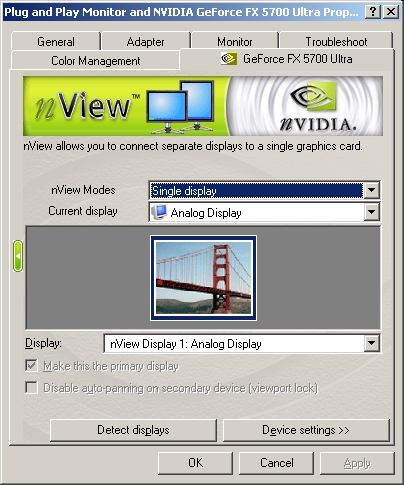
I downloaded the newest Nvidia drivers at the time which were 53.03. The main screen of the properties screen gives a good amount of video card information. The BIOS on this card is 4.36.20.23 with 128MB and 8x AGP. It also shows that I am using a Athlon 64 3200+ and DirectX 9.0 or better, I am actually using 9.0b. The nView screen of the of the driver lets you choose how to setup your monitors if you are using more than one.

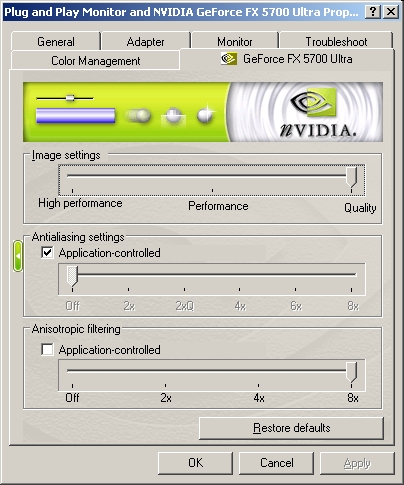
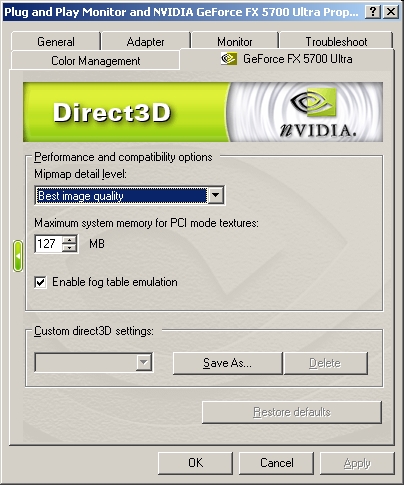
The performance section is where you can set the level of image settings, antialiasing, and anisotropic filtering. I currently have all of the settings to the lowest for benchmarking purposes. Depending on what you want to do with your system you can adjust these settings to suite you best. From the Direct3D section you can configure a few things however since I don’t currently use any Direct3D applications I left things stock.
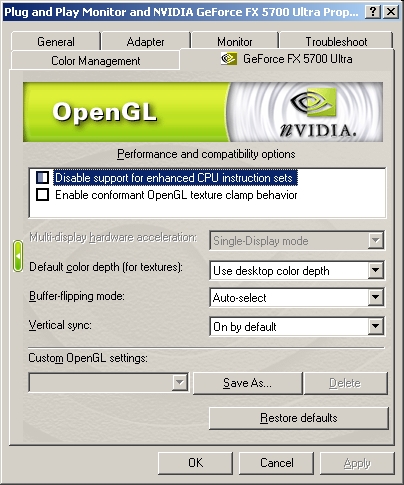
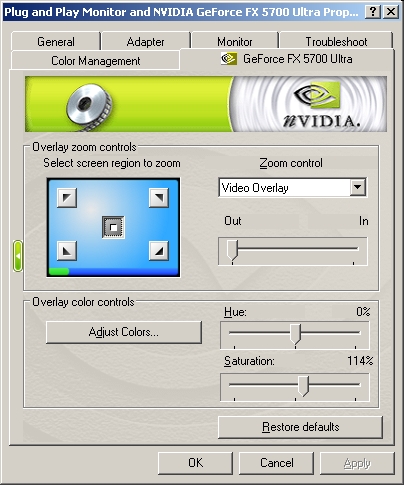
Like the Direct3D section the OpenGL section allows you to change settings for your applications. The overlay section allows you to zoom into parts of your screen.
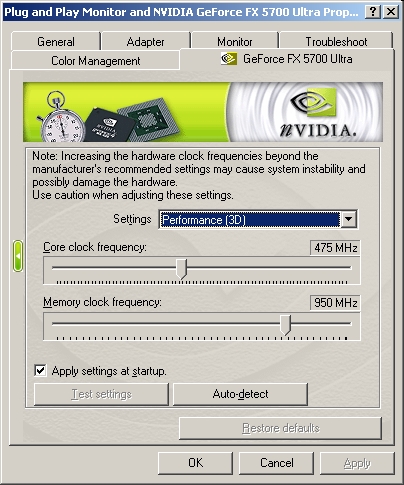
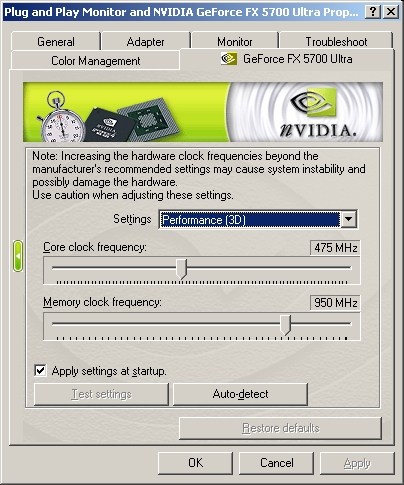
After installing these drivers I did not have the clock frequencies to do any overclocking. This was easily corrected by adding this coolbits registry hack to my system. Once I did that I was able to see my clock settings and adjust them as I desired. As you can see the stock settings for this video card are 475 MHz core and 950 MHz memory. The troubleshooting section allows you to put a utility icon in the taskbar to quickly access various features and presets configured in the display properties.
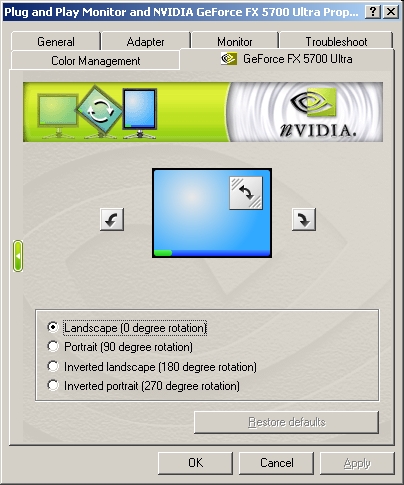
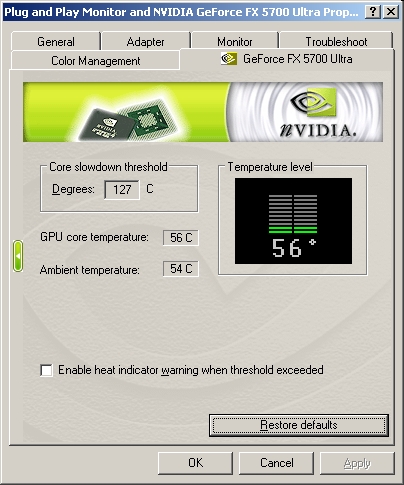
NVRotate allows you to rotate your LCD monitor while having everything displayed correctly. One feature here that I have not seen with any other Nvidia cards is a temperature monitor. It allows you to see the current temperature of the GPU core and ambient temperature. It also gives you the option of enabling a warning for the core threshold, this is a very useful feature especially when overclocking.
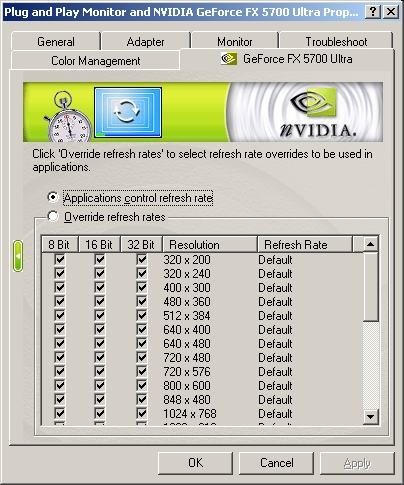
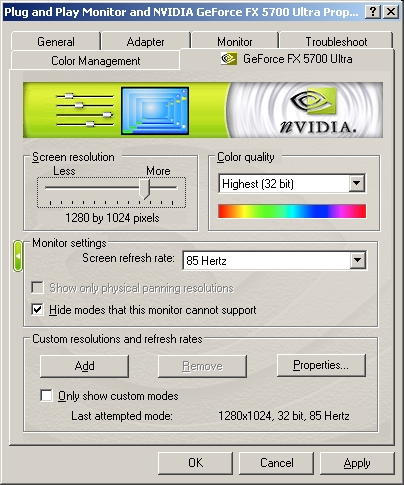
The refresh rate overrides section lets you override refresh rates for application that choose to decrease them. This is quite useful when a stubborn application lowers the refresh rate which can be quite annoying. The change resolution section allows you to obviously change the resolution as well as your color quality and monitor refresh rate.
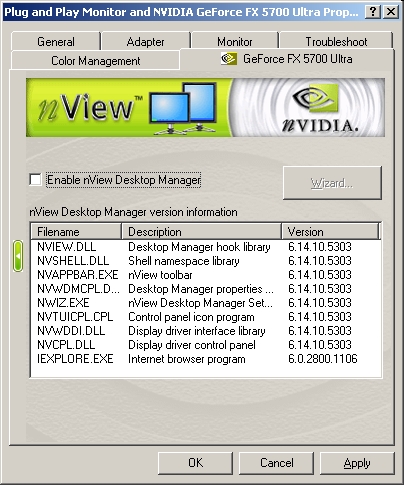
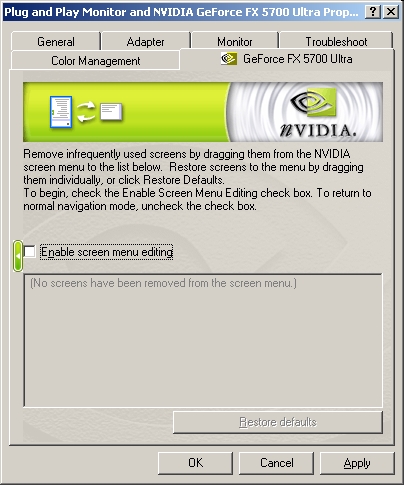
The desktop manager shows you what each file name does and what version it is. The screens menu lets you disable certain screens that you don’t use very much.