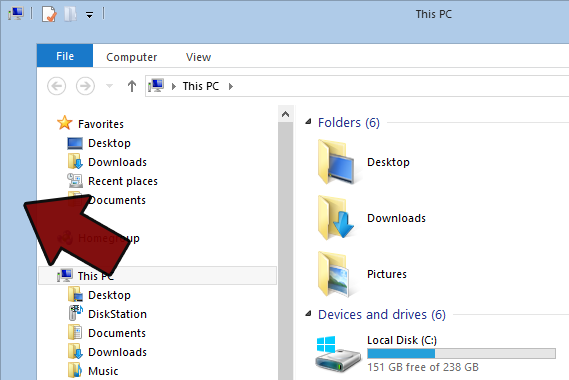
Captain Obvious alert: Windows 8 was intended to be used with a touch interface. One side effect of this usability decision is that the default border size of Desktop windows are thick enough so that they can be re-sized by touching them with your fingers.
For those of us primarily using the Windows desktop with a keyboard and mouse, the extra border width just takes up unnecessary space. Many of the window customization options have been removed from the Control Panel’s Advanced Display section, so there’s no UI to adjust the borders. This tweak can still be done, but must be made via the Windows Registry.
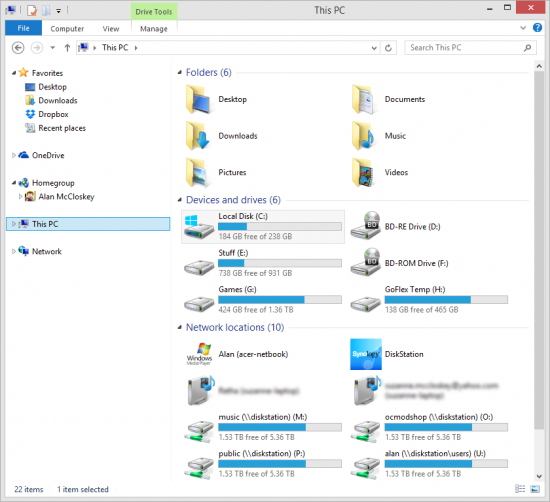 The default window border thickness is maddengly thick
- Open up the Registry. Use one of the options below:
- Press Win + R to open the Run dialog and type regedit and then click OK.
- Go to the Windows main screen (tap the Win key) and just start typing “regedit” to start searching for the Registry Editor.

- Open up a command prompt. Type regedit. For those who want to know, regedit.exe is located in the C:\Windows\System32 directory.
- If prompted by User Authentication Control, just click YES.
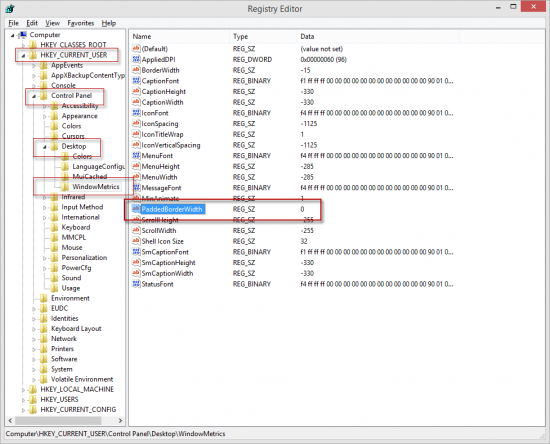
- In the registry editor window, navigate to this location:
- HKEY_CURRENT_USER\Control Panel\Desktop\WindowMetrics
- In the right pane, double-click on the PaddedBorderWidth property.
- Change the value from -60 (default) to 0.
- Note that -17 is the equivalent of one pixel. The default value of -60 is about 4 pixels. If you want thicker borders, then by all means increase this value to -100 or even higher
- Close the registry editor
- Sign out and back in with the same account to see the changes.