
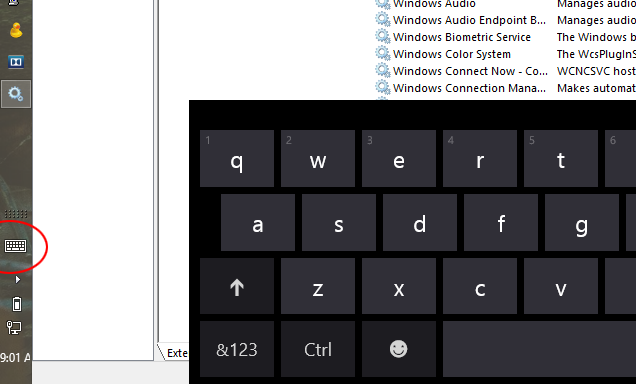
Windows 8’s software keyboard can appear when you don’t want it, even if you have a physical keyboard attached. There’s how to disable Windows 8 touch keyboard
If you have bought a laptop computer since 2013, then it probably has Windows 8 pre-installed. Unless you’re reading this article in the far future and Windows 9 is out… in which case: Congratulations on surviving Windows 8, Mircrosoft!
Many new laptop computers also come with multi-touch screens, and in many cases behave like a Windows tablet.
In my case, the Acer laptop I use has a non-detachable keyboard and also features a touch screen. Whenever I am near any sort of input screen (password field, Word, etc) and touch the screen, the on-screen keyboard appears, which I will never, ever, use since I have an always-present physical keyboard.
Another thing that makes this annoying is that a keyboard icon appears in your taskbar. If you have a thin vertical taskbar (implment it here), then this leaves little room for programs.
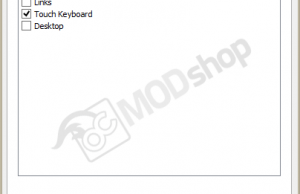
Disable the Touch Keyboard Taskbar Icon
- Right-click an empty area of the taskbar
- Select Properties.
- Click the “Toolbars” tab
- Un-check “Touch Keyboard”
Disable the touch keyboard completely
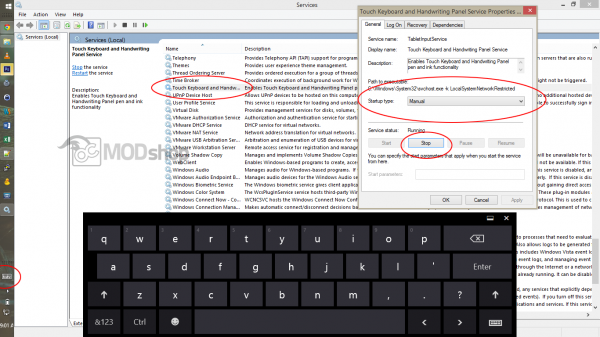
- Go to Manage > Services and Applications > Services
- Find “Touch Keyboard and Handwriting Panel” and double-click it.
- Change the Startup type to “Disabled”.
- Click “Stop Service”.
- Reboot your PC
After you disable the service then you won’t get a touch-screen keyboard at all. There are enough GUI annoyances in Windows 8 that make no sense on a laptop computer as it is… even if it does have a touch screen.
