

Gripping the mouse is very comfortable, just like most of Logitech’s other mice with similar shapes. I really dig the large thumb rest and placement of the buttons. All of the common-use buttons are easily accessible and the ones you don’t want to click accidentally (like the profile switching button) are out of the way. I’m actually surprised how easy and useful the four thumb buttons are. I use them in gaming and in productivity mode.
We tested the Logitech G700 wireless mouse in a variety of applications and games, in all power modes, and created several profiles and button customizations. We plugged the Unifying receiver at the back of our motherboard, rather than using the extension cable to bring the receiver closer. Below is our test configuration:
| Hardware | Intel i7-950 Processor Asus P6X58D-E Motherboard (USB 2.0, 3.0, Firewire 400 onboard) 12GB Corsair Dominator-GT DDR3-2000 Asus Xonar D2X nVidia Quadro CX Video Card 2x Corsair F40 SSDs (in Raid 0) Western Digital 1.5TB HDD Lian Li V-1020B Black Aluminum Case Razer Destructor mousepad |
| Software | SetPoint version 5.40.39 Driver version 5.10.9 G700 Firmware version 22.35 |
One of the greatest things about this mouse is the customizable scroll wheel. When in games it can be easily switched to have a ratcheted action (for switching weapons), and can then switch to “free scroll” mode, which can easily traverse a very long web page with a single flick. In “free scroll” mode the wheel has a tendancy to drift, but this can be easily fixed by adjusting the wheel sensitivity in software. I love being able to manually toggle between the two modes, and it really puts me in control. The notched mode feels a bit light when compared with other gaming mice that require a little more force to move to the next notch, but if you like the feel of Logitech’s metal scroll wheel then you’ll be right at home.
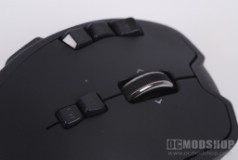
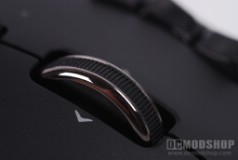
Scroll wheel can switch between notched and free-scrolling with a toggle button
From my findings, most of the issues one would have with this mouse can be quickly remedied by using the software. Sensitivity not what you like? Use a higher-power mode and/or mode the receiver closer (or just run the mouse completely wired). Scroll wheel drifting? Adjust the sensitivity or change to notched mode. The only natural faults one may have with this rodent is the stiffness of the data cord and the texture of the plastic.
The three LED lights are positioned in such a way that your hand will never obscure them, and change colors depending on the context of information. In general, the lights act as a meter, and change their maximum from 1 to 5. If you only have 3 profiles on your mouse, then the LEDs only go up to three, but if you have 5 then they go up more. How do you denote 5 possible positions from only 3 lights? Like this:
| – – * | 1 |
| – * * | 2 |
| * * * | 3 |
| * * – | 4 |
| * – – | 5 |
The LEDs change color depending on what you’re looking at. When checking the battery, 3 green lights indicate full battery, 1 is low, and a single red LED is critical. Amber lights indicate which profile you have selected, and red lights indicate which DPI position for the profile you have. One problem I had with the SteelSeries Ikari was that there were only 2 LEDs, they were the same color and alternated between low and high. It was hard to tell at a glance which mode you were in because the lights were so close together. If Ikari used the method that Logitech does (- * for 1 and ** for 2) then the user could easily distinguish which DPI mode they were in).

The LEDs on the left side are easily visible and change with context
Of course, the LEDs change depending on the profile. In productivity mode I have 5 DPI settings, (800, 1200, 2000, 3200, and 5200) and in gaming I have 2 DPI settings (800 and 5000). When I’m in productivity mode I need to remember that 2 red LEDs mean 1200 and not 5000. Some mice have character displays on them, like the CoolerMaster Storm and Ikari Laser, but they are obscured by your hand or are under the mouse. If Logitech used a character readout then you’d have to peer at it to know the output. 3 LEDs with different colors provide much better usability for those who need to know the output at a quick glance.
The wireless reception is amazing, and there was abolutely no lag in gaming. The mouse does have to “wake up” from a long idle when using low-power and “normal” power modes, but was non-existant in “Max Gaming” and corded mode. Some users have complained that the mouse doesn’t pick up small movements in wireless mode, but I feel that this would be eliminated by changing the power mode and possibly switching to a different mousepad. As mentioned before we used the Razer Destructor mousepad and the wireless receiver was plugged into the back of our test PC and not right next to the mouse.
Battery life lasts just over a day, and perhaps a little less if you are in “max gaming” mode. Luckily the mouse takes standard AA NiMH batteries so they can be replaced in a pinch, Do not use alkaline batteries as they do not provide the voltage necessary over its full life and could blow up if you tried to charge them. The Sanyo Eneloop Nickel Metal-Hydride HR-3UTG Ready-To-Use 2000mAh AA rechargable battery only takes about an hour to charge.
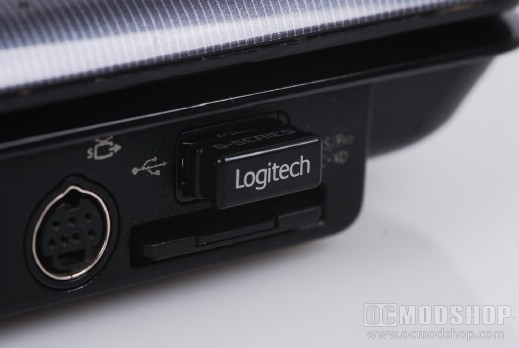
Wireless receiver is so small that it doesn’t get in the way, even on a laptop
Tiny receiver is so small it can stay plugged in to any USB port without getting in the way, including a laptop. The receiver will also take input of up to 5 other wireless Logitech devices. The receiver also tucks neatly inside the G700’s battery compartment when you need to take your mouse to a LAN party. I only wish they included a carrying bag.


