

Logitech’s mice have had similar designs over the years, and if you’re a fan of their gadgets then the G700 will look genetically enhanced, but strangely familiar. My friend Corey summed up the look of the G700 best when he said: “It’s like a G5 and G9 did the funky, but the G9 cheated with the G7”. I’m not sure I could sum it up any better.
Yes, the G700 looks like a hybrid between the sleek G5 but with the cyborg quality of the G5. Then they made that hybrid wireless.
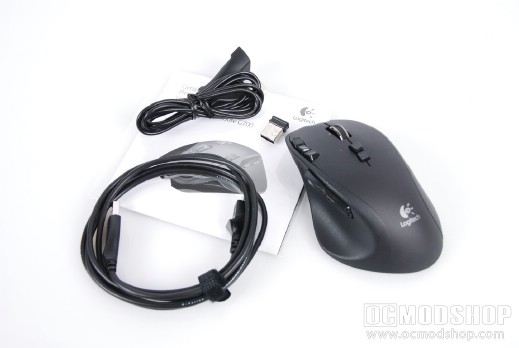
The box comes with the mouse, USB cable, extension cable, wireless receiver and quick-start guide
The top of the mouse has your standard left and right click buttons, and between them is an aluminum scroll wheel that has been adorned with a rubber grip. This is no ordinary scroll wheel, however, as a hardware switch below it toggles the wheel to be notched or free-scrolling, but more on that later. Beneath this switch is another button (G11), which by default toggles through any profiles you create. To the left of the left-click button are three programmable G-buttons (G8, G9, and G10).
The left side of the mouse features a very prominent thumb rest, which you will need because you have FOUR thumb buttons to contend with. These buttons are thinner than normal thumb-buttons, but have protrusions so they are very easy to identify by touch. In front of the thumb button array are three multicolor LEDs which are strategically placed so they are never obscured by your mousing hand, and they change depending on the context. For example, if you press the “battery status” button (G8 by default) then 3 green LEDs means fully charged, 1 green LED means getting low, and 1 red LED indicated critical. The lights change to red to indicate the DPI setting, and amber to indicate the profile position.
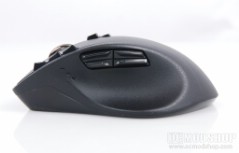
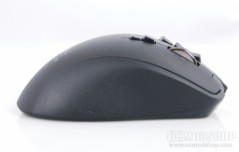
Left and right side of the G700
The right side of the mouse has an ergonomic slope that cradles your fingers, but isn’t as contoured as the SteelSeries Ikari (one of my favorite ergonomic rodents). My pinky finger rests on my mousepad, which can cause drag when moving the mouse around.
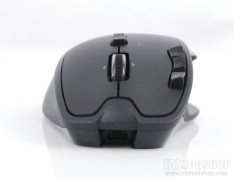
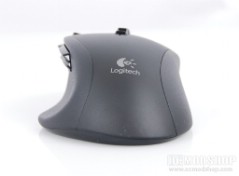
Front and back of the mouse
The front of the mouse has a recessed area at the lower front which conceals a small USB port, which is where the included data cable attaches. Once attached, the tethered cable looks like it was permanently attached, and does not pull out easily, so there’s no accidental disconnection.
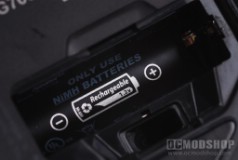
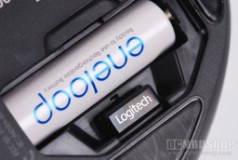
Battery compartment can hold 1 AA NiMH battery and stow away the wireless receiver
The bottom of the mouse has four teflon feet surrounding the 5700dpi infrared laser sensor. Below the sensor is an on/off switch, which really only needs to be switched off when transporting the mouse. Below this switch is a battery compartment which houses a single Sanyo Eneloop Nickel Metal-Hydride HR-3UTG Ready-To-Use 2000mAh AA rechargable battery. Since it’s NiMH, it won’t suffer from any battery memory issues, so it should retain most of its life even if you frequently recharge without completely draining it. Also in this compartment is a nook in which to store the included Unified wireless receiver when taking the mouse to a LAN party.


