

The ATI AVIVO Video converter only works with the latest ATI video cards. It supports the X1300, X1600, X1800 and X1900 series of cards. Below is a step-by-step process on transcoding any video file to another format using ATI’s GPU for hardware processing. You’ll need to be sure you have the “Complete Avivo Suite for X1000 series products” installed.
Please note though, it seems at this time the Avivo Converter is only available for WindowsXP 32 bit… no Vista, no x86-64, no Linux. It would be very nice if ATI is working on that.
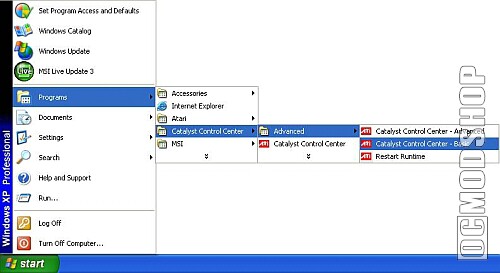
Step 1: Currently, the Avivo Video Converter is available via the Catalyst Control Center – Basic view
To access the Catalyst Control Center – Basic view, do the following:
1. Click “START”
2. Select “Programs->Catalyst Control Center->Advanced->Catalyst Control Center – Basic”
The “What would you like to do?” Dialog box is displayed.
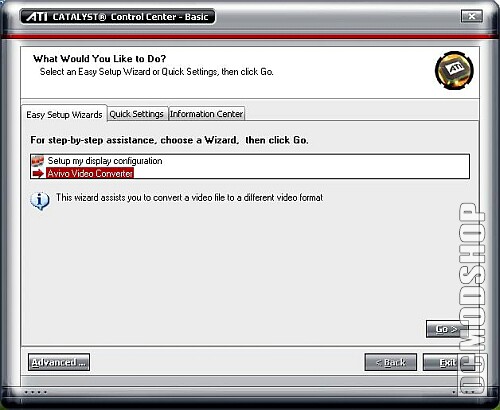
To convert a media file, do the following:
1. Click “Easy Setup Wizards” Tab
2. Select “Avivo Converter”
3. Click “GO”
The Avivo Video Convert – Step 1 dialog box is displayed.
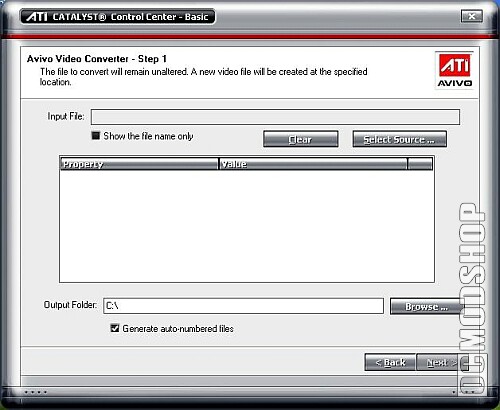
Selecting a media file to convert
To select a media file to convert, do the following:
1. Click the “Select Source…” button.
2. An “Open” file dialog box will open.
3. Locate the file by either browsing to the location using the Look in option or by using the side navigation buttons.
4. Once located, highlight and select the file and then click the “OPEN” button. The input file name is displayed.
5. Click “NEXT”.
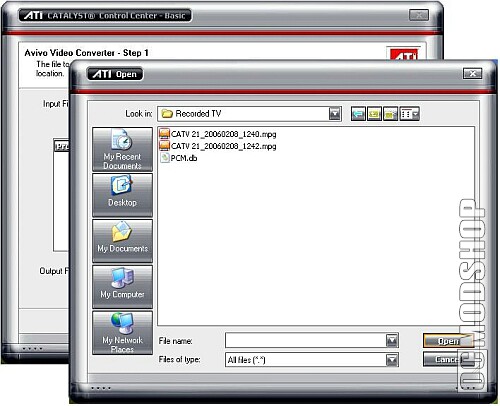
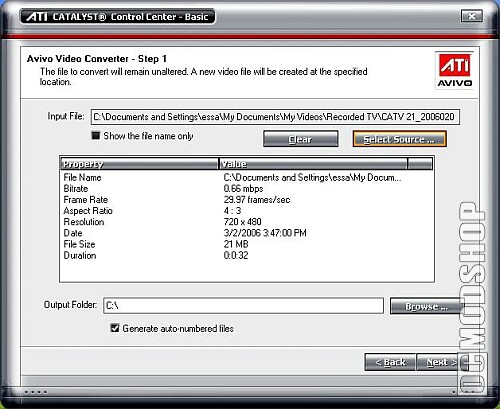
You have successfully selected a media file for conversion.
Selecting the Output Video Format
You are now ready to select an output video format. To do this, follow these steps:
1. Using the drop down menu, select the output video format.
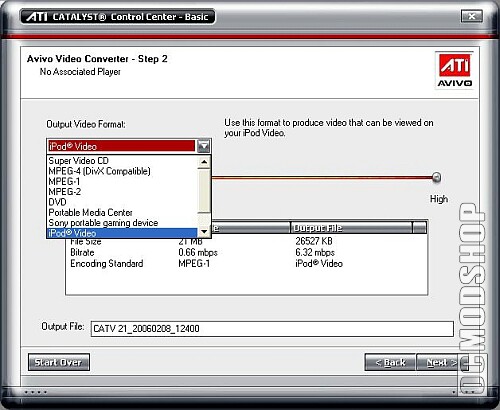
2. Once selected, click on NEXT.
The Avivo™ Video Converter progress indicator is displayed.
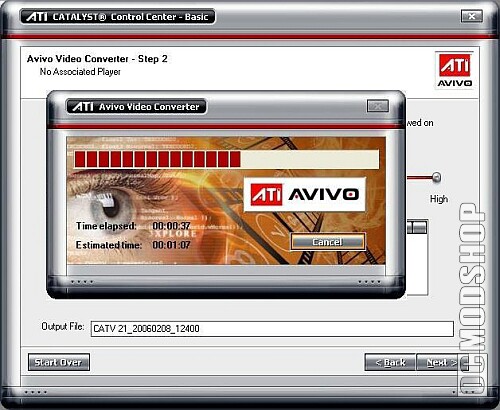
Once the conversion is complete, the Avivo™ Video Converter – Completed window is displayed along with the converted file name and location.
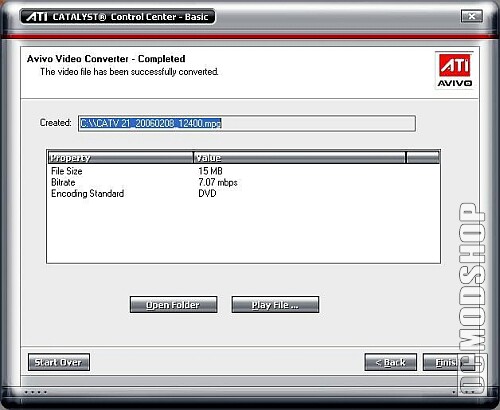
You have successfully converted a media file to another format.



3 comments
actualy if you want to play a HD video..use splash pro…it usese you GPU and your cpu won't have to stay on load. For converting yes it doesn't do anything but for streaming :)…it makes a huge diference
seriously…. i tried badaboom its much more better… amd fails again….
AVIVO is pretty much just a gimmick. Never does the GPU play any part in the conversion process–monitor GPU and CPU load, and you'll see that the GPU never shifts from idle, and the CPU is being taxed. The reason the conversion with AVIVO is so quick in comparison to other apps used is that the encoder(s) used are sloppy, and low-quality fast conversion is the preset for the program.
Comments are closed.