

It really is as simple as Plug and Play. All you have to do it connect the DisplayLink adapter to a free USB port, and connect your monitor to the DVI port. You can connect an analog monitor to the device using a standard DVI to VGA adapter, if you like. If using a modern operating system like Windows Vista, then the software install is automatic. Your desktop may blink a few times, but then your new monitor is ready.
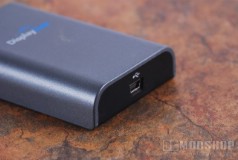
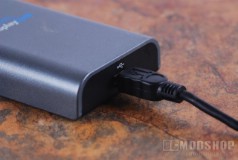
Simply plug in USB and go
All you have to do once the hardware is initialized is expand your desktop to use the extra monitor. Like regular multimon, you can position your new monitor to the left, right, top or bottom of your primary monitor. There is also an icon in your toolbar that provides quicklinks to the settings of the USB-attached monitor. You can change the color depth and resolution, as well as expand your desktop, set the monitor’s orientation, or mirror your existing display. Even though the software will support widescreen and resolutions up to 1600×1200, the adapter detects the attached monitor’s capabilites. Our test monitor had a maximum resolution of 1280×1024, and the software would only allow us to set the resolution up to that point.
Performance
Although the devices use the capabilities of your existing graphics card, the output must still be compressed and sent through USB, which means the display won’t be as snappy as a native device. The more changes going on the display at once, the higher your CPU usage will be. Although you can watch a full-screen movie on the extra monitor, but your CPU will be taxed. On a low-powered laptop, we experienced choppy video,and some applications were slow to respond. On a fast E6600 Core2Duo processor, the CPU usage only went up by 10%.
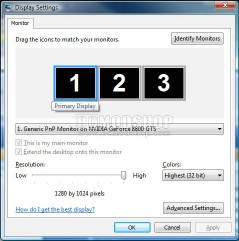
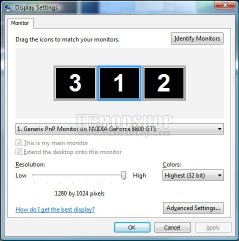
Monitor can be displayed on left or right of primary
You cannot game full-screen on it, as nearly all PC games will only work on the primary monitor. The exception to this rule is Flight Simulator or any game that can be windowed and stretched across multiple monitors. The performance will be so dismal that you will learn not to do that again. You will be brutally reminded that these USB displays are for casual work like office tasks, web browsing, or watching video.
On the next page we render our verdict…



1 comment
not working in 3 lcd?? please help… the third monitor has no display…
Comments are closed.