Internet Explorer 7’s “Quick Tabs”Version 7.0 of Internet Explorer has been renamed to Windows Internet Explorer, as part of Microsoft’s rebranding of component names that are included with Windows. Set to ship with Windows Vista, and as a separate download for Windows XP with Service Pack 2 and Windows Server 2003 Service Pack 1, large amounts of the underlying architecture, including the rendering engine and security framework, have been completely overhauled. Partly as a result of these security enhancements, the browser will be a stand-alone application, rather than integrated with the Windows shell, and it will no longer be capable of acting as a file browser.
The Windows Vista version will be known as Internet Explorer 7+. It incorporates additional security measures, most significantly “Protected Mode”, whereby the browser runs in a sandbox with even lower rights than a limited user account software. As such, it can write to only the Temporary Internet Files folder and cannot install start-up programs or change any configuration of the operating system. This is expected to increase the security of the system considerably.[2] However, the Windows XP version of Internet Explorer 7 will not feature “Protected Mode” operation. IE7+ also support the Parental Controls and Network Diagnostics features which are unique to Vista.
 On January 31, 2006, Microsoft released a public preview build (Beta 2 preview: Pre-Beta 2 version) of Internet Explorer 7 for Windows XP Service Pack 2 (not for Windows Server 2003 SP 1) on their web site. It stated that more public preview builds (possibly Beta 2 in April) of Internet Explorer 7 will be released in first half of 2006, and final version will be released in second half of 2006. The pre beta build was refreshed on March 20, 2006 to build 7.0.5335.5. A real Beta 2 Build was released on April 24, 2006 to build 7.0.5346.5. In addition, at the MIX’06 conference, Bill Gates said that Microsoft is already working on the next two versions of IE after version 7.
New features and changes
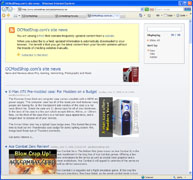
- Internet Explorer 7’s Web feed readerInternet Explorer is no longer integrated with the Windows Explorer shell for better security. Local files typed in IE7 are opened using the Windows Explorer shell and Web sites typed in Windows Explorer shell are opened using IE7.
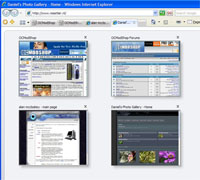
- Version 7 supports tabbed browsing, which has been a popular feature in competing web browsers for some time. Unfortunately in Beta 1, there was no way to turn this feature off, should you need to, however, as of Beta 2, there is now a option within Internet Options, called Tabs, just above the Search Providers option. However, the first tab merely duplicates the information in the title frame (and, often, address field) immediately above – and the tabs field displaces your usual plug-in icons entirely. There is also a feature called “Quick Tabs”, which displays a thumbnail preview of opened tabs, treating tabs like Exposé treats application windows. With this new feature, user can find, open, close, and refresh opened tabs easily. International Domain Names (IDN) support with anti-spoofing technology.
- A search box has been added to the top-right corner, to do fast searches using a search engine. MSN Search is the default, but additional providers may be added (Google, Altavista, Yahoo!, etc). Microsoft provides a list of common providers. The search box uses A9.com’s OpenSearch technology to import search providers. By using an open standard, Microsoft made it easier for websites to include their pre-defined search queries in the search box. There is also a comprehensive list of popular search providers that can be added to the search box available here.
- Long-awaited support for per-pixel alpha channel transparency in PNG images has been added.
- Feed reader integration in Web feeds support is built in version 7.0. The feed reader is fully integrated with the browser, so that user can read web feeds (RSS or Atom) without an RSS reader. It also discovers web feeds automatically. Updates to web feeds can be retrieved when the web browser isn’t running. The web feeds feature set is also available to third-party developers through API’s, so that the list of subscribed feeds (as well as their current contents) can be used.
- ActiveX Opt-In blocks ActiveX Control unless it allowed to be installed. This feature improves security from unverificable and vulnerable controls. ActiveX controls can be chosen to be installed on Information Bar. User can turn on and off ActiveX Contol by using Add-on Manager.
- A number of improvements to CSS, DOM and HTML support have been made. Microsoft’s stated goal with version 7 was to fix the most significant “bugs” and areas which caused the most trouble for developers, and then improved coverage of the standards would come later.
- The well-known problem of having the right-hand portion of a web page cut off when the page is printed has been fixed. Page content can also be “shrunk” to fit more text on a single page. The revamped “Print Preview” interface will also let users drag the page margins around and see the results immediately.
- A “Zoom” selector has been added to the bottom-right corner of the user interface. Unlike the “Text size” feature, this will zoom the complete contents of the web page, allowing for easier reading on larger displays. Fonts are rendered at higher resolution.
- ClearType can be enabled or disabled separately from the rest of the operating system.
- The new “Phishing Filter” offers protection against phishing scams and other web sites that may be considered dangerous for a user to enter their personal information into. When enabled, every web site the user visits is checked against a master list of known phishing sites. If a site is listed, the user is informed. In light of the privacy implications of this feature, it is not enabled automatically; the user is asked when they start Internet Explorer 7 if they want it enabled. Microsoft is working in conjunction with companies that specialize in identifying phishing schemes to ensure the list of known sites is accurate and quickly updated.
- Address Bar and status bar appear in all windows including Pop-Up which helps to block malicious sites from disguising them as trusted sites. Also the address bar features a color code to visually indicate the trustworthiness of the page. The Address Bar turns red when a page, with invalid security certificate, is accessed. In case of sites not using any encryption, the address bar is white. And if the page uses high security certificate, the bar turns green. Modal windows such as dialog boxes are shown only when it’s selected the tab that has generated it (the tab colour becomes orange).
- The status bar no-longer allows custom text to be entered and will always show the URL of any link you hover over for security. Unique dynamic Go/Refresh button. When you type an URL into the address bar the button changes from Refresh to Go and when you press Go (or keyboard Enter) the button changes from Go to Refresh. In this way the space taken by the toolbars is optimized and you have more space for the web pages.
- “Fix My Settings” checks at startup or when a setting is changed, if the current settings are unsafe and notify to the user. The user can also press a button in order to fix the settings to a safe state.
- Old protocols and technologies removed: Gopher, Telnet, Scriptlets, DirectAnimation, XBM, etc.
- Support for channel (.CDF) files has been removed (also known as ‘Active Desktop Items’ they include stock-tickers and weather maps which would update continously and be placed onto the desktop.
- “No Add-ons” allows to launch IE7 without the installed extensions
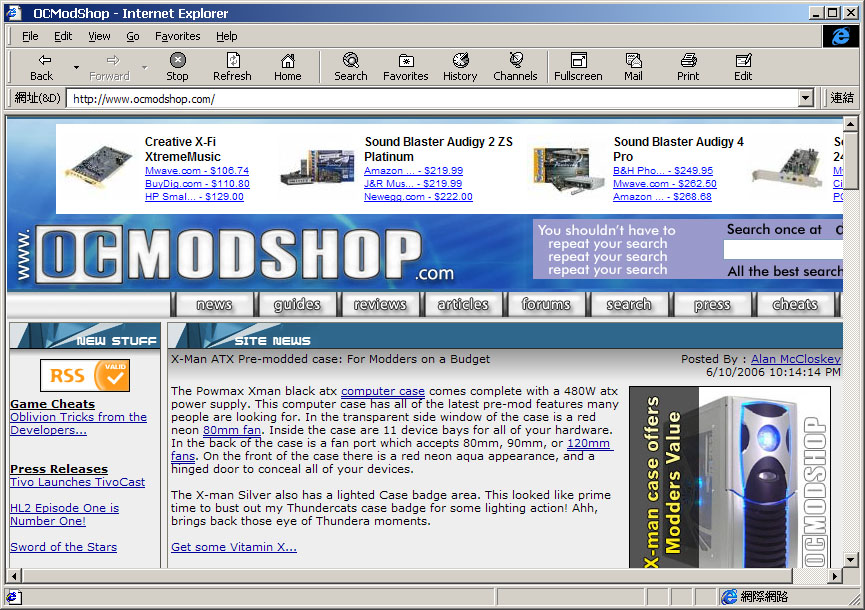
- The menu bar (containing “File” and “Edit”) can be hidden to allow more space for webpages.