

Windows 7 also has a neat little tool that lets you take a snapshot of any portion of your screen. This can be very handy when you need to take a portion of a window, like getting the content of a web browser without all of the browser controls.
You can open the Snipping Tool by opening your Start Menu and looking under Accessories. Optionally, you can find it by pressing Win + R and typing in “snippingtool.exe” or just start typing “snipping” until the program is found. Once you find it, you might just want to copy it to your desktop or even pin it to your taskbar.
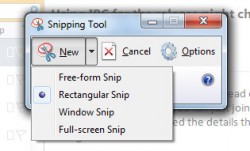
Once the Snipping Tool is open, click New and your entire desktop will be covered with a white transparent layer. The default mode is “Rectangular Snip”. In this mode, just drag your mouse around the area you want to capture. You can also do a freeform capture, capture an entire window or get the full screen.
Once you lift up on your mouse button, you will see the captured area. This is also stored in the clipboard so you can do subsequent pasting, but you can either save the image or send it to another program.
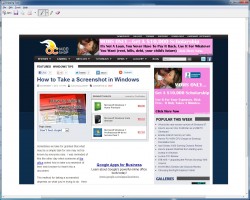
This can be really handy for those that have to take a lot of screenshots, such as testers, QA, and developers.
What about capturing an entire web page (even the stuff off the screen)? That’s on the next page…



5 comments
[…] How to take a Screenshot in Windows @ OCmodshop […]
[…] How to take a Screenshot in Windows @ OCmodshop […]
I also added a new page about taking a scrolling screenshot of an entire web page. That way you can get everything, even if it's off screen.
Don't forget the built-in Snipping Tool (http://windows.microsoft.com/en-us/windows7/products/features/snipping-tool).
Thanks, Sekers. I forgot about this. I've added a section to the article about this tool.
Comments are closed.