
To ensure that no compromised computer on the inside of your firewall can sully your Internet reputation, you need to lock it down. If any computers on your internal networks gets a malicious virus or other malware, then you may unwittingly become a spammer, and may be banned as such. A more elegant method of blocking unwanted outgoing traffic is to use IPtables. Unfortunately, there is no GUI interface within IPcop to update this file, so we’ll have to SSH into our Firewall and edit some files. Don’t worry, I’ll walk you through it, and if I can do it without blowing things up then you can.
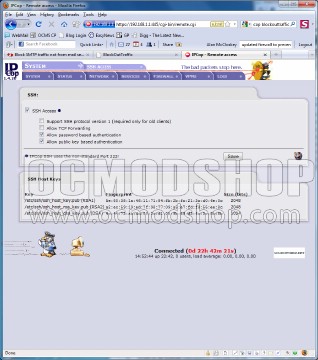
First, open IPCop’s web interface, and then navigate to System –> SSH Access. Click the checkbox that says “SSH Access”. For security purposes, this should only be on while you are actively doing maintenance. If it was already on, then shame on you.
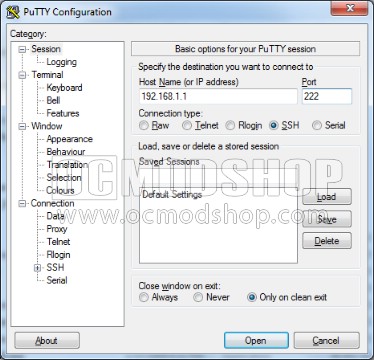
Next, you’ll need a terminal emulator. Many people use PuTTY (download here) because it’s free and easy to use. In the Host Name, enter the internal IP address of your IPcop firewall (in my case 192.168.1.1). By default, IPcop uses port “222” instead of “22”, so enter “222” in the Port field and click “Open”.
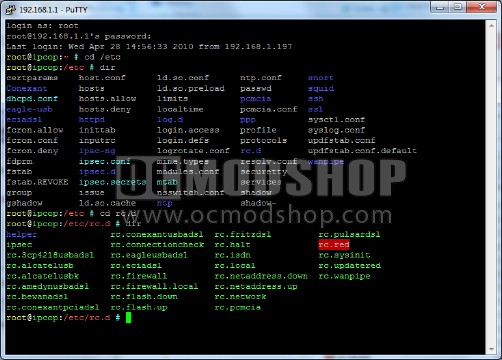
You’ll get a text screen asking you to login. Login as “root” and supply the root password you set up when you installed IPcop.
We need to navigate to the rc.firewall.local file so that we can edit it. You don’t have to know any fancy Linux commands… we can navigate using the same ones used by DOS.
- Type “cd /etc” and press enter
- If you type “dir” then you’ll see the “rc.d” directory in blue (blue text means it’s a directory)
- Type “cd rc.d” and press enter
- If you type “dir” then you’ll see the rc.firewall.local file, which we’ll be editing.
There are two common Linux text editors, “vi” and “nano”. I prefer nano because it is much more usable. - Type “nano rc.firewall.local” and press enter
You may want to resize your Putty window to see all of the text, but what you’ll want to do is insert several lines of text right below the “## add your ‘start’ rules here” but before the two semicolons (“;;“). The rc.firewall.local file is a “modular” file that gets read by the rc.firewall file. This way you can add custom firewall rules without totally screwing everything up. What we want to do is insert some code that blocks all SMTP (port 25) traffic on the green network. Optionally, you may want to allow “trusted” computers to send SMTP mail, such as a PHP server on your orange network. Insert these lines of code, but replace the internal IP addresses with your own.
        ## add your 'start' rules here
        #allow smtp from some allowed ips (on orange network)
        /sbin/iptables -A CUSTOMFORWARD -p tcp -i eth2 -s 192.168.10.3 --dport 25 -j ACCEPT
        /sbin/iptables -A CUSTOMFORWARD -p tcp -i eth2 -s 192.168.10.3 --dport 465 -j ACCEPT

        # log stuff that is not the mail server (on green network)
        /sbin/iptables -A CUSTOMFORWARD -p tcp -i eth0 -s ! 192.168.10.4 --dport 25 -j LOG --log-prefix "SMT$
        #/sbin/iptables -A CUSTOMFORWARD -p tcp -i eth0 -s ! 192.168.10.4 --dport 465 -j LOG --log-prefix "S$
        # block all other outgoing SMTP traffic (on green network)
        /sbin/iptables -A CUSTOMFORWARD -p tcp -i eth0 -s ! 192.168.10.4 --dport 25 -j REJECT
        #/sbin/iptables -A CUSTOMFORWARD -p tcp -i eth0 -s ! 192.168.10.4 --dport 465 -j REJECT
I didn’t write this code, but I found this on the Internet here and modified it for my purposes. The “orange” part of the code allows additional servers on that IP address to send SMTP mail (port 25) and Secure SMTP mail (port 465). I want my web server (on IP 192.168.10.3) to be able to send SMTP mail, so I’ve added an exception here.
The “green” part of the code basically logs and blocks any traffic that is not the mail server (192.168.10.4) from sending SMTP traffic (port 25), but I’ve allowed Secure SMTP (port 465) by commenting out those lines). You will find that after this is implemented that email clients will no longer work, which is why I’ve left open Secure SMTP (delete the opening “#” character to make that line active. The goal here is to prevent viruses from making our web business look shady, and it is extremely unlikely that virus writers will use Secure SMTP, because they couldn’t send to just any mail server. If you want to play Network Nazi at home, then by all means block all mail traffic and force your wife and kids to use a webmail client… see how well that goes over.
Note that my Orange network is on “eth2”. If yours is different then you may have to change this (look it up in the web GUI click on Status –> Network Status). If you want to add restrictions to your “blue” (wireless) network, then just modify the lines so that “eth0” corresponds to your blue interface.
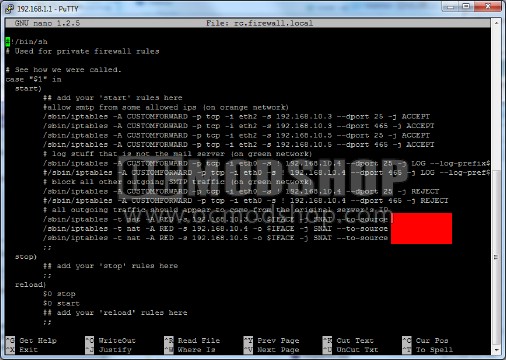
Once the code is entered, press Ctrl + X (the same thing as ^X) and nano will ask you if you want to save. Type “Y”, and it will ask you which file to write to. By default it is the same name (rc.firewall.local). Press Enter and you’ll be back at the command prompt.
Type “exit” and press enter. Putty will close.
Go back into IPcop’s web interface and turn off SSH access and click “Save”. Then you need to reboot your firewall for the changes to take affect.
Make sure your server’s MX records are correct or you’ll be identified as a spammer. On the next page we show you how to fix it…

