

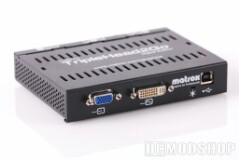
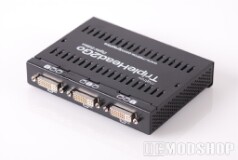
The previous TripleHead2Go was a little confusing in that there were four VGA ports; two on either side of the unit. That meant that one output shared a side with the input, which isn’t very intuitive, especially since the ports weren’t clearly labeled. If you are familiar with Matrox’s multi-mon product line, then you’ll notice some design improvements on this new model: all three DVI outputs are included on the same side, and are clearly marked 1, 2, and 3! The input side has a single VGA and DVI port, so a converter is not needed, no matter what system you have. The digital TripleHead2Go measures in at a larger 140 x 113 x 27mm, versus the original analog edition’s 107 x 96 x 24mm dimensions. Also, the unit receives power from a USB cable rather than a dedicated DC power plug: which means the unit will shut off when you power down your comptuer! Huzzah!
Like the original, the Digital Edition supports the same 3840×1024 maximum resolution, but has additional custom resolutions to support the 16:9 and 16:10 aspect ratios of today’s LCD monitors. It may be possible to increase the resolution slightly, but DirectX9 has a maximum supported resolution of 4096×4096, and DirectX 10’s maximum resolution is 8192×8192).
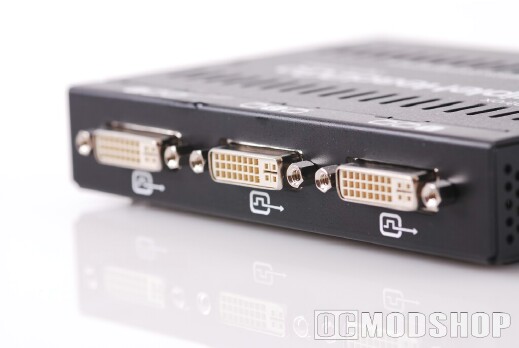
Besides the obvious advantages for the desktop, the TripleHead2Go Digital Edition provides a great way to add multi-display support for a notebook. The external box connects to the dual-link digital or analog monitor connector, and divides the signal up between three seperate monitors (be they DVI or VGA). The TH2G doesn’t even require opening the computer, install parts, or replace any hardware, and uses your existing video hardware for all video accelleration.
The unit also receives EDID (Extended Display Identification Data) from all attached monitors, so it knows the capabilities of each individual display. The resolution available depends on the maximum resolution of your weakest monitor. If you have a monitor that will do 1900×1200, and another with 1680×1050, then you will be limited to a 3360×1050 maximum resolution. You also run the risk of not running in your LCD monitor’s native mode, as the maximum supported resolution is 3840×1024 (most widescreen LCDs wither have a 1050 or 1200 native vertical resolution). If you have three LCD montors capable of 1680×1050 resolution, you would think that you could have a maximum resolution of 5040 x 1050, but DirectX9 has a limit on this, so you are limited to a 3840×1024 resolution, which is certainly out of your monitor’s native resolution. Even if you had one widescreen monitor (1900×1200) flanked by two 4:3 monitors (1600×1200), you would still be over the DirectX limit. Three 4:3 monitors would be fine, however
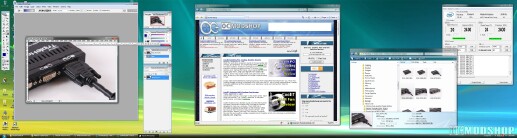
Windows Vista Widescreen Desktop
1600×1200 + 1900×1200 + 1600×1200 = 4300×1200 (over DirectX9 limit)
1600×1200 + 1600×1200 + 1600×1200 = 3840 (within DirectX9 limit)
If you use the unit with only two monitors, then you are more likely to be able to run at your display’s native resolution and aspect ratio. Two monitors isn’t ideal because alot of new windows and dialog boxes open up in the “center” of this virtual resolution, smack-dab in the middle line between your two monitors. Multi-mon gaming isn’t that fun on two monitors, either, as the cross-hair on most First-Person-Shooters will be split between the dual displays.
When you first start up the computer after connecting the TripleHead2Go, the operating system detects a new, single “monitor” with a huge-ass wide screen. If you have another DVI port on your video card, you can still click “Extend my Windows desktop onto this monitor” for 4-monitor support. Regardless of the capabilities of your different monitors, the operating system still treats your desktop as a single ultra-widescreen display. The TH2G automatically divides up the display image into three and directs each to seperate monitors.

