

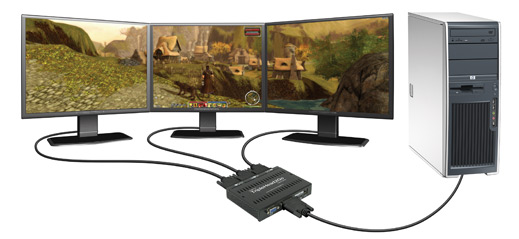
It is actually very simple to get the TripleHead2Go Digital Edition up and running, and can be done in just a few minutes. Inside the box is the TH2G unit itself, a two-foot VGA male-to-male cable, a two-foot DVI cable, USB cable, manual and software CD. The short length of the video cable may be because most users will want to set this unit on top of their PC, but could also be to reduce signal loss. This cable will have to handle a large resolution at 60Hz cleanly, and the video cable quality is great.
You start by plugging up your monitors to the intended output (1 for the leftmost, 2 for center, and 3 for rightmost monitor). If running the unit in DualHead mode, then you must use ports 1 and 3. When you plug the USB cable in, then a small red power LED turns on inside the unit. Without any software installed, the Matrox unit passes video information to display 1, so you can see what you’re doing.
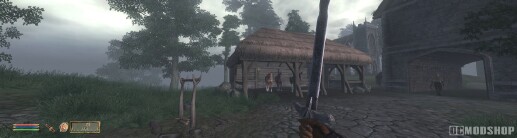
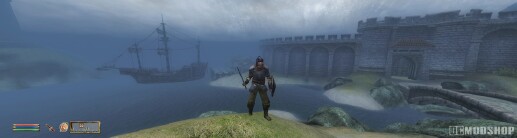
The Elder Scrolls 4: Oblivion
After you install the software, you receive the ubiquitous “restart your computer now” message. Once you’re back at your desktop, you will now have access to a much larger display and can change resolutions immediately. Once you first switch to a TripleHead display, you’ll have to pick your jaw up off the floor… it’s that awesome. The new desktop dynamic does take a little bit of time to get used to, but once you step into the “multi-monitor” world, you’ll never want to go back because your productivity is greatly improved. You may get whiplash as you swing your neck around to the left to click on the Start button, and then swing your head back to the right to see what time it is. You’ll quickly discover that you like to keep several windows open on different displays, as glancing over at them is much easier than digging through a heap of buried windows. Many users use the center display as the “main” display where you do most of your tasks (Photoshop, editing, word processing), and the side displays act as a complement, where you place supporting items (email, file explorer, images, etc).
 |
 |
 |
|||||||||||||||||||||||||||||||||||||||||||||||||||
|
Matrox TripleHead2Go Digital vs. Traditional Multi-Monitor
* Crossfire support may be added with driver update |
|
|||||||||||||||||||||||||||||||||||||||||||||||||||
 |
|
 |
Since the OS thinks this is one big desktop, how do you handle maximizing windows or where to place dialog boxes or child windows? Matrox has you covered there, too. You can configure the default behavior of child windows, maximized windows, and other desktop preferences to fit your work style. For example, you can choose that all dialog boxes appear on the display of the parent program, or force them to a pre-designated display. By default, all windows Maximize to fill only the current display, but you can press Shift + Maximize to fill the entire desktop. There’s no fooling the software when maximizing either – if you have an application partially on one display, then it will maximize on the display that contains most of it.
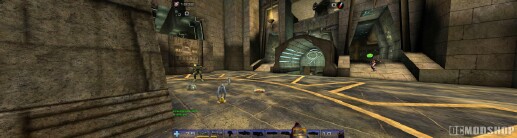
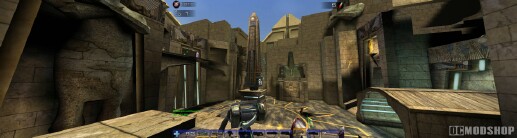
Unreal Tournament 2004
The default resolution or aspect ratio probably isn’t optimal, so you’ll have to go into Matrox’s desktop management software to configure the resolutions you want to use. The Desktop utility will show you all of your connected monitors, and the capabilities of each. You “create” a new resolution by selecting a resolution that will be the same on every monitor (a 3640×1024 resolution is derived by selecting a 1280×1024 resolution across three displays). You can create a total of four custom resolutions, which are then available on the slider control of Windows’ Display applet. These custom displays are also reported to games, so you’ll want to create some lower-resolution options to ensure smooth gameplay.
If you bought the TripleHead2Go for gaming, then you’ll be most interested in the Surround Gaming Utility. You are presented with a list of games that can be optimized to work with a Surround Gaming setup, along with buttons to modify the configuration file of each game. Games that have been installed by traditional means are usually detected, but games installed by Steam and GameTap were detected less frequently.
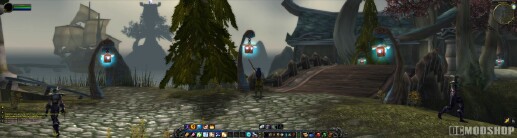
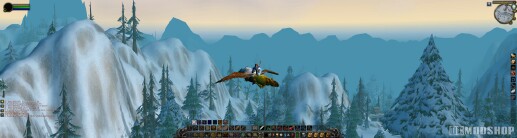
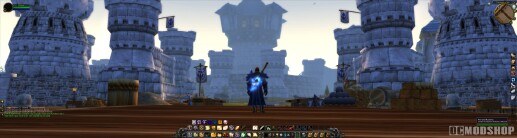
World of Warcraft
You pick your desired Surround Gaming resolution (out of the four you’ve previously configured), then pick your game, then click “Optimize”. You will be presented with different variables and options, depending on the game. Most games that use a configuration file (like Half-Life, Doom3 and Quake) will be configured in the same manner. The SGU supports 120 games out of the box, but newer games (such as BioShock) don’t have a pre-configured profile and isn’t mentioned on Matrox’s website. Some games, like Oblivion, detect the new resolutions and work correctly without any configuration.
The Surround Gaming Utility also allows for bevel compensation, which compensates for the gap between your monitors. It will take a little tweaking to get this just right, but it is well worth it.

