
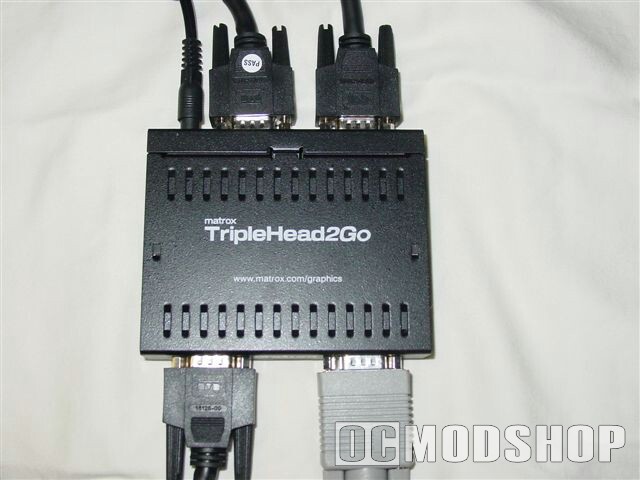
Sadly I understood why there was no manual, the little bugger was just too easy to set up and use. Just pop the installation disc in and then begin the hard part, moving all the crap off your desk so you can place the three monitors together. Now, just let me tell you, I do not have flat panel monitors, and if I did, chances are I wouldn’t have three of them since the good ones cost quite a bit.
What I am trying to tell you is that I now have three big-ass heavy 17 inch deep monitors on my desk. Luckily it is a big desk, but this does bring me to my first point, those of you who are seriously considering purchasing this item, should probably have those flat panel jobs. Why? Cause you may throw out your back as you try and muscle those old heavy suckers into place. But even more so, flat panel monitors do not have the large gaps where the screen ends and the case begins, like standard monitors do. Don’t get me wrong, it’s still cool as hell playing games, I mean it is 3840 x 1024 if you have the graphics card to punch it up that high.
But more then that, the installation disk fires up nicely and provides you with a list of games supported by the TripleHead2Go. And fortunately for me, one of my all time favorites was on there, Doom 3. Now it’s important to mention that you must select the game you want to play from the list and then have it optimized. Doing this creates an icon on your desktop that indicates “surround” on the game you just optimized. Hit the new icon and “voila!” your other formerly sleeping monitors will pop to life and you will experience your game now stretched across three screens.
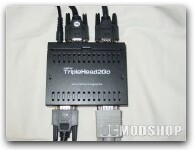
Now that the thing was actually installed and I had a game going, I realized there needed to be some serious tweaking as the mouse was now lagging behind and the screan looked like crap. Backing out I saw on the desktop icon menu that there were a few resolution selections that I could choose from:
- 1920 x 480
- 2400 x 600
- 3072 x 768
- 3840 x 1024