

No software CD is included in the box, and honestly you really don’t need one. If you want to tweak the settings of your new mouse then you must download the software from Mionix’s website. There are four sections: Mouse Settings, Custom Settings, Macro Settings, and Support.
The Mouse Settings screen allows you to change the assignment of the seven mouse buttons, but for all intents and purposes you should really leave things at default. You can also change the features that you would otherwise have to use the Control Panel for, such as double click speed, scroll speed, and pointer acceleration.
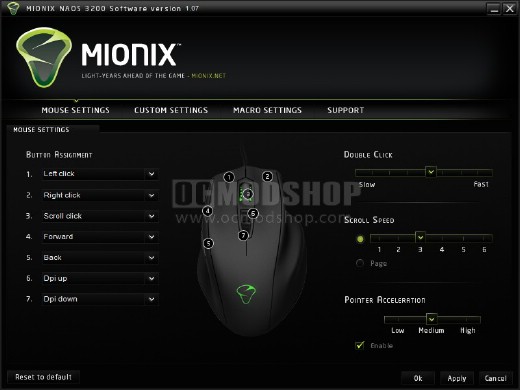
The default Mouse Settings screen
All of the buttons are programmable, but there are only a few options available for each. The commands available are:
- Default Commands (Left Click, right click, scroll click, forward, back, dpi up, dpi down, dpi roll)
- Scroll Up
- Scroll Down
- Single key assign…
- Assign recorded macro
- Disable button
Many people that use a programmable mouse really only need to replicate a single keystroke rather than using a full-blown macro. For this, Mionix has a “single key assign” feature. When you assign this function to a mouse button, a sub-window pops up asking you to press the key you would like.
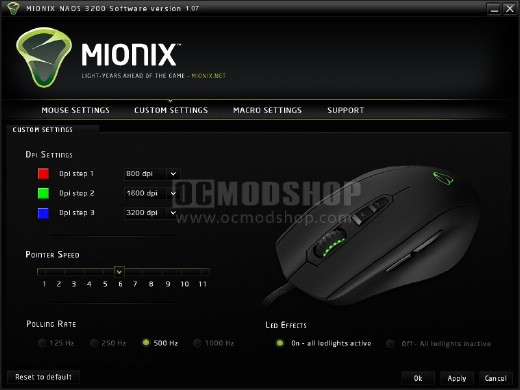
The Custom Settings screen
The Custom Settings screen allows you to change the mouse’s polling rate (from 125Hz to 1000Hz), turn off the LEDs, change the pointer speed, and assign DPI settings to a particular color. There are only three colors available, and only 3 DPI settings. As mentioned previously, I don’t see the usability benefit in this setup, and there really isn’t any customization you can do unless you want to change the colors. “No, red always means 3200dpi, not 800!” I hear you shout.
Most users will get away with assigning a single keystroke to one of their mouse buttons (if they program them at all), but for those of you who do want a macro, then you can do so at the Macro Settings screen.
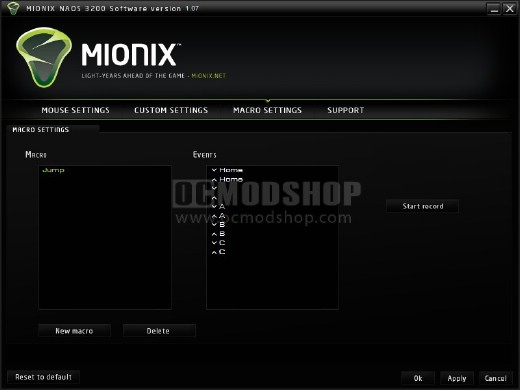
A sample macro on the Macro Settings screen
You can create any macro key combination you would like, but you cannot specify any time delays, and you are limited to ten events (five seperate keystrokes in practice). This will be fine for most users, but some people may have some scripts that don’t work right, as the keystrokes are executed as quickly as possible. Most of the games that benefit from timed macros are MMOs and RTSes, and this mouse is clearly targeting the FPS gamer. There are a few situations where a time delay would be benefitial for FPS games, such as automatically executing a double jump. Since no time delay can be recorded, this maneuver cannot be executed.
Seems like a pretty standard gaming mouse. Is it worth it? Read on to the next page…


