

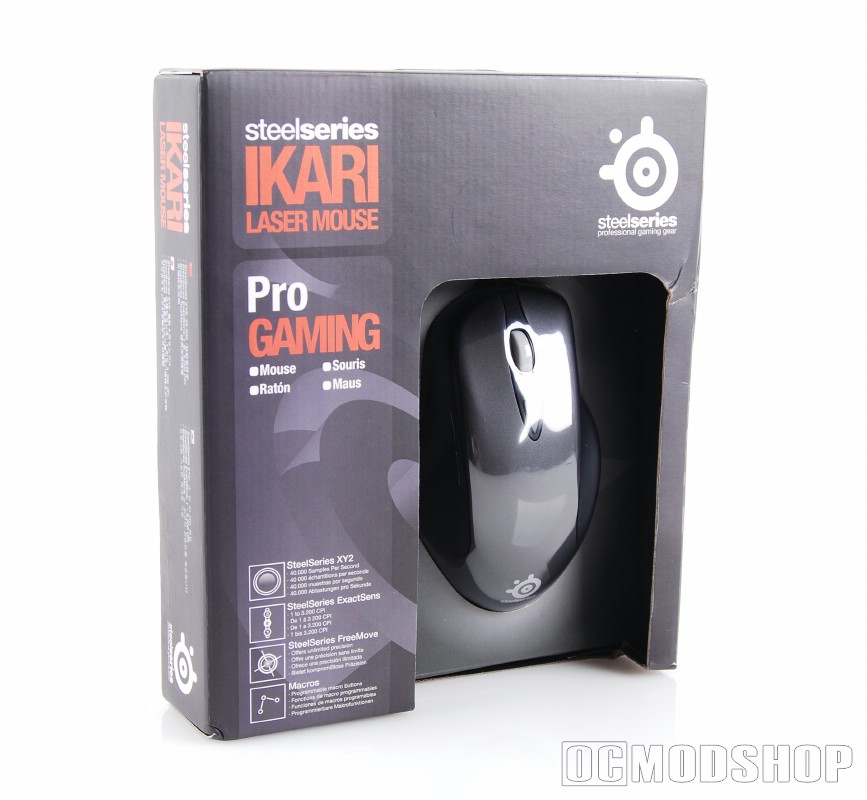
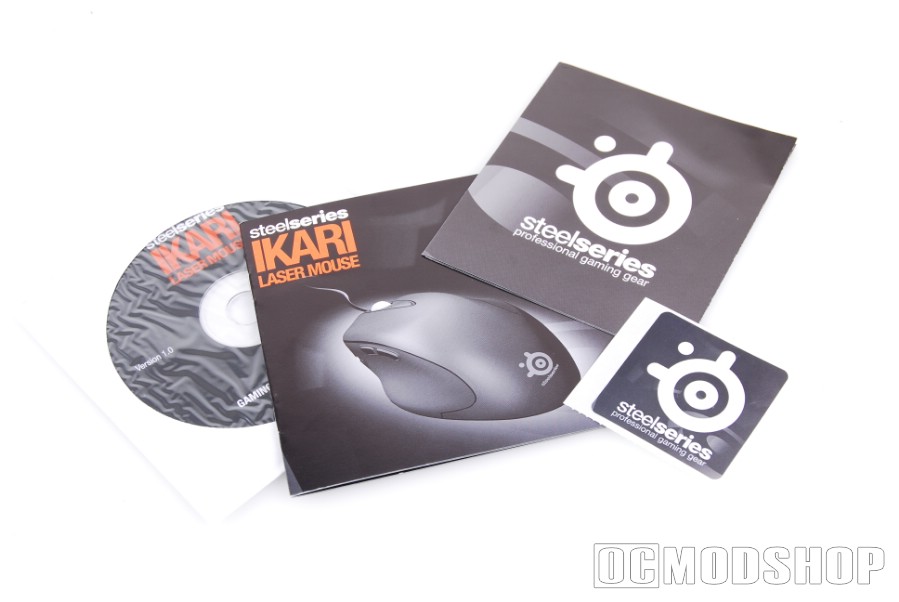
The Ikari Laser mouse is packaged in a professional-looking box, which shows off its unusual but well-contoured shape. Included in the box is the mouse itself, a SteelSeries sticker, a quick-install guide and software CD (even though the mouse is supposed to be “driverless”).
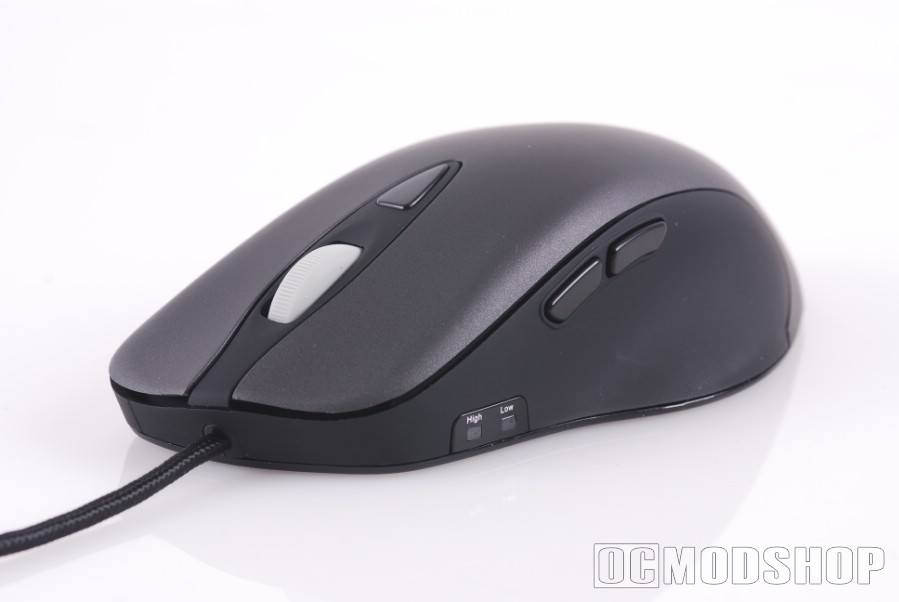
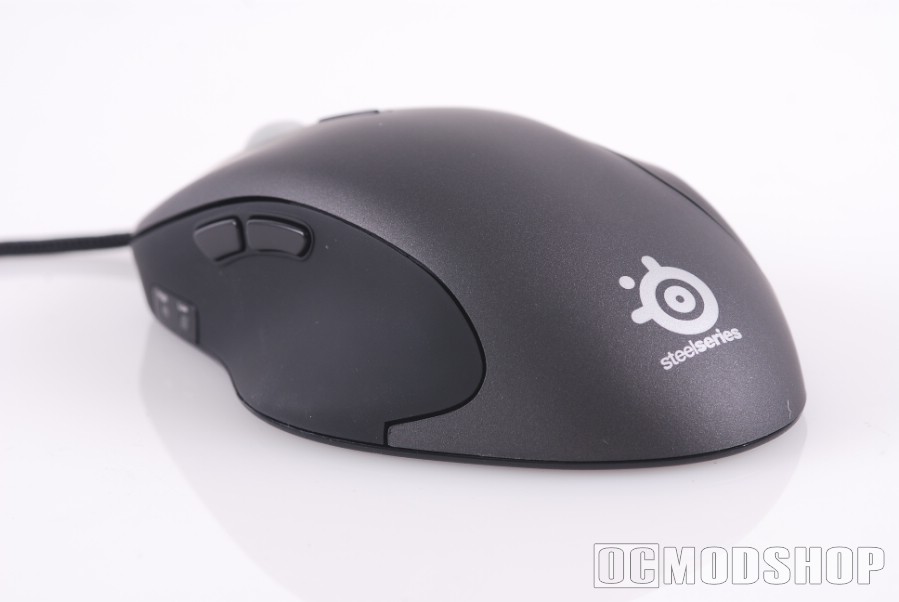
The mouse itself has a very unusual ergonomic shape, but not so unusual that it forces or contorts your hand into an uncomfortable position (as Microsoft Natural Laser Mouse 6000 does). The left side of the mouse has a subtle thumb-rest, and the right side of the mouse is shaped to support the often-overlooked ring and pinky fingers. The entire surface of the peripheral is coated with a textured plastic that has a slightly rubbery feel, which reduces perspiration and makes it easy to grip.
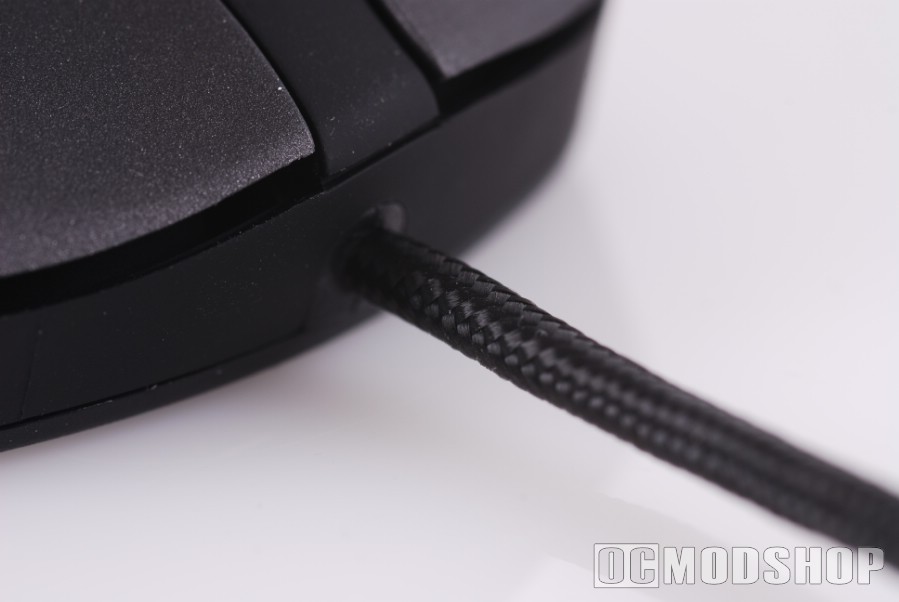
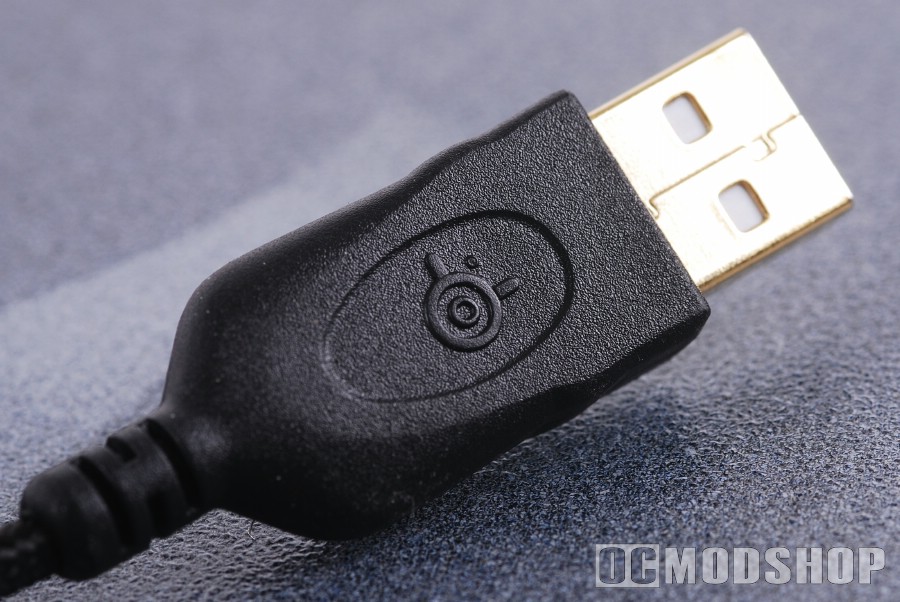
The mouse cord is encased in a professional-looking braided mesh and terminates its generous 6-foot length with a gold-plated USB connector. Because of its braid, the cord glides over surfaces that would otherwise snag a rubberized cord, but does add a little weight.
The mouse has 5 buttons which are standard fare on any mouse these days: left click, right click, scroll-wheel button, and two thumb buttons. All of the buttons are programmable, but realistically you will only change the thumb button definitions for gaming. There is an additional button which toggles between two pre-defined DPI settings, but more on that later.
The scroll wheel is made of a white plastic and coated in silicone for extra grip. Like other gaming mice, the scroll wheel is notched to provide tactile feedback when changing weapons in PC games. Like most gaming mice, the left and right tile has been omitted, which is a feature rarely used even by office users. The scroll wheel seems thinner than other mice, and because of that does not get in the way. Other gaming mice feel the need to place bright LEDs under the scroll wheel, but the Ikari goes without.
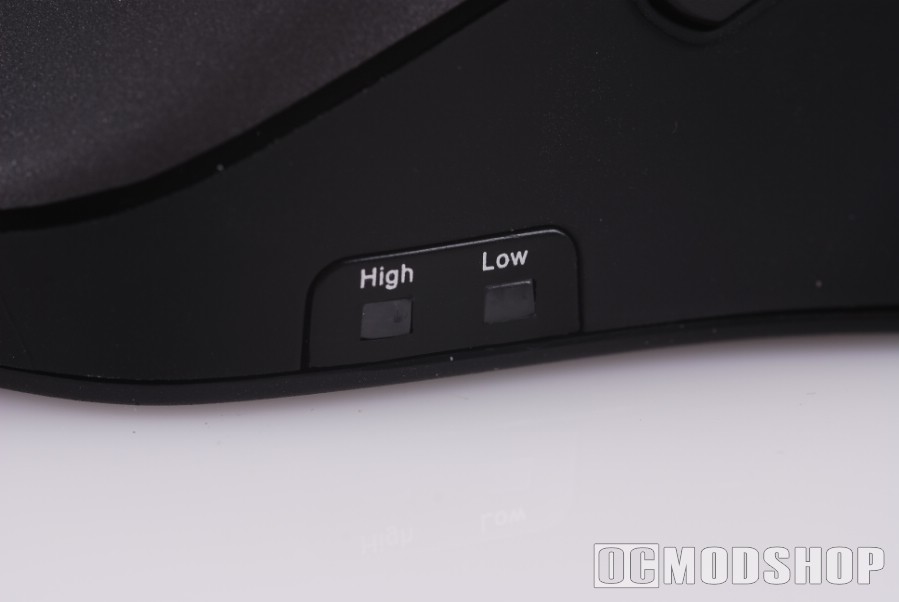
Two small white LEDs appear on the top-left portion of the mouse, which indicate the mouses’ current DPI mode (high or low). The placement of this indicator is ingenious: it can be easily seen and isn’t hidden under your finger (as in Logitech’s G9 mouse). Unfortunately the usability team didn’t complete their thought processes because both high and low indicators are white: different colors for each mode would be alot easier to identify in the heat of battle. A blue/white combination would easily distinguish between the different DPI modes and still not be overtly bright or gaudy.
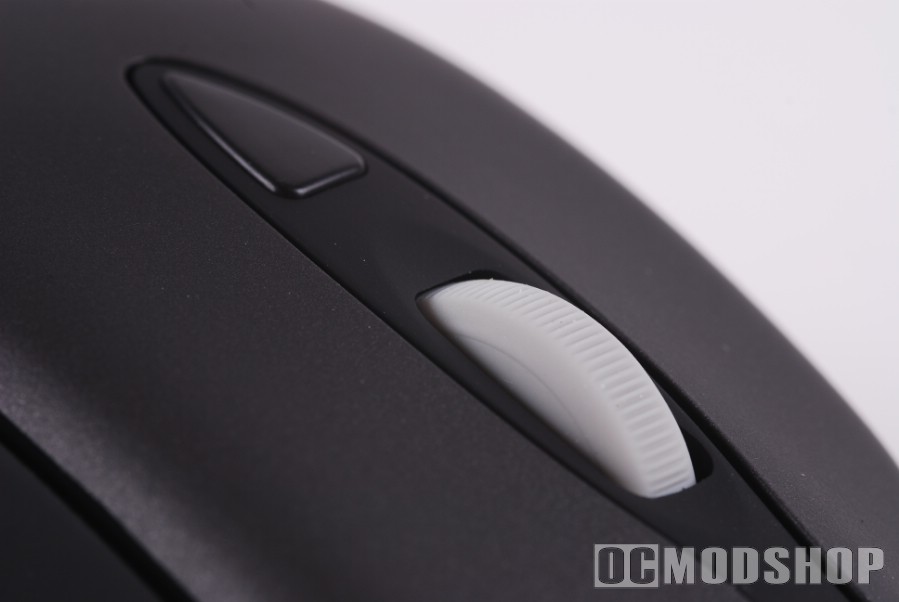
The middle-mouse button is easy to click without accidentally scrolling, and it has just the right amount of resistance when notching up and down. From my experience, Logitech’s “aluminum” wheel is far too sensitive, so it is very easy to over-select, and Razer’s enormous scroll wheel takes too much effort to push into a notch. The Ikari’s scroll resistance just feels right, but using it for web browsing is a major chore.


2 comments
Unlike you said, it is possible to change the sensitivity setting without the program. One must hold down the switch button for few seconds and then use the scroll button to change the value. Which value (high or low) is changed depends on which one is active at the moment.
That may be true… but it's obviously not very intuitive. There should be readouts or some other visual indicator.
Comments are closed.