

Once you’re logged in then you’ll have to navigate using the command prompt. Simple navigation is similar to DOS, but remember that there are no “drive letters” in Linux as there are in DOS or Windows… The example below is based on the Synology Diskstation DS409.
In order to create a link, we have to know the full path of the objects we’re linking to. To see the root shares, type cd / and press Enter.
Type dir and you’ll see all of the root drive objects:
 |
 |
 |
||||||||||
|
|
|
||||||||||
 |
|
 |
In my example, I attached an eSATA drive, and I need to explore the folders I want to link to. Type cd volumeSATA and press Enter.Type cd /volume1 and press Enter. You’ll see there’s a “satashare” share. Type cd satashare and press Enter. You’ll now see all of the folders you have created.
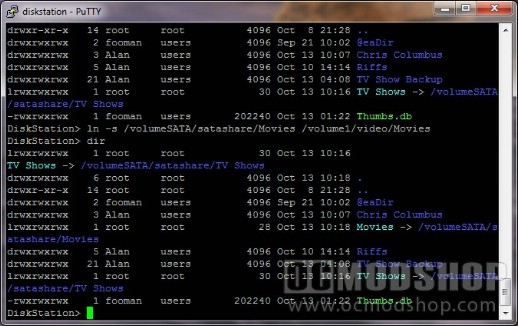
Using PuTTY to create symbolic links in our system-created “video” share
Type dir and notice that you’ll see all of your default shares. Note that there’s a “video” share.
Type cd video and press Enter.
Type dir and you’ll see the existing folders for your videos.
Now that we know the paths to the two directories we’re linking to, it’s time to create the symbolic link. The syntax is as follows:
ln -s source_file link_name
To make “Movies” appear in the “videos” share (and thus be crawlable by the UPNP server), we type:
ln -s /volumeSATA/satashare/Movies /volume1/video/Movies and press Enter
To make “TV Shows” appear in the “videos” share we type:
ln -s /volumeSATA/satashare/”TV Shows” /volume1/video/”TV Shows” and press Enter (note that any objects with spaces must be enclosed with quotation marks)
If you type dir then you’ll see the symbolic link objects (e.g. Movies -> /volumeSATA/satashare/Movies)
Do the same thing if you want to cross-reference any video and music files. This way you can have the same file appear in multiple genres without unnecessary file duplication.
You can now go to the UPNP section of your NAS and re-index your media. It might take a while, but once it’s done you’ll see all of the media on your external drive on your UPNP client.

Symbolic links successfully created
There are a few caveats to this workaround, however. If you navigate using Windows Explorer, then you’ll get an “access denied” if you click on a symbolic link object. In order to move files to and from your additional drive, you must bypass the symlink and connect to the actual source of the files (map a drive to //diskstation/satashare). Many NASes also automatically index any new files added to the “video” share. If you plop a file directly to the external drive (and it doesn’t show up) then you may have to re-index your media files in order for it to appear on your client.
On the next page we discuss other options you might want to consider…


1 comment
I've tried doing this but is messes up my Playstation. Now I have 2 "TV Shows" directories, and only one of them is live… the original one shows what USED to be there… like it was cached or something.
Comments are closed.