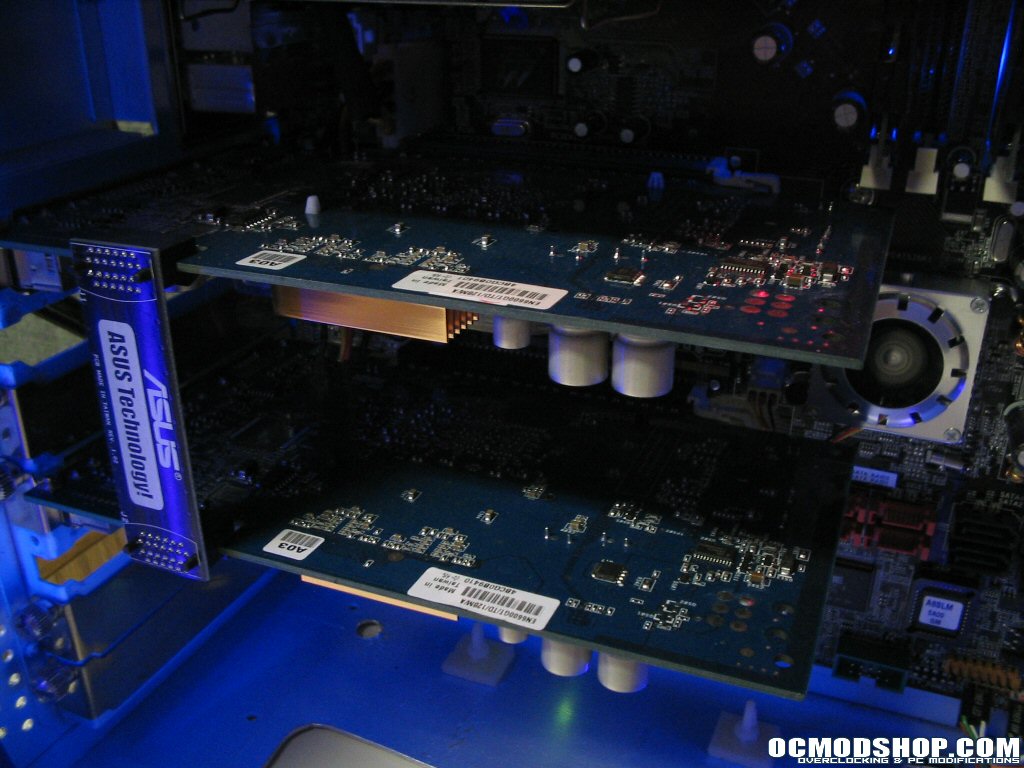
Setting up nVidia SLI hardware is pretty easy; follow your SLI motherboards instructions. In the case of our Asus A8N-SLI Deluxe, pullout the EZ-Selector card and insert it in the “Dual Video Cards” orientation, plug one card into to the blue primary PCI Express channel and the other card into the black secondary channel, then connect the “golden fingers” of both video cards using the supplied PCB adapter. Once finished it should look like this (and another good job to Asus on providing ample room between the cards, many SLI motherboards are very cramped):
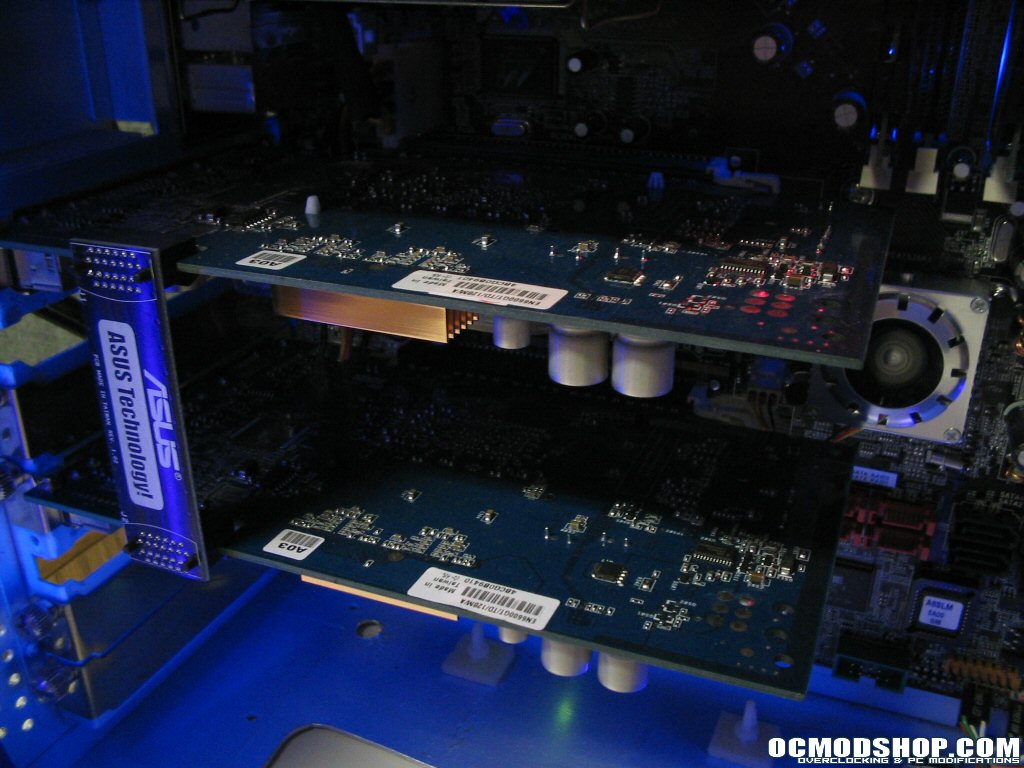
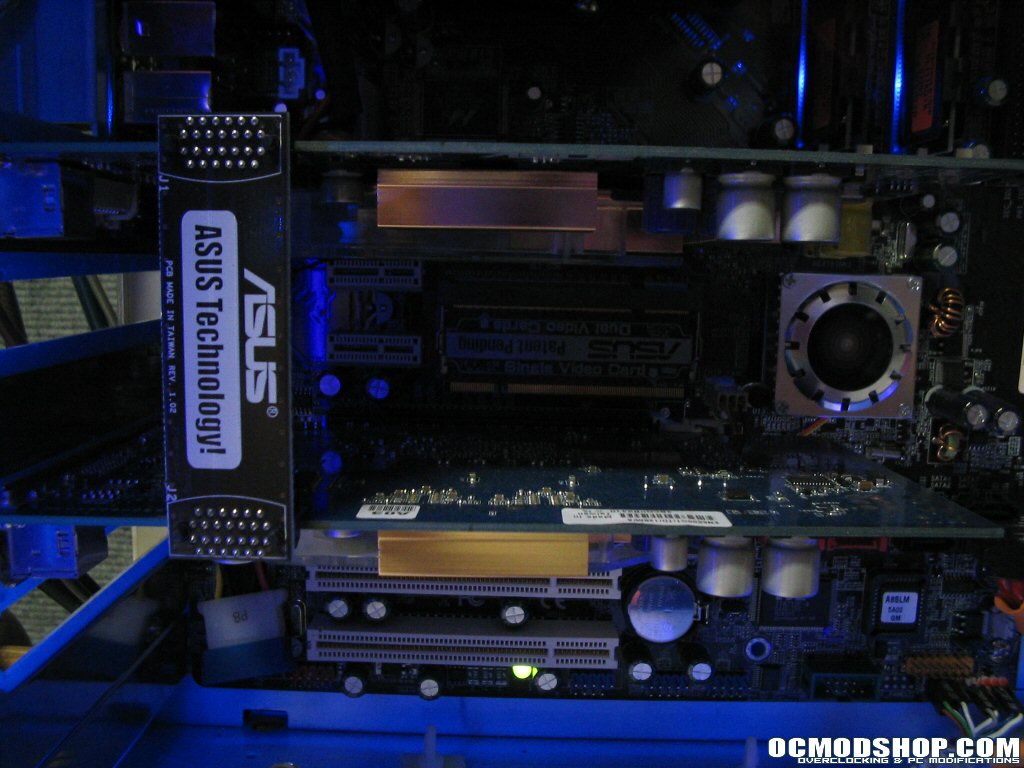
After installing the hardware, check your BIOS for any setting to enable SLI (in most cases set it to AUTO). Boot into Windows and if you have the latest nVidia Forceware drivers installed you will be met with a pop-up bubble message.
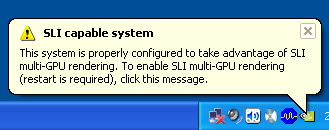
Then you can right-click, go to Properties/Settings/Advanced/GeForce-Tab. Another menu should pop out to the left of the window and if your hardware is installed and recognized correctly you should see a “SLI multi-GPU” submenu. Click it and then click the “Enable SLI multi-GPU” selector. Reboot and in Windows XP you will be met with a pop-up message in the taskbar telling you have successfully enabled SLI.
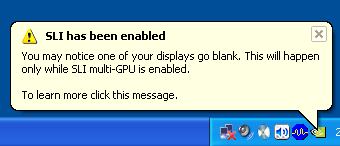
Note: One thing I noticed right off the bat was that while dual graphics cards were enable for SLI, multi-monitor and TV-Out feature did not work properly. This was not only with the Forceware 66.93 drivers, but all the way up through the 71.20 Beta drivers. When TV-out was enabled there was no video output in windows. When you used the right-click “Play on my TV” feature, all monitor outputs would lock up requiring a system reboot. To get around this you must unclick “Enable SLI multi-GPU”, and then reboot into single card operation. After doing so, TV-out worked normally. Hopefully this feature gets fixed soon.
GPU Load Balancing
A neat feature included in the Forceware drivers is a little tick box titled “GPU Load Balancing”.
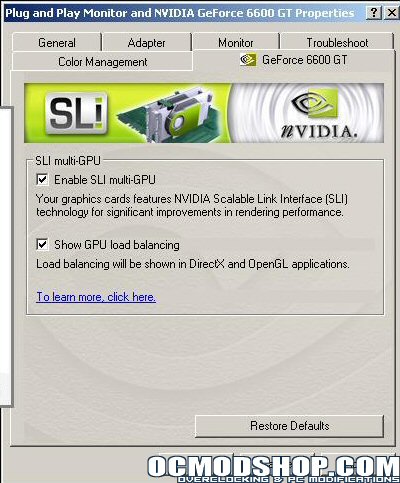
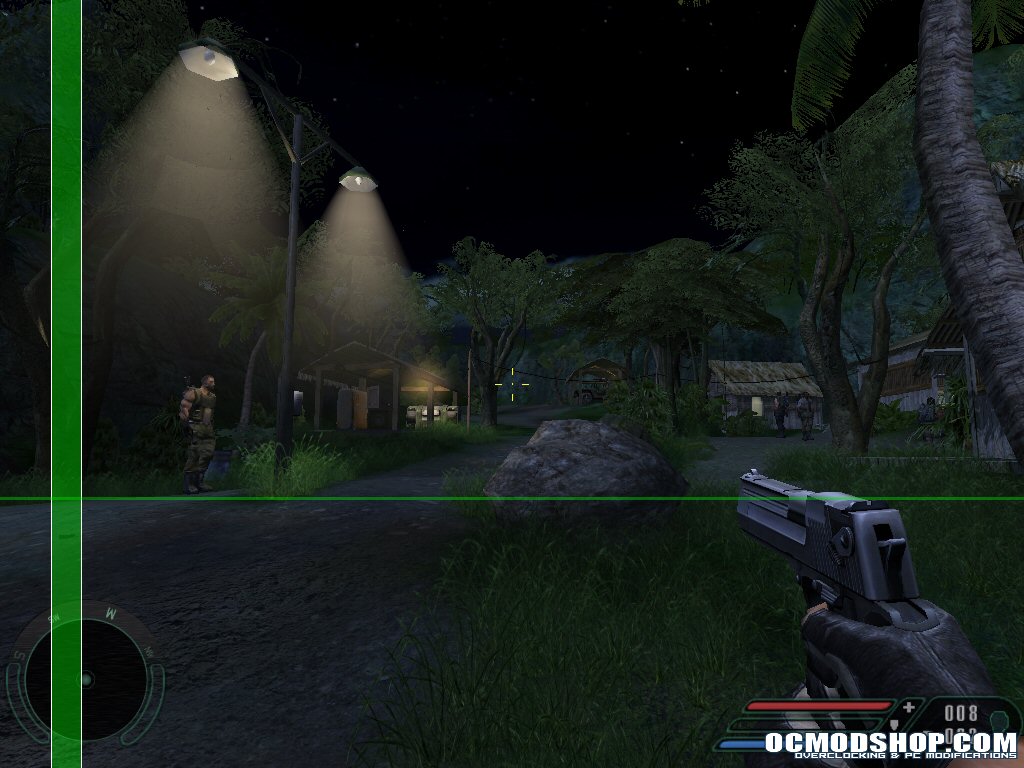
If you turn this feature on the drivers will plot a series of graphical lines on the screen when running SLI rendering modes in DirectX or OpenGL applications. The way the lines are used are different between AFR and SFR modes, so will easily be able to differentiate between them.
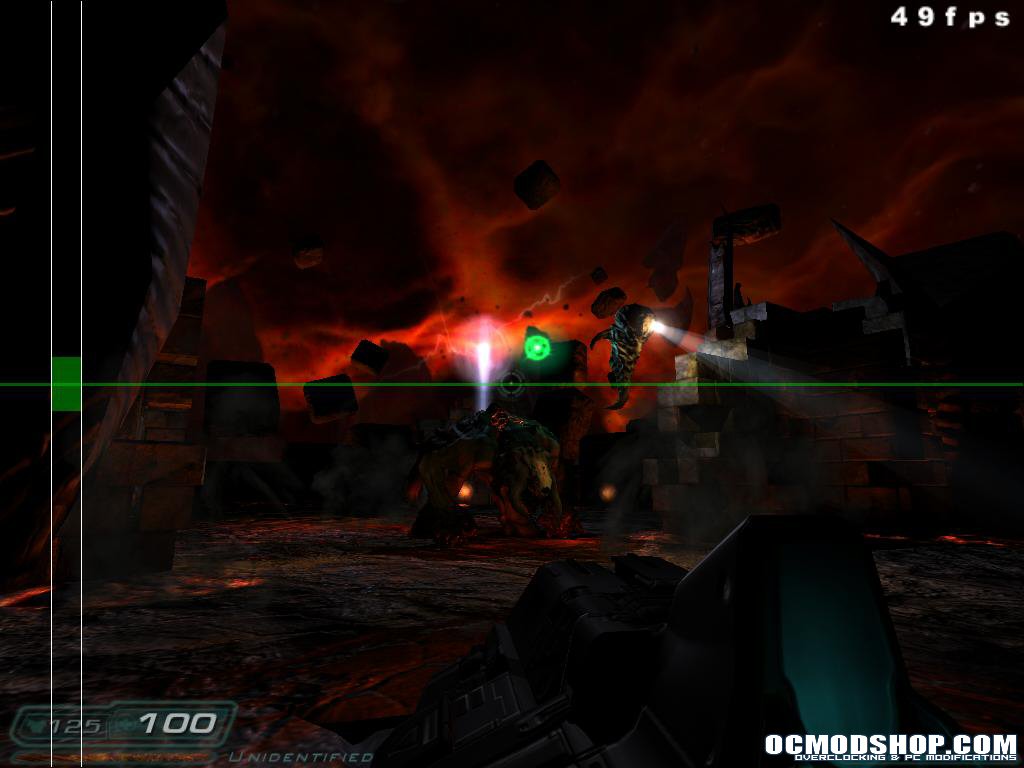
The first screenshot is of Doom 3 which runs in AFR. You can see the screen is split in half by a green line, and on the left there are two white lines with thick green bars coming out from the centerline. In AFR mode the thick green bars will extend outward towards the top and bottom of the screen to indicate the percentage of GPU usage in each card. One card being the top half and the other the bottom.
The second screenshot is of Far Cry which uses SFR. Here the thick green lines are totally filled in. The green center line however is skewed towards the bottom of the screen. This line will move up and down the screen indicating the approximate place where the current frame is being split for rendering. One card renders above the green line, the other below it.
Very nice feature to use if you need a quickly see if SLI is working correctly, what mode you are in or if you’re just curious to see how SLI is rendering your game, now let’s start testing.