
• Sign in / Join

Login

Forgot your password?
Do not have an account ?Register here
X

Register

Have an account?Login here
X
  • Home
  • Blog
  • Image Gallery
  • News Archive
    • Hardware News
    • Gaming News
    • Affiliate News
Trending now

Disc Rot Is Real and Here’s Why…

The OCmodcast now on Spotify

AYN Thor Hands On The DS Successor…

Steam Frame vs Meta Quest 3 Specs…

Ending Physical Games Redefines Piracy, Windows Gaming…

Your Game Discs Will Self Destruct

These Forgotten Xbox Games Are Now On…

Transform Standard Video to Smooth High Frame…

Microsoft’s own AI datacenters may be the…

You Can Play 3D Games on Steam…

OCmodshop.com

  • Hardware
    • Audio
    • Cases
    • Coolers
    • Gadgets
    • Home Theater
    • Input Devices
    • Laptops
    • Memory (RAM)
    • Motherboards
    • Networking
    • Power Supplies
    • Processors (CPU)
    • Storage
    • Video Cards
  • Gaming
    • Gaming Accessories
    • Game Walkthroughs
    • PC Games
    • Xbox
    • Playstation
    • Nintendo
  • Articles
    • How-To Guides
    • Case Mod Projects
    • Software
    • Event Coverage
    • Movies
    • Interviews
  • Podcast
FacebookTwitterYoutubeSpotifyTwitchSteam
How-To Guides

Force Icons Back to Small XP Size

by Alan McCloskeyMay 18, 2007August 1, 2014028
Share0


Vista icons are much more realistic in appearance in comparison to the looser, illustrative style of Windows XP icons.

The largest size included in the Vista icons resource is 256 x 256 pixels. This may sound quite large for our present 96 DPI displays, but it will be quite suitable for high-DPI displays being developed which will support 240/320 DPI resolutions. Including the 256 x 256 pixel size in the Vista icon resource guarantees that the icons will display at their highest quality on these larger monitors.
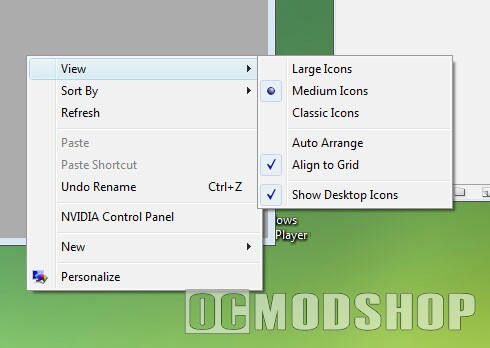
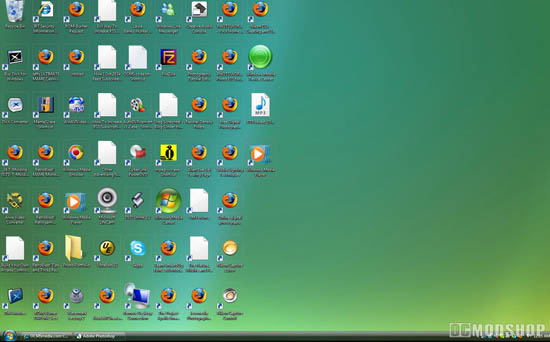
It’s very easy to change the size of icons in Vista. To bring back the Classic Icon sizes do this:
1. Right-click on a unused area of the desktop

2. Pick View

3. Select Classic Icons

You can dynamically change icon sizes by using this shortcut…
Hold the CTRL key and scroll up and down on your scrollwheel on you mouse. You can size the icons however you wish!

Post Views: 55
WindowsShare0
previous post
Setting Up Windows Home Theater PC
next post
Twenty Thousand!
Alan McCloskey
Alan is a web architect, stand-up comedian, and your friendly neighborhood Grammar Nerd. You can stalk him on the Interwebs via Facebook and follow him on X @ocmodshop.

Related posts

Xbox 360 Wireless Reciever for Windows Review

Alan McCloskeyFebruary 20, 2007July 31, 2014

Removing Unnecessary Services in Windows 7

Alan McCloskeyJuly 30, 2007June 21, 2014

How to Auto-Login with Windows 7

Alan McCloskeyMay 9, 2007August 1, 2014

Latest podcast

Recent Posts

  • Disc Rot Is Real and Here’s Why Deniers Are Wrong | OCmodcast 13
  • The OCmodcast now on Spotify
  • AYN Thor Hands On The DS Successor Nobody Expected
  • Steam Frame vs Meta Quest 3 Specs – The Real Differences
  • Ending Physical Games Redefines Piracy, Windows Gaming Getting Worse | OCmodcast Episode 12
  • Your Game Discs Will Self Destruct
  • These Forgotten Xbox Games Are Now On PC
  • Transform Standard Video to Smooth High Frame Rate
OCmodshop.com
FacebookTwitterYoutubeSpotifyTwitchSteam
@2026 - ocmodshop.com. All Right Reserved.
  • About Us
  • Terms of Use / Privacy Policy
  • Copyrights
  • Our Rating System
  • Publish an Article on OCmodshop
  • Contest Rules
OCmodshop.com
FacebookTwitterYoutubeSpotifyTwitchSteam
  • Hardware
    • Audio
    • Cases
    • Coolers
    • Gadgets
    • Home Theater
    • Input Devices
    • Laptops
    • Memory (RAM)
    • Motherboards
    • Networking
    • Power Supplies
    • Processors (CPU)
    • Storage
    • Video Cards
  • Gaming
    • Gaming Accessories
    • Game Walkthroughs
    • PC Games
    • Xbox
    • Playstation
    • Nintendo
  • Articles
    • How-To Guides
    • Case Mod Projects
    • Software
    • Event Coverage
    • Movies
    • Interviews
  • Podcast
Manage Consent
To provide the best experiences, we use technologies like cookies to store and/or access device information. Consenting to these technologies will allow us to process data such as browsing behavior or unique IDs on this site. Not consenting or withdrawing consent, may adversely affect certain features and functions.
Functional Always active
The technical storage or access is strictly necessary for the legitimate purpose of enabling the use of a specific service explicitly requested by the subscriber or user, or for the sole purpose of carrying out the transmission of a communication over an electronic communications network.
Preferences
The technical storage or access is necessary for the legitimate purpose of storing preferences that are not requested by the subscriber or user.
Statistics
The technical storage or access that is used exclusively for statistical purposes. The technical storage or access that is used exclusively for anonymous statistical purposes. Without a subpoena, voluntary compliance on the part of your Internet Service Provider, or additional records from a third party, information stored or retrieved for this purpose alone cannot usually be used to identify you.
Marketing
The technical storage or access is required to create user profiles to send advertising, or to track the user on a website or across several websites for similar marketing purposes.
  • Manage options
  • Manage services
  • Manage {vendor_count} vendors
  • Read more about these purposes
View preferences
  • {title}
  • {title}
  • {title}