
Installation
When I saw this product, I originally thought the software would install on my Wii, storing itself to internal flash memory. Not so, as MC4W XE is software that can only be installed on Windows PCs. Media Center for Wii is essentially a web host that converts your media to Flash in real time. Your Wii must connect to your PC via the Wii’s optional browser (meaning you have to shell out an additional $20). Because of the nature of how this software works, there should be no reason why any web-enabled client (such as a PSP, laptop, or even a Nintendo DS) couldn’t connect.
Installation and configuration of the host software is actually very easy. After going through a rather standard installation wizard, you are presented with a configuration wizard which allows you to add media, which can be done automatically. The first step in the wizard asks you for an optional PIN number, which any client must enter before accessing media, but you can leave this blank if you like.
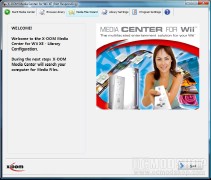
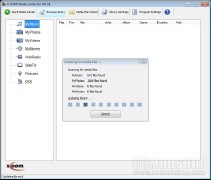
The next few screens allows you to add Internet radio, podcasts, and other online media. Unfortunately, there are none that are pre-defined, so you must manually add them. No pre-defined media exists, but installing the online update gives you a TON of pre-defined Podcasts, RSS feeds,
Next are a few screens where you can add music, movies and videos. You can manually select certain folders that you want Media Center to scan, or you can let Media Center XE scan your entire computer. Scanning your entire PC is the default option, and can take a very, very long time for it to complete. You cannot continue the wizard until the scan is completely finished (or cancelled). Don’t worry, you can always add more media later.
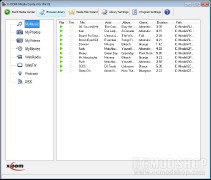
Once the media is added, the host window presents you with six tabs: Start Media Center, Browse Library, Media File Wizard (which you just went through), Library Settings, Program Settings, and Help.
The Browse Library lets you see all the media that MC4W has found, which is conveniently grouped by categories (MyMusic, MyPhotos, MyVideos, MyMovies, WebRadio, WebTV, Podcast, and RSS). You can can double-click on any of the media to open it in your default player,
Usage
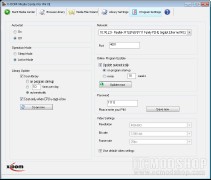
Before you can connect to the Media server, you must configure the software. This is easily done in the Program Settings tab, and there are really only a few options. If you have several network cards (or any virtual ones), then these will be listed in a Network dropdown. Select the one you want the server to function on. By default the web port is 4001, so it shouldn’t interfere with any other web servers you may have on your PC. Here you can also change your PIN and real-time video encoding settings. By default video is encoded at 480×360 resolution with a 1200 kbit bitrate and 25 frames per second. You can customize the quality of the video by unchecking “Use default video settings”. You can then customize any of these options, up to 640×480 resolution, 1500kbit, and 30 fps. Take note that higher demands will require more processing power.
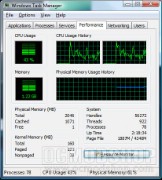
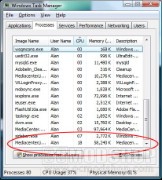
The software really likes to stay resident in memory. When you click the Close button, the Media Center server remains running. You can right-click the Media Center icon in your task bar and close it, but it somehow stayed resident. I was unable to re-open Media Center until I went into Task Manager and manually killed the mediacenter.exe and mediacenterlibrary.exe.
Connecting the Wii to the PC server is actually very easy. It is assumed that you’ve actually configured your Wii’s network, as you need to download the Wii Internet browser to connect. All you have to do is go to the Internet Channel and enter in a special URL that your new Media PC is hosting… By default the port is 4001, so you create a URL from the on-screen keyboard like “http://yourmediapc:4001/”.
I could not get any client to connect properly until I installed the software update from X-oom’s website. The software wipes out all of your old settings, but once you have things running again then any client can connect. I was even able to connect using my laptop’s web browser.
You can preview the Media Center client from your PC with the “Start Media Center” tab. Basically this opens up a local web instance (using your default web browser engine). If you required a PIN, then you can enter it with an onscreen keypad via your Wiimote. You are then presented with a page of statistics about your media.



1 comment
Actually you have another option that is free and quite easy to install. Check out http://www.orb.com. You need the interent channel installed on your Wii to use it. The music streaming works great and the video works but the quality isn't too good. Orb is cool because it works on anything with a web browser.
Comments are closed.