
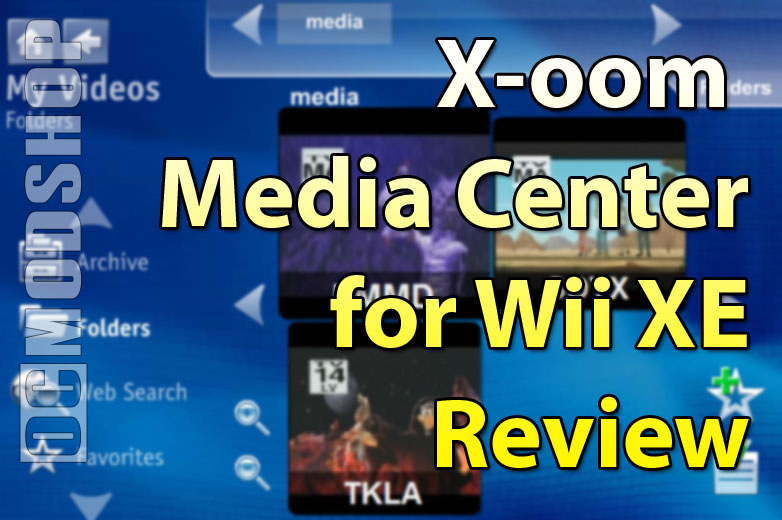
The main Media Center screen looks very similar to the Playstation 3 or PSP’s “cross” menu. Main media categories are on the horizontal plane, and sub-items for each category are displayed vertically. You can use the Wiimote’s D-pad to navigate, or use the onscreen cursor to click icons. Because the resolution of the Wii is limited to standard NTSC (maximum resolution of 720×480), the interface’s inner screens can appear quite crowded, and only show a few options at once.
Clicking a major category will take you to that media’s player. Clicking on the MyMusic icon displays a screen where you can navigate by album art, or alphabetically. Media controls are displayed near the bottom. For some odd reason, I could not play music in the “album” mode, and instead had to click on Titles before any media would play (even after the software update).
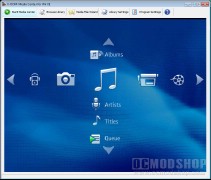
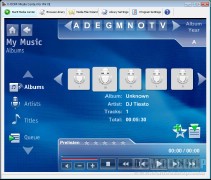
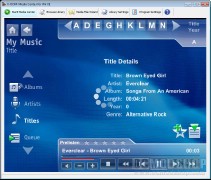
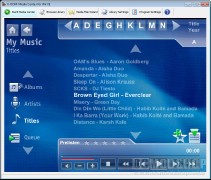
Music is re-encoded from the server PC on-the-fly, which introduces some limitations. For one, you cannot jump directly to any point in the song: you must use the Fast Forward or Rewind buttons, which are pretty much useless because it works very slowly.
There are some nifty icons to add to your Favorites or add to a queue. You can also click on the Home or Back buttons to navigate to the previous screens. This really isn’t a good option for casually browsing your music, but great if you just want to queue up some tunes for the background.
I would also like to have seen a visualization option, but there are none. Your music is also cut off if you navigate away from the MyMusic screen, so you can’t listen to music while checking out other parts of the software.
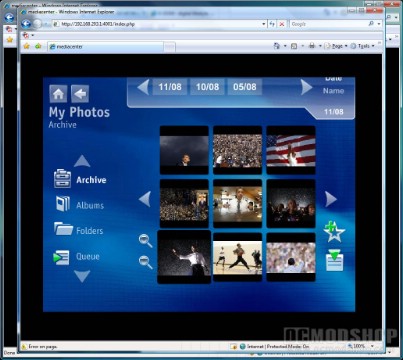
Photos worked rather well. You are presented with a grid of thumbnails, and can zoom in or out to show more thumbnails on the screen at once. You can click on one and cycle through them or watch a slideshow. Transitions between photos are hardware-accelerated and look rather nice.
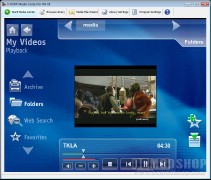
Playing videos pretty much has the same interface as navigating MyMusic. When you play a video, a small version appears in the middle of the screen. You can use your cursor to jump to any point in the video, but it takes a few seconds for the host PC to re-encode and stream the video.
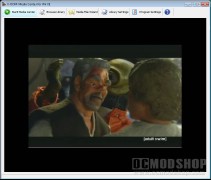
You can make the video full-screen by clicking on the rolling video thumbnail, but it doesn’t truly fill the entire screen, and has black bars all around. If there only was a way to stretch the video to truly be fullscreen, then video would be much more watchable.
As mentioned previously, a huge list of podcasts are automatically added. You can narrow down the list by clicking the category buttons. Overall, the podcast feature is a pleasant surprise and worked rather well.
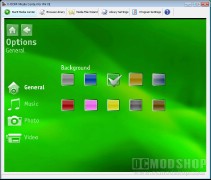
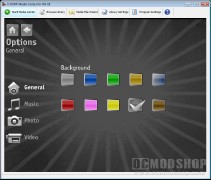
The interface works, but has very few frills. I did run into a few quirks when pressing the Home or Back button. For some odd reason after clicking on a new category I would be brought back to the screen I just moved away from. While this was slightly annoying it wasn’t the end of the world.
As far as client configuration goes, there are only a few things you can change. You can customize the background color between 10 different options, loop music or videos in your queue, and customize your photo slideshow.



1 comment
Actually you have another option that is free and quite easy to install. Check out http://www.orb.com. You need the interent channel installed on your Wii to use it. The music streaming works great and the video works but the quality isn't too good. Orb is cool because it works on anything with a web browser.
Comments are closed.