
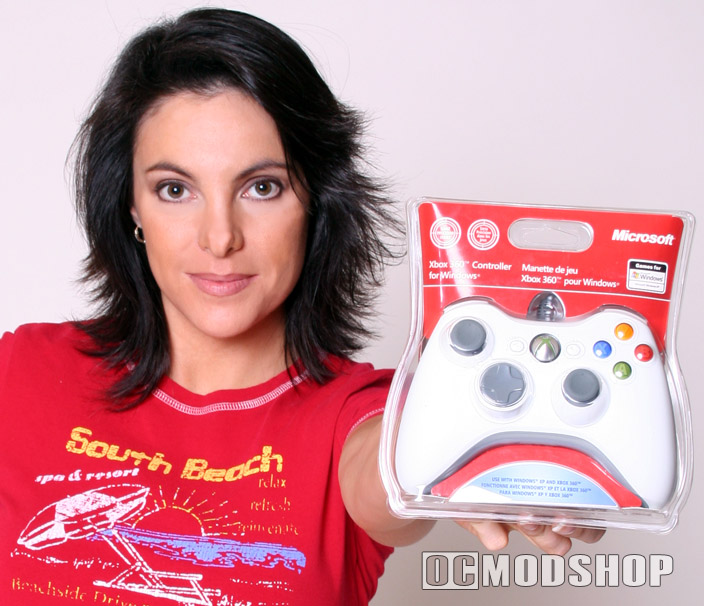
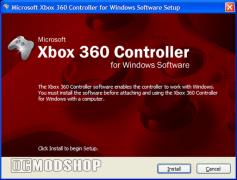
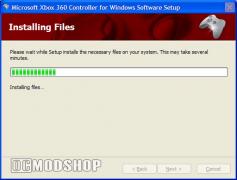
The Xbox 360 controller for Windows is the exact same hardware as a wired Xbox 360 controller. The controller comes packaged with a CD-ROM that installs drivers for Windows XP. Microsoft recommends that you install the software before connecting the controller to the PC. There are only four steps to install the driver, and after installation the controller can be plugged into any free USB port. Windows XP will immediately recognize the device as the Xbox 360 controller for Windows and is ready to rock. Installation to playing a game took less than two minutes.
Testing & Compatibility
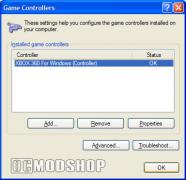
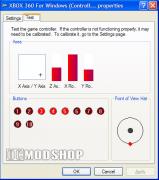
The controller’s installation can be tested in Windows XP’s Control Panel under the “Game Controller” applet. If installed properly, then the controller should be listed as “XBOX 360 for Windows (Controller)” with an OK status, along with any other controllers that are installed. With the Xbox controller selected, we clicked the Properties button to display the configuration options.
There are two tabs within the Properties window: Settings and Test. The only thing you can do under Settings is to calibrate your joysticks, which should never need calibaration as it is completely digital. This isn’t the droid you’re looking for…. move along…
The Test tab is what we really want to see. All buttons and axis are shown here. You can test the buttons and sticks, and this window will update to show what the controller is registering. Make sure that the joystick reaches the edges of the “X Axis / Y Axis” box, and that all the other sticks and triggers have full range of motion and return to center. Button numbers will light up according to what is selected. This is a good place to note what buttons numbers correspond to which physical buttons on the controller, as many PC games require manual setup.
I plugged in a standard Motorolla headset (used with my wireless phones) into the 2.5mm headset jack, and instantly heard Window’s “connect chime”. I went into MSN and clicked on “Voice Chat”. The wizard presented me with a dropdown of the device I wanted to use, and “XBOX 360 For Windows (Headset)” was one of the options. All sound and microphone tests went through without any problems and I was chatting in less than a minute.
 |
 |
 |
||||||||||||||||||||||||||||||||||
|
Windows XP to Xbox 360 mapping
|
|
||||||||||||||||||||||||||||||||||
 |
|
 |


