
Windows 8 has a few extra hidden usability features that you may not know about. There are hidden Explorer shell options in Windows 8 (and 8.1) that allow you to automatically organize your open programs or completely exit the shell. The best part is that no additional programs, tweaks, or registry settings are required to use them.
You can do this right now! Just follow these instructions:
- Hold down Ctrl and Shift keyboard keys at the same time.
- Right-click on any blank area of the Windows 8 taskbar.
- Note the new “Exit Explorer” option.
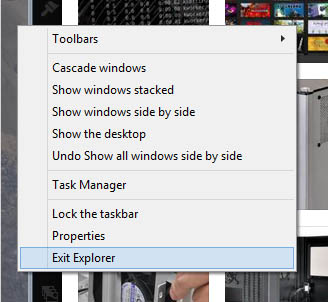
When you click on this option, you’ll lose access to your Taskbar and Start Screen.
To get Explorer back, launch the Task Manager. You can do this in a few ways:
- Press Ctrl + Alt + Del and then click “Task Manager“
- Press Ctrl + Alt + Del and then hold down Alt + T (for keyboard-only navigation)
- Press Ctrl + Shift + Esc to launch Task Manager directly
Then open File -> Run new task. Type”explorer” into the text box and click on OK.
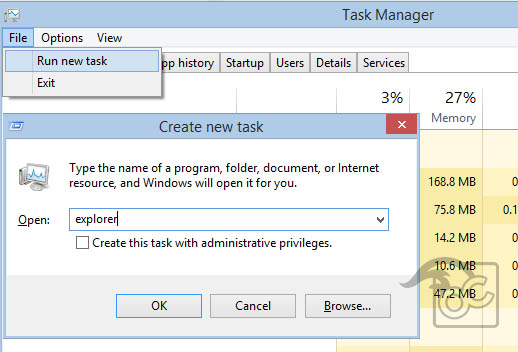
This option may be useful if you need to quickly test a new Windows shell or fix an Explorer crash without having to completely reboot your PC.