

Proxy
This screen is used to configure a proxy server for your internal internet users. If you don’t know why you would need an Internet proxy, then just leave this screen alone.
DHCP Server
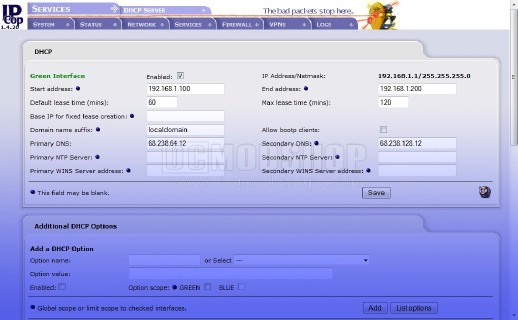
This is one of the most useful features of your dedicated firewall. You probably have lots of devices that connect to the internet like game consoles and laptops, but don’t want to configure each one. By default, most devices use DHCP and will grab a dynamic IP address if you have the DHCP server enabled. This is also very helpful if you host a LAN party. Most consumer routers have this enabled by default.
You can specify the start and end range of your DHCP. I like to start with x.x.x.50 and end with x.x.x.200, which gives you 150 usable dynamic addresses. Network devices like servers should have a static IP address (as your firewall is probably 192.168.1.1). I have a few NAS boxes, and as long as I give them an ending octet less than 50 then I’ll be sure not to conflict with a DHCP user.
You pretty much only have to deal with the top section on this screen. Leave the other things like Additional DHCP options alone unless you really know what you’re doing.
Dynamic DNS
So you want to host a web server, but your ISP won’t give you a static IP address… well you can register your firewall with dyndns.org and your internet users will be able to find you, even if your Internet IP address changes. You must register an account with dyndns.org first and then you can use this screen to set up your dynamic domain.
Edit HOSTS
HOSTS essentially acts as an “override” for network names. Web developers use hosts so they can test web sites that are on an internal network rather than having to connect to the Internet. Some people even use a bogus IP address for certain domains to defeat undesirable connectivity, such as registering with software activation servers (which is how pirates are able to override Adobe CS4’s copy protection). You can even defeat Google ads by putting in a bogus redirect to their ad servers.
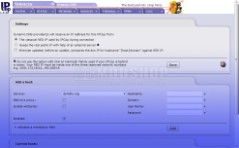
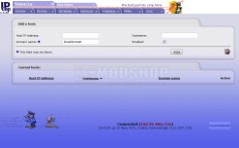
Dynamic DNS and Edit HOSTS screens
People usually have to configure a HOSTS file on each PC, but if you use this screen on your firewall then you only have one list to maintain and all internet network clients are bound by it.
Time Server
You can make sure that your firewall always has the correct time… just enable this option.
Traffic Shaping
Bigfoot Network’s Killer Xeno network card has applications to let you shape traffic, but why do that at the client level when you can prioritize traffic at the firewall level? With this screen you can prioritize gaming traffic so that your huge-ass bandwidth isn’t used up by that large porno you’re downloading. If you’re running web servers, then you could prioritize web traffic over anything else, so that your web readers always get what they’re looking for.
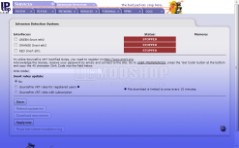
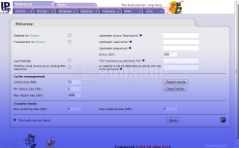
Intrusion Detection and Proxy
Intrusion Detection
Snort is a technology that analyzes network traffic and checks for hacks or intrusions. You must first register with www.snort.org and obtain an “Oink Code”. You can then put this code into this screen and enable Intrusion Detection on any (or all) of your interfaces, but you probably only need it on the Red Interface. Your CPU usage goes up significantly with each enabled interface, so be aware of this. Enabling on the Red interface provides a significant amount of protection without wasting CPU cycles looking for malicious traffic on internal networks.



1 comment
This page is needed for people like me who use a mobile broadband (3G HSDPA) modem to connect to the net. My red interface is an USB stick!
Comments are closed.