

Port Forwarding
This screen is your friend if you have multiple Internet servers behind your firewall. If you bind multiple Internet IP addresses to your Red Interface, then this screen tells the firewall what to do with that traffic. We’ll show you how to do this in the next installment.
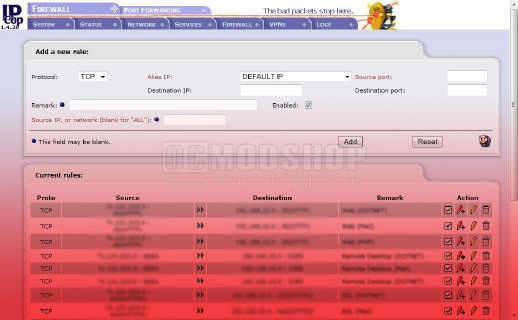
Port forwarding screen – the most powerful feature of IPCop
External Access
This page has absolutely no effect on the Green, Blue or Orange networks, but controls the ability to remotely administer the IPcop firewall from the Internet. I would recommend leaving this alone and doing any administrative work from the Green network. If you don’t know what you’re doing then you can seriously screw up your configuration or open huge security holes. If you absolutely need to configure your firewall from outside, then you should configure VPN.
DMZ Pinholes
Remember the “Orange Mantra”? All servers on the Orange Network have certain restrictions placed upon them, and if you can’t live with that then you don’t need a DMZ. You can set some pinholes, but they only go one way. Orange can talk to devices on the Green network, but not the other way around. This can be helpful if you want your web servers to backup to an NAS on the green network. You can find some other uses if you’re creative, but remember that this is one-way from Orange to Green.
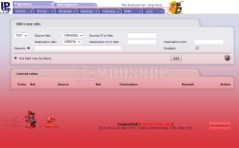
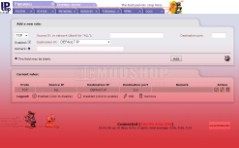
Pinholes and External Access Screens
Firewall Options
Basically this screen lets you configure the “ping” behavior of the firewall. If you disable, then users will not be able to PING the firewall or any of your web servers, even if they are all up. The problem with this is that you cannot rely on “ping” to tell if your web server is up… if you ping our fictional internal www.google.com then you will get a positive response even if the server is down or powered off… the firewall is responding and not the actual server. My advice: Just leave this alone.
VPN and Log Screens
There are a few other screens dealing with VPNs and Logging options, and basically these deal with configuring a Virtual Private Network and Logging options. VPN will be covered in a future Firewall segment. The Log screens deal with logging absolutely everything that goes in and out of the firewall, and can quickly fill up space on your firewall’s hard drive. Most of the time you will only care about logs if you run a web server (and the logs are kept on the web server), as they are useful for traffic analytics. Logging absolutely everything on a firewall just wastes space for a home user, but is a completely different story for a corporate IT department… which begs the question: why would an IT department not be using a corporate-level firewall? Seriously, if you’re a home user then you don’t need to be logging everything. It just wastes space and time.
I hope this overview of the IPcop interface gives you an idea of the powerful options you have access to. You should see from these screens that running a custom firewall isn’t that much more complicated than running a consumer-level Netgear router, but provides you with a lot more flexibility and power.



1 comment
This page is needed for people like me who use a mobile broadband (3G HSDPA) modem to connect to the net. My red interface is an USB stick!
Comments are closed.