
Windows Vista introduced some neat “snapping” features which let you automatically set up windows side-by-side or maximizing an application using mouse gestures (dragging the window to the left, right, or top of your monitor). These neat snapping features are crippled in traditional multi-mon setups, as you can only snap to the left of your left-most monitor or right of your right-most monitor. Matrox lets you address these issues and other weird caveats in its Desktop Management module.
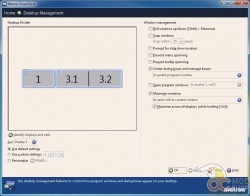
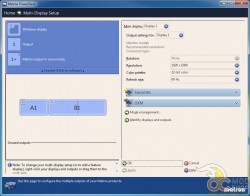
The Desktop Management module is where you will spend most of your time, anyway. You can set up lots of “cells” within your “virtual monitor” that applications can snap to. By default, your external monitor sets up two cells to divide the display equally. Whenever you maximize a window, the software will maximize the application to the cell and not the entire monitor, which would span two displays.
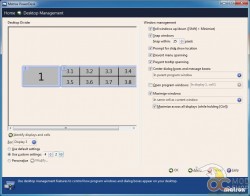
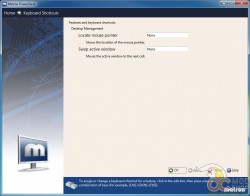
We split our display into four horizontal cells, which gives us back the “left and right snap panes” that were present in a single-monitor solution. Of course, you can set up a lot of different cells depending on your needs. You no longer “drag” the application to a monitor’s edge, but the application will snap to the nearest cell when you click its maximize button. If you snap an application to the top of the desktop, then it will snap to the nearest cell you have set up rather than taking up the entire window.
 Application windows snap to cells when maximized
The PowerDesk software also has a feature to “identify” your monitors, like Windows does in multiple monitor setups. In addition to the “1”, “2”, and “3” labels, the software shows all of your defined cells (1, 3.1, 3.2, etc), so you can see where applications will snap to.
 Monitors identified with two cells defined on the external display
Knowing this, most of your displays’ configuration will take place in the “Desktop Management” module. You can roll application windows up and down by holding Shift and clicking the Minimize button. There is also a “snap windows” feature, but we couldn’t see how this worked. One handy feature is the “Prevent menu spanning” and “Prevent tooltip spanning”. If you have an application menu that would otherwise roll over onto the next monitor, the software forces it to move so the menu isn’t broken up. Similarly, the “Center dialog boxes” option forces any dialog boxes (alert boxes, Save As dialogs) in the center of the monitor. You can also have the application maximize to a cell rather than the entire monitor.
 Photoshop doesn’t like to be controlled by PowerDesk
This worked pretty well for most applications, but Photoshop and other Adobe applications do not like to be contained. Clicking the maximize button will go full-screen across two monitors, and dialog boxes appear in the bezel between the monitors.


2 comments
Hello..
Actually we have been purchased 10 display full HD multi touch LEC with including 4 Dualhead 2go digital SE, which 8 display connected via digital SE and 2 display connected directly to graphic card.
The issue when we group all 10 displays together, instate of resolution 9600×2160 we are getting 5760 x 2160, so then those 2 displays which are directly connected to AMD have fine resolution but those 8 displays which connected to Matorx are totally stretched.
So where is the problem?
Best Regards Daneil
I'm having trouble deciphering your broken English. Are you trying to stretch a stretched desktop? The device is limited to a maximum native desktop, and cannot be infinitely stretched. Perhaps Matrox would like to chime in?…
Comments are closed.