
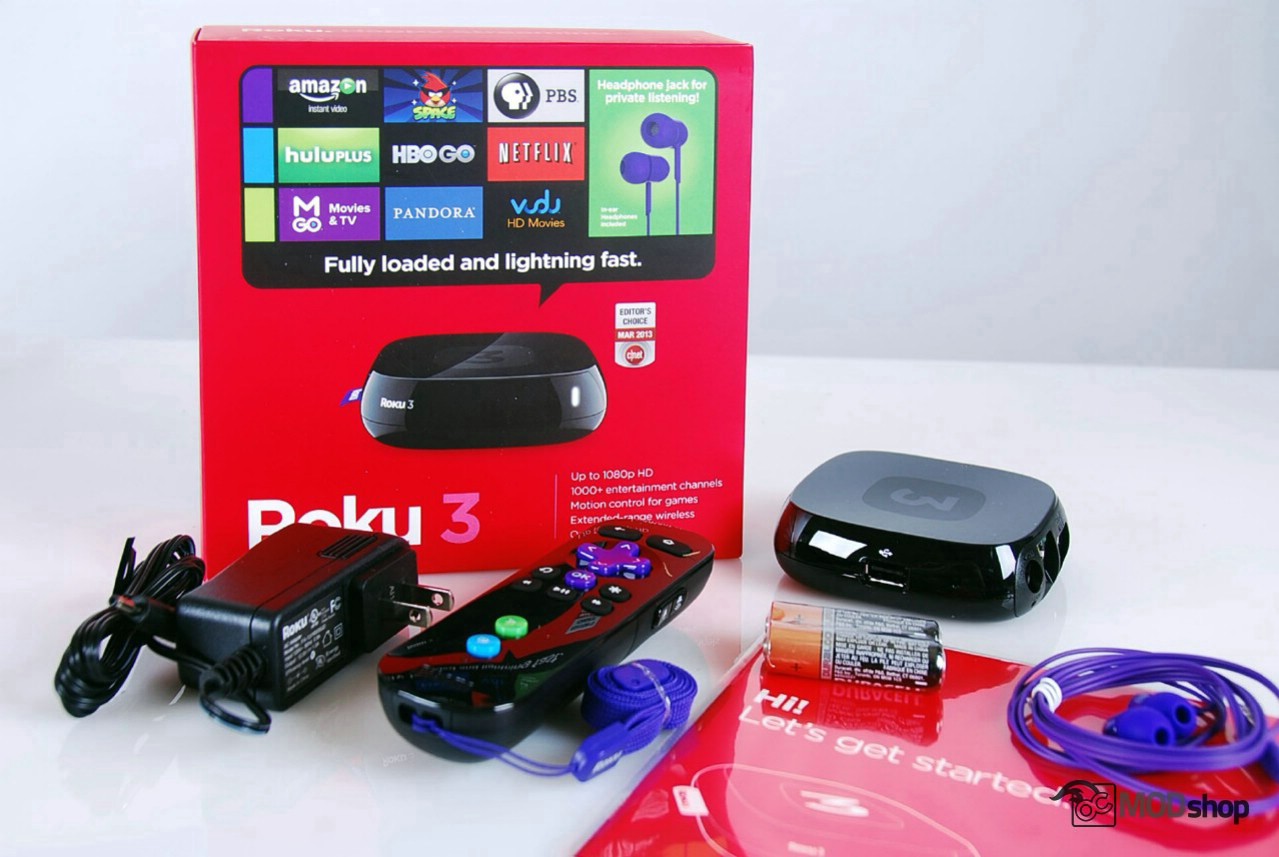
When I went to Fry’s to find a new media streamer to support my cable-cutting efforts, I noticed that all of the Roku 3 boxes all had a “reduced price because this was a return” sticker on them. This should have been my first clue. But, I had done my research and was dead set of a Roku 3.
I had to ask one of the Fry’s sales associates (who never seem to be around when you need them, don’t look like they belong in a dress shirt and tie combo, and make you wait while they print out a sheet so they get sales credit) for an unopened unit.
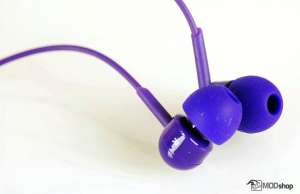
Opening the box, you find a square “Let’s get started” booklet. I certainly appreciate efforts to make things easy for me. Underneath this is a cardboard layer that houses the small Roku device and radio-based remote control, both of which are encased with sticky protective plastic film. Underneath the remote are two Duracell-brand AA batteries. I really, really like that name-brand batteries are included. It’s not that they’re any better, but perception is reality, so inclusion of “no-name” batteries has a feeling of cheapness. Underneath this cardboard layer are a set of purple earbuds (with extra earcaps) and an AC adapter.
The Roku player is about the size of a hockey puck (3.5 x 3.5 x 1 inch) and weighs only 5 ounces. The top of the Roku 3 has a faint number “3” etched into the plastic. The left side has a purple cloth tag with the Roku logo. The right side has a standard USB 2.0 port. The back of the unit has a standard RJ-45 ethernet port, full-size HDMI port, and plug for the AC adapter. Also on the back is a small slot for a microSD card, which is used for storage of additional games and apps from the Channel Store.
Installation
Physical installation was relatively easy. Just plug up the power adapter, plug in an Ethernet cable and HDMI calbe and go. The remote is radio, so it took a minute to sync up.
The Roku can be connected via wireless or wired (Ethernet) networking. Any video streamer should always use wired networking if at all possible, because of the bandwidth uses of video, particularly HD video.
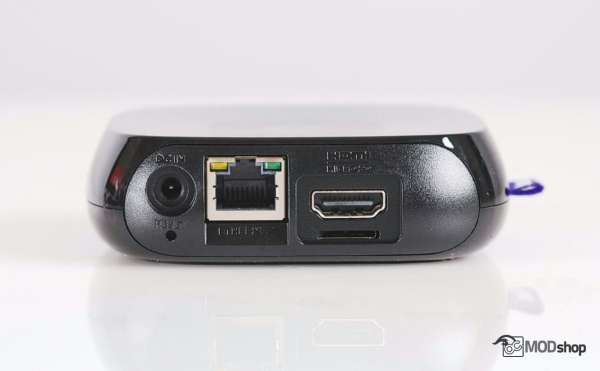
The Roku could not find my local network, and this plug was previously working fine with our Patriot Box Office video streamer. The network jack behind our TV was plugged into a 4-port D-link Gigabit Ethernet switch, and once we connected the cable straight from the wall to the Roku, it instantly found the network and downloaded the update software and default channels.
Roku Wi-Fi Remote
Previous Roku remotes utilized Bluetooth technology, but this new one uses Wi-Fi Direct running at 24Mbps. This shift in wireless technology means a longer battery life, more bandwidth for the motion controls, and makes personal audio solution possible.
The remote is very light, but has a good thickness to it so it feels good in one’s hand. There’s even a dimple underneath so your index finger naturally grips it. The plastic is very shiny, which usually picks up fingerprints readily.
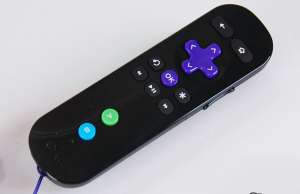
The front face of the remote has Back and Home buttons, 4-way navigation D-pad, refresh button, OK button, and * (options/context) button. Below this are basic media controls (rewind, play/pause, next). Below this is a green “A” button and blue “B” button, which are used for playing downloaded games. In game mode, the remote is held horizontally with the A/B buttons on the right and D-pad on the left, similar to using a Wii remote for games.
The left side of the remote has a standard 1/8” audio jack for headphones or earbuds. The right side of the remote has a volume rocker switch, which apparently is only used for the headphone jack.
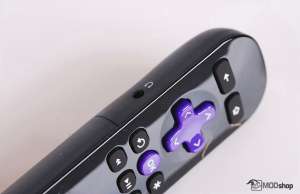
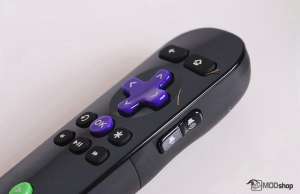
The remote has motion control (transmission via Wi-Fi Direct) and a headphone jack. The side volume buttons don’t seem to adjust the volume on your TV, but only the volume for the headphones. The Roku interface merely shows a volume icon with an exclamation mark next to it, which implies that something is wrong.
Using the Roku 3
Setting up the Roku requires you to have Internet access on another device to create accounts and authorize the device for different services. By default, a lot of free channels are selected. After you activate the device, you set it up via your PC’s web browser, which then pushes the downloads onto your Roku device.
We had to do similar setup steps for Netflix and Hulu. We already had a Hulu Plus account, and when we logged in and tried to activate the Roku, Hulu said that we needed an active subscription, and would gladly sell us one. It took about 30 minutes of fighting with the system before we got everything squared away.
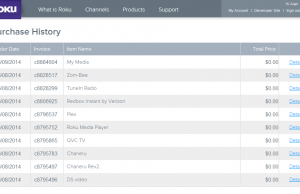
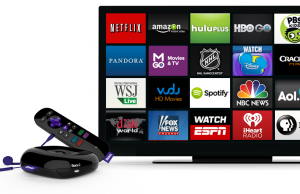
We had a hard time setting up additional channels we wanted. Channels on the Channel Store are hard to find because there is no “Search” functionality. We had to search for the channels via a web browser. Once we “Installed” the channel, it would not appear in our list, even after cycling the power.
The way to refresh the list was to scroll all the way down in the navigation menu and then scroll all the way back up to force a refresh. Bad usability, Roku. Bad.
The reason we wanted additional channels was so we could play the media on our networked file server. We downloaded Roku Media Player, Consoley, DS Video, and a few other channels to play our content, but all of them operate the same. The problem wasn’t connecting to a networked device; the problem is playing it. The Roku WILL ONLY PLAY ONE VIDEO CODEC (H.264).
This is a major, major, MAJOR deal-breaker for me and every Cable Cutter I know.


2 comments
You should look at Plex. It is based on XBMC, is easier to use, and has an app on Roku (as well as Android, iPhone/iPad, etc.). The Roku app is $4.99. Plex will transcode any media in your Plex library to a format that an app can handle. In other words, you can have AVI or WMV files in your Plex library, and it will realtime transcode them to H.264 for a Plex client running on a Roku.
Nate, I’m aware of Plex and mentioned that in the article. My point is that I shouldn’t have to have a 300W PC just sitting around to transcode video. If I wanted to do that then I’d do XBMC and have a PC transcode Hulu and Netflix.