

At first I didn’t have high expectations for a mouse with this price point, and then I actually laid my hand over it, and it felt very comfortable. I then plugged the mouse in and the scroll wheel and GX logo started “breathing” much like the Razer gaming mice do.
The mouse is rather short compared to other gaming mice, and has a nice futuristic look without being too gimmicky. There is a nice thumb rest, and much of the mouse has been rubberized for a good feel. The mouse wheel is notched and is very satisfying to use. The mouse cord is six feet long and covered in a cloth mesh.
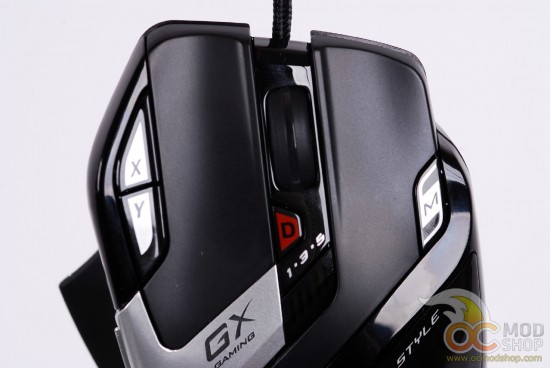
The mouse has nine programmable buttons:
- Left Click
- Right Click
- Center click
- Forward
- Backward
- X DPI adjust
- Y DPI adjust
- Macro
- DPI toggle
Like many gaming mice, you will probably leave most of these to their defaults in almost every situation. There are three candidates for useful reprogramming: the X-DPI, Y-DPI and Macro buttons. The DPI button (located under the mouse wheel) is depressed, which makes it hard to click accidentally, but also makes it a little inaccessible when playing games.
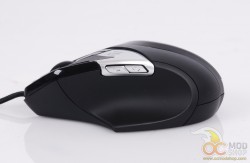
The thumb buttons are a little high and required a bit of a stretch to reach, but not so much that they are annoying to use. The X and Y buttons have a good placement, much like the buttons on the Logitech G700 mouse. The Macro button is a little out of the way so it isn’t accidentally activated, but is close enough to click with one’s ring finger.
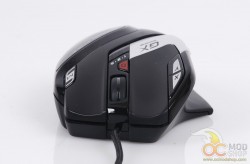
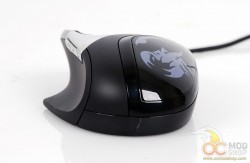
The indicator on the mouse that shows what setting you’re on is usually obscured by your hand. The DPI setting has 5 LEDs, but they are all the same color and cannot be changed, so it’s difficult to quickly identify which setting you’re on at any given moment. The scroll wheel LED (which can indicate which profile you’re on) is also hard to see. Thankfully, the mouse supports an on-screen display in the lower-left corner of your monitor whenever you change DPI setting (using the X, Y, or DPI switch buttons), and profile.
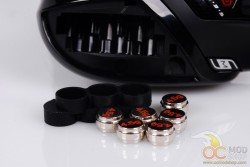
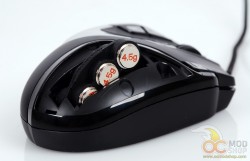
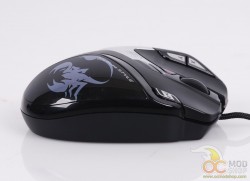
While this mouse is rather light, it features a compartment where one can add six additional 4.5-gram weights. The bottom left of the mouse features a printed scorpion, which is a door that hides this compartment. This door is secured with tiny clips and a magnet, so it’s relatively easy to slide off but won’t come off accidentally (unless you don’t clip it back properly). Inside the compartment is a rubber widget that one can load up the included weights.
Next we install the software and configure the mouse.

3 comments
sh*t.. mine died just like the one in your update info even with the same error "USB device is not recognized”… any info about this error? and possible solution (Win8-64bit)… thx
Looks like mine was dead. No way to revive. Just goes to show how cheap Chinese electronics may look cool at first, but then die.
mine is already on the way back to the dealer… I've tried 3 different OS's and 4 computers… It was not bad mouse at all, but dead after 4 months.. shame..
Comments are closed.