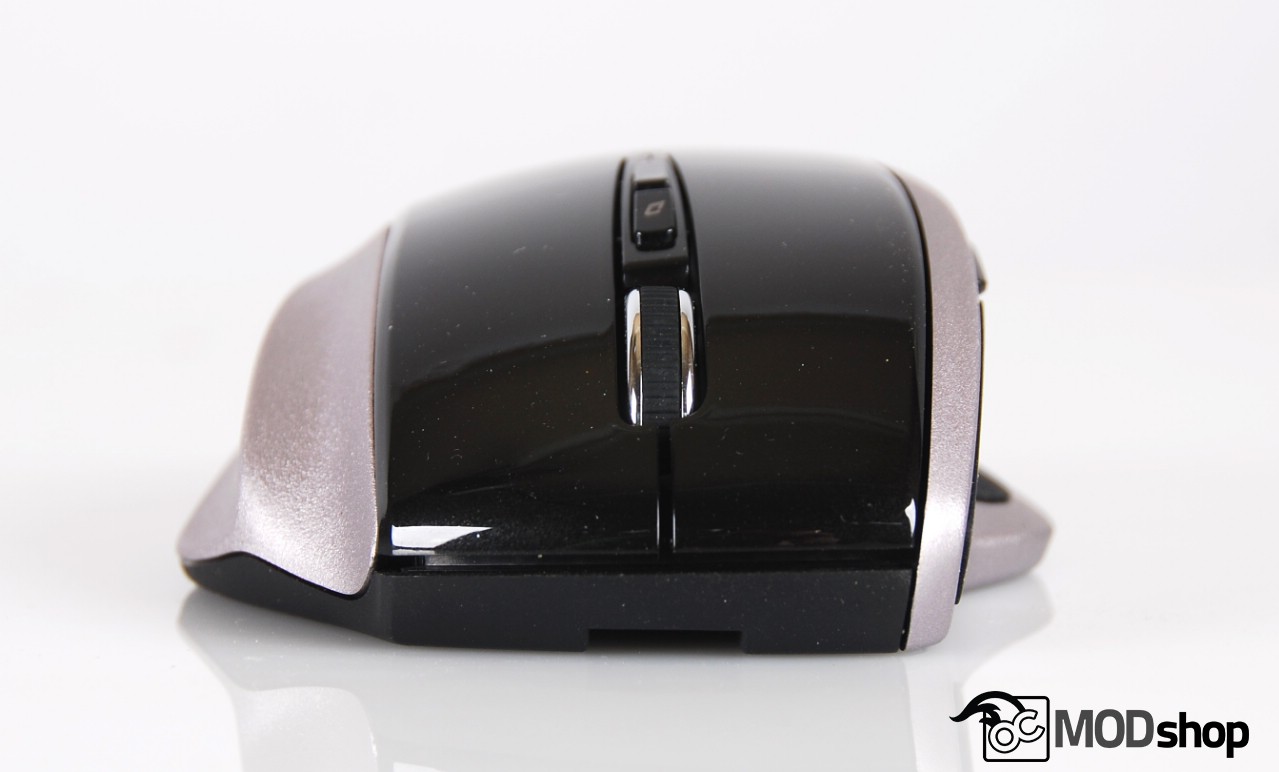
Below the scroll wheel are a dpi switching button and “Flying Scroll” button (not Flying Squirrel… I hate Squirrels). The bottom button doesn’t seem to change anything mechanical, but rather toggles the mouse mode to “free scrolling” which lets you scroll left, right, up, down, or even diagonally; similar to the mini trackball scroll mice that almost became popular a few years ago.
The bottom of the mouse is very wide. The top has a little notch for mounting the included laptop clip. There is also an on/off switch, IR sensor, and latching door for the battery compartment. Two AA alkaline batteries (included in the package) are both inserted with the same orientation (both positive ends face the same way) which is unlike most other consumer devices.
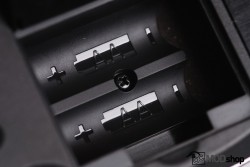

Kudos to engineers for having common sense to move a wire around instead of making consumers decipher a faded diagram to install batteries correctly. The wireless USB host can also be stored here, a feature similar to Logitech’s mice. The USB host unit does not fit snugly but doesn’t rattle around inside the chamber, either.
Wireless receiver
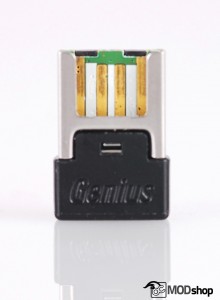
The wireless USB Pico receiver is just as thin as Logitech’s multi-purpose hub but slightly longeruioiuolkjh. The shaft of the USB connector has been cut out so that it can fit on the mouse’s bottom, but this exposes the connector’s contacts and circuit board, which looks cheap. There are no other markings on the hub. Thankfully the hub doesn’t stick our when installed, which is good news for laptop users.
Where are the drivers?
No software is included with the mouse, although the manual does state that it should be downloaded from the Genius website. The problem is, the driver does not exist on their website (http://www.geniusnet.com), or anywhere else on the Internet that I can find.
I was hoping to use the driver to change the default behavior of the mouse to turn off the Windows 8 mode for gaming, but it doesn’t look like this mouse offers any customization at all.