
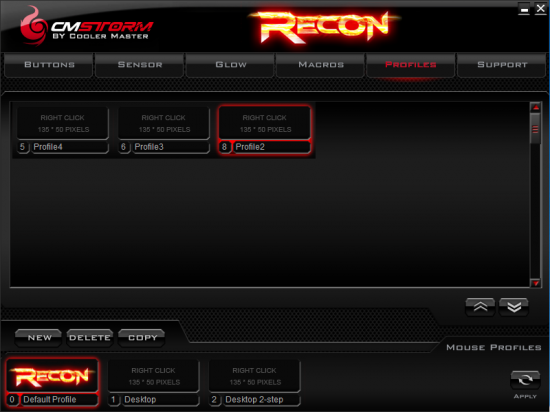
Profiles tab
This allows you to create and manage additional profiles. You can move mouse profiles from the bottom of the screen to the main content area using the arrow buttons on the bottom-right of the screen. This way you can have more than 5 profiles and then copy them to your mouse whenever you like. Double-clicking on the name of any profile makes it editable so you can set a custom name.
Unfortunately, you have to add them in the order you want them to appear in your mouse. The first time you drag a profile down, it fills the next profile slot. If you want a particular profile to be in position 1, then you have to move all of your profiles to the save area, and then move the profile you want back to the mouse so it will take the first profile position.
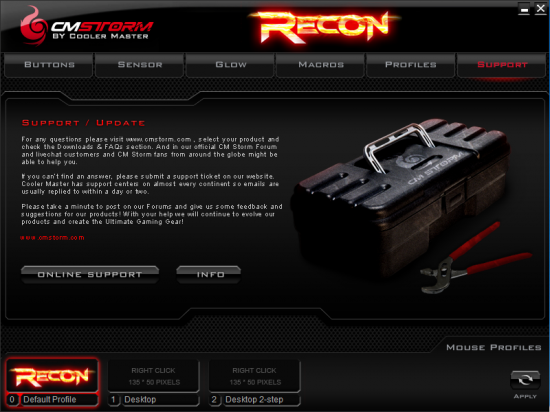
Support tab
The support tab has a link to the driver page and hardware information about the mouse.
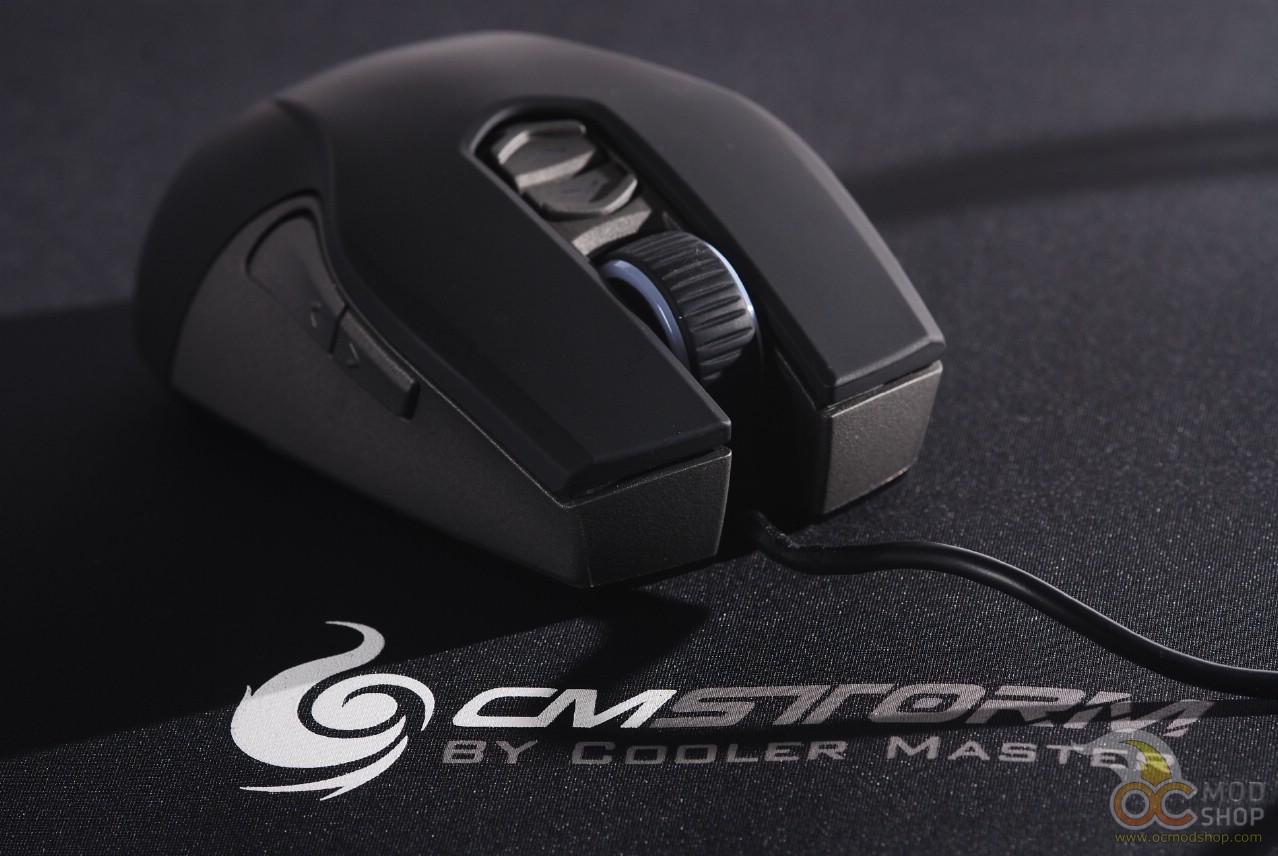
While you can assign buttons to change the profile, there is not a “profile toggle” option, which means you have to use two buttons to cycle through all of the profiles. As it stands, if you press the “profile +” button then you are stuck there unless you press the “profile –“ button.
It is very easy to get stuck in a profile unless you have the software installed, which kind of defeats the purpose of having onboard memory. Unless you assign a “profile +” and “profile –“ on each profile then you can very easily lock yourself into a profile.
On the next page we render our verdict…


1 comment
I like this mouse. Nicey nice.
Comments are closed.