
Since your Media Center is set up to be an appliance, there’s no need to login every time it boots. You can easily enable auto-login without any additional software. Read our guide on how to enable auto-login in Vista.
Setup network shares
It’s a lot easier to edit and compress Recorded TV on another workstation than on the Media Center PC, so you should set up network shares for other PCs to see your new central media depository.
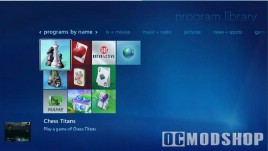
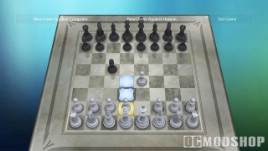
Vista’s games can be controlled with your remote
Previously in Windows XP you had to find and disable “Simple File Sharing” to share anything more than a pre-defined system folder. Now sharing directories in Vista is much easier. Just right-click the folder to share and select Properties. On the dialog window, there are two buttons: share and Advanced Sharing. Click on Advanced Sharing and select the options you want (on my network I let Everyone read, but only Administrators can write). This allows you to extract media off for editing, and push edited media onto the box.
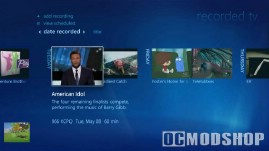
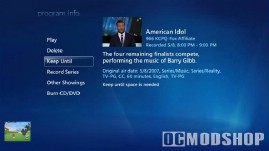
Browsing and launching American Idol from Recorded TV 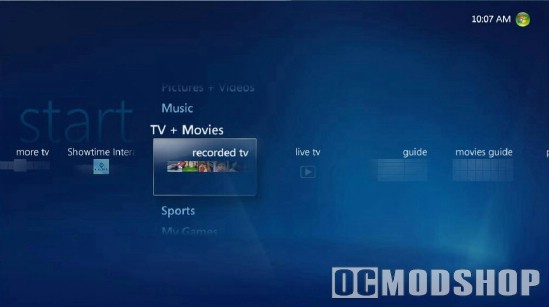
The main interface
Choose your codecs
Microsoft would love for everyone to use Windows Media for all of our videos, but this just isn’t a reality. Many of us “acquired” audio and video from other parties, and they use various different codecs.
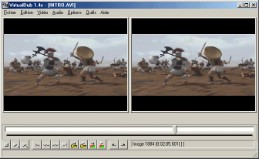
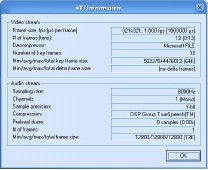
The most popular of these are Divx and Xvid. You may also need to download and install some audio codecs for your videos to play properly, such as AC3. Vista likes to create thumbnails for all of its videos, so if the codec isn’t installed, then you’ll get an error “COM Surrogate has stopped working” or similar cryptic error (but Media Center just crashes without any explanation). If you get any weird errors when navigating to any directory where videos are found, then there’s a file in there using a codec that isn’t installed.
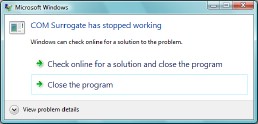
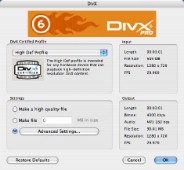
To determine which codec you need, try to find the offending video file (it’s probably the one without a thumbnail) and pull it into VirtualDub. Click on File, File Information, and you’ll see the error code for the missing audio or video codec. Search this error code in Google and you’ll probably find the codec you need. Most of the time if you install Xvid, Divx, and AC3 then you’ll have most of the bases covered. Make sure you get the latest version of these files, as older versions do not work in Vista.
Software DVD player?
Media Center 2005 required a third-party MPEG decoder, mostly due to licensing issues that MS didn’t want to deal with. Many of these codecs were included in third-party software DVD players (like PowerDVD and WinDVD).
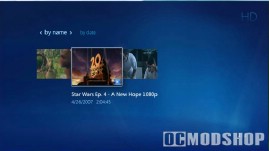



Star Wars in 1080p plays smoothly
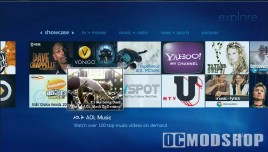
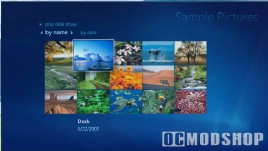
Some of the extras in Vista’s Media Center
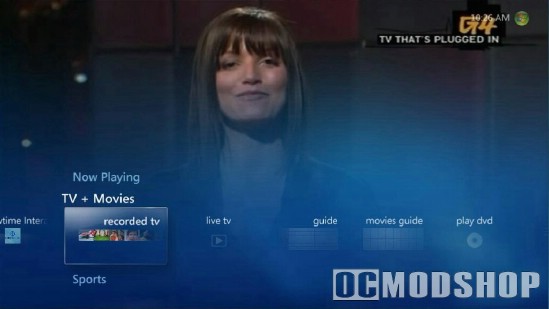
The main interface is compacted while watching a program
Finding the right codec was an absolute nightmare. Some decoders were better than others, some had hardware support that only worked on certain video cards, and the system was flaky overall… nVidia’s PureVideo technology is nice, but is only enabled when using nVidia’s MPEG decoder (available for a nominal fee), and many people had problems with it crashing on several 6×00 boards. Depending on the audio and video combination, users would experience audio dropouts, video sync problems, and even random crashes… things that an expensive appliance should not do.
Microsoft has finally included their own MPEG decoder for audio and video with Vista Media Center. Since MS controls the codec, you no longer get those annoying “the broadcaster has restricted playback on this PC” messages. The decoder also does a lot of things automatically, so there are no complicated settings to mess up. If you set up Media Center to use digital output and select 5.1 speakers, then it will output Dolby Digital over SPDIF whenever it encounters the stream. If you configure it to use digital output and only specify 2 speakers, then it will only output a stereo PCM stream.
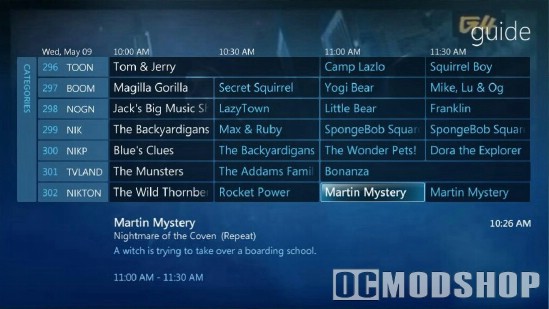
Your video is now full-screen behind the new Guide
Before I figured this trick out, I had a hard time getting audio to work properly. I had installed PowerDVD 7 (which was my codec of choice on Media Center 2005) and had audio and video sync problems, even when I hacked Media Center to use PowerDVD’s codecs. You no longer have to install a software DVD player to play DVDs in Vista Media Center; in fact this third-party software can actually interfere.
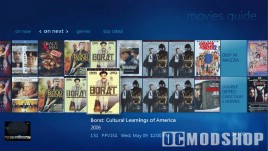
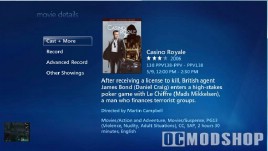
Finding movies is alot easier
I’m not sure if Microsoft’s MPEG decoder uses hardware acceleration (PowerDVD 7 detects ATI’s AVIVIO and nVidia’s PureVideo automatically), but video runs smoothly and looks as good as any other codec. Even high-definition 1080p files played smoothly on an Athlon 3000+.
In summary: Just use the default Microsoft MPEG decoder. It’s free and works great.

